> ## Documentation Index
> Fetch the complete documentation index at: https://docs.beam.ai/llms.txt
> Use this file to discover all available pages before exploring further.
# Welcome to Beam
> Build production-ready AI agents that automate complex workflows with autonomous decision-making
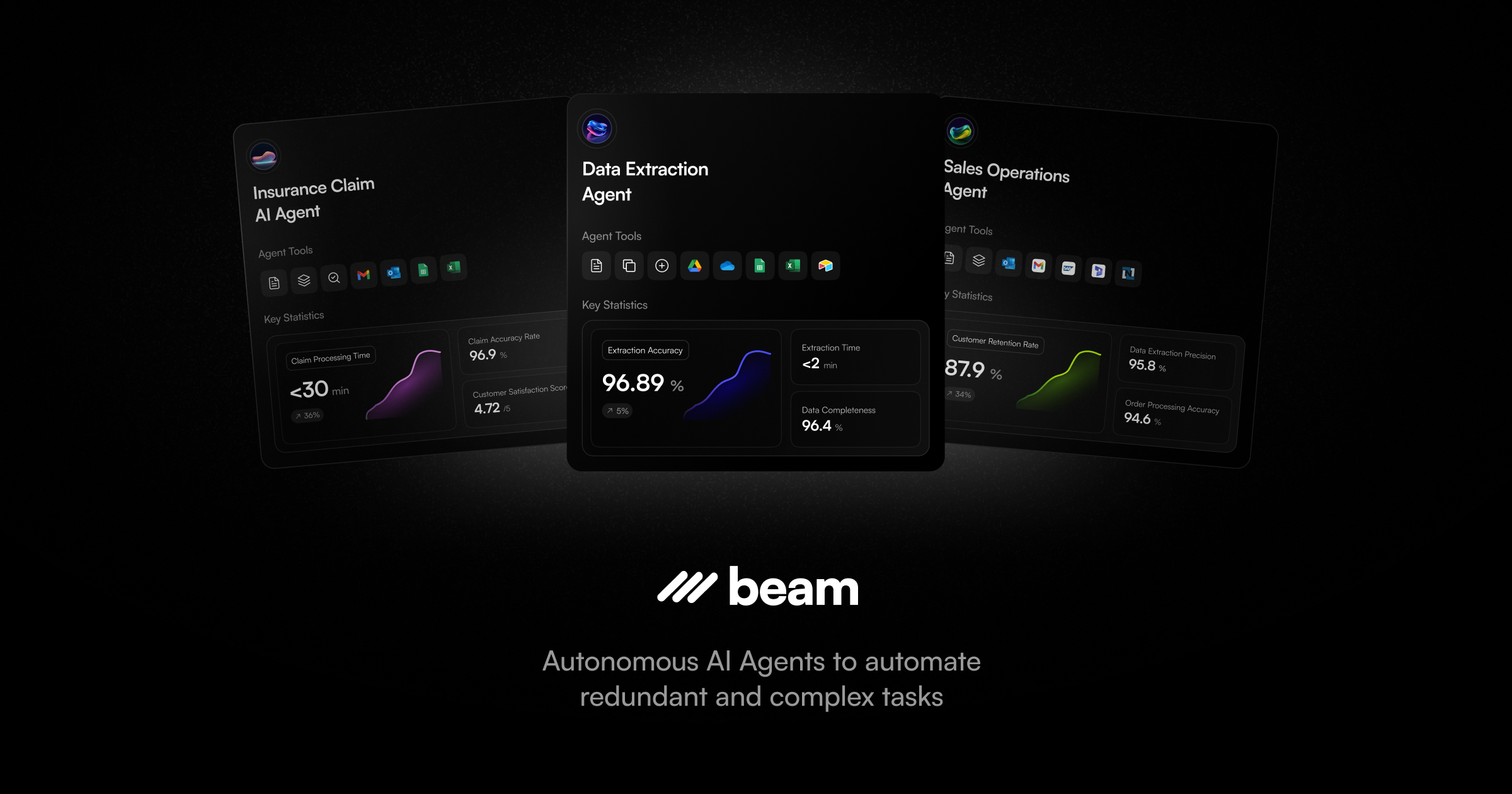
Beam is the **first vertically integrated platform for production AI agents**—eliminating the integration complexity that typically consumes 60% of development time. Build intelligent agents that handle complex workflows autonomously, learn from feedback, and continuously improve.
 ## Get Started
Deploy your first agent in under 10 minutes
Start from pre-built templates for common workflows
Learn fundamental Beam concepts
Configure integrations and team access
## Platform Capabilities
Templates, chat-based AI, or visual workflow builder
Pre-built connectors and custom APIs
Agents optimize through feedback and continuous learning
Real-time tracking with optimization insights
Self-hosted, managed, or full SaaS
Compliance, audit logs, and team collaboration
## Why Beam is Different
**Complete Integration Stack**: Integrated LLM infrastructure, agent framework, integrations, and monitoring in a single platform with shared authentication and context.
**Self-Learning Agents**: Agents improve through task mining, feedback integration, and node-level self-evaluation.
**Production-Ready**: Security, compliance, monitoring, and scaling built-in from day one.
## Common Use Cases
* **Customer Service**: Intelligent routing, automated responses, escalation management
* **Sales Operations**: Lead qualification, follow-ups, pipeline management, CRM enrichment
* **Data Processing**: Document extraction, analysis, report generation, validation
***
## Explore the Platform
Create and configure agents with flows, tools, and integrations
Execute tasks, manage automation, and monitor performance
Track agent execution and analyze performance metrics
Team management, SSO setup, and platform resources
## Get Started
Deploy your first agent in under 10 minutes
Start from pre-built templates for common workflows
Learn fundamental Beam concepts
Configure integrations and team access
## Platform Capabilities
Templates, chat-based AI, or visual workflow builder
Pre-built connectors and custom APIs
Agents optimize through feedback and continuous learning
Real-time tracking with optimization insights
Self-hosted, managed, or full SaaS
Compliance, audit logs, and team collaboration
## Why Beam is Different
**Complete Integration Stack**: Integrated LLM infrastructure, agent framework, integrations, and monitoring in a single platform with shared authentication and context.
**Self-Learning Agents**: Agents improve through task mining, feedback integration, and node-level self-evaluation.
**Production-Ready**: Security, compliance, monitoring, and scaling built-in from day one.
## Common Use Cases
* **Customer Service**: Intelligent routing, automated responses, escalation management
* **Sales Operations**: Lead qualification, follow-ups, pipeline management, CRM enrichment
* **Data Processing**: Document extraction, analysis, report generation, validation
***
## Explore the Platform
Create and configure agents with flows, tools, and integrations
Execute tasks, manage automation, and monitor performance
Track agent execution and analyze performance metrics
Team management, SSO setup, and platform resources