> ## Documentation Index
> Fetch the complete documentation index at: https://docs.beam.ai/llms.txt
> Use this file to discover all available pages before exploring further.
# Rerunning Tasks
> Re-execute tasks for debugging, testing workflow changes, backtesting prompt improvements, and validating agent performance
Rerunning tasks allows you to re-execute completed or failed workflows with the same inputs, test modifications, or start from a specific step. This is essential for debugging, validating changes, and demonstrating improvements.
## Understanding Task Reruns
Every completed task can be re-executed to verify behavior, test changes, or debug issues. Beam provides multiple rerun strategies:
**Full Task Rerun** - Re-execute entire workflow from start with original trigger data
**Step-Level Rerun** - Restart from specific node for targeted debugging
**Auto-Rerun** - Automatically retry steps that fail evaluation criteria
**Batch Rerun** - Re-process multiple tasks to backtest prompt or workflow improvements
## Manual Task Rerun
Re-execute any completed or failed task to test changes or debug issues.
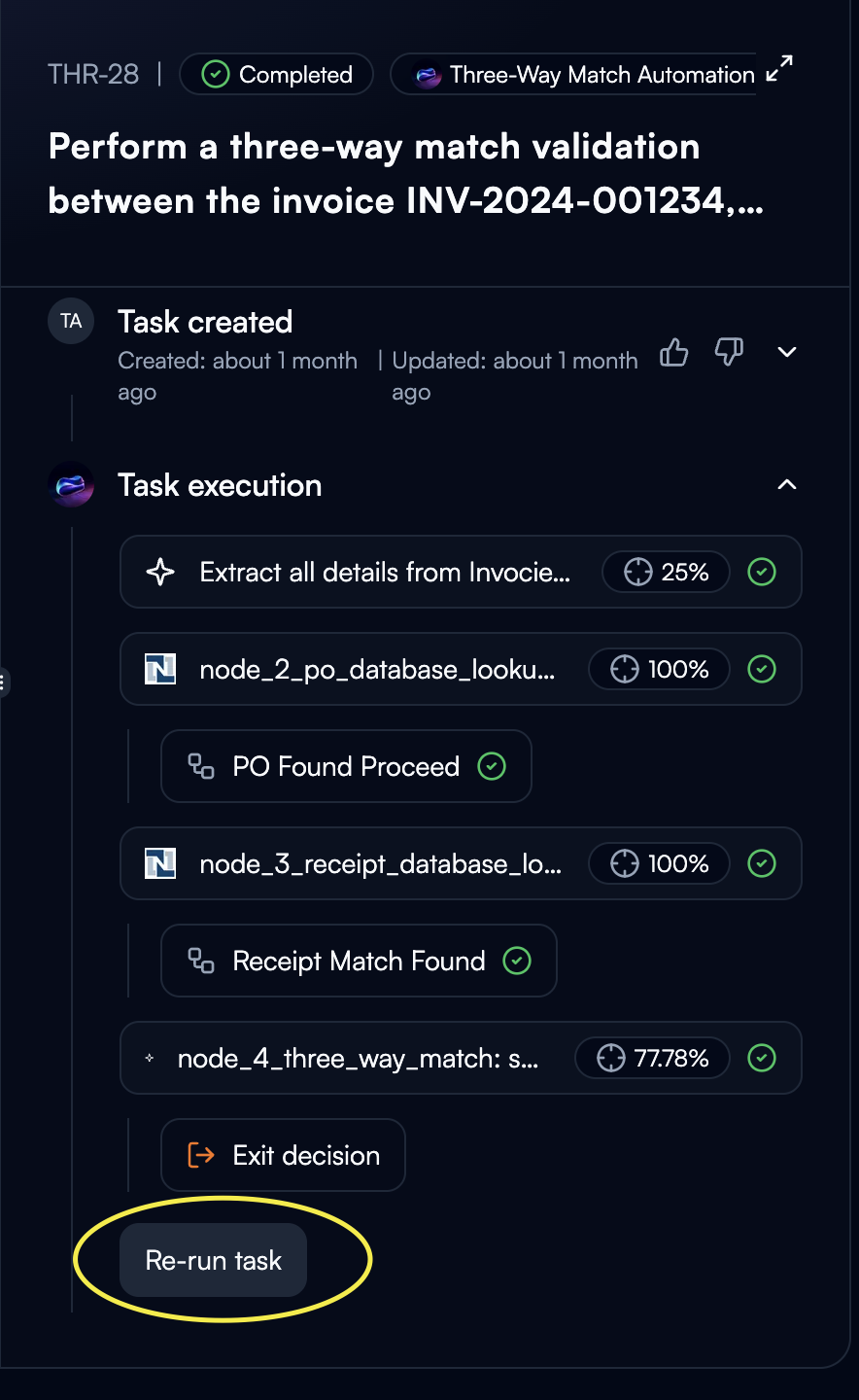 **Accessing Rerun:**
1. Navigate to task execution details in Tasks page
2. Scroll to bottom of execution timeline
3. Click **"Re-run task"** button below workflow steps
**What Happens:**
* Workflow re-executes with identical trigger input (`task_query`)
* All file attachments from original task preserved
* New execution creates separate task record
* Original task remains unchanged for comparison
**Testing Workflow Changes:**
* Modified node configurations or prompts
* Updated evaluation criteria
* Changed tool selections
* Added or removed nodes
**Debugging Failures:**
* Task failed due to transient error (API timeout, network issue)
* Integration temporarily unavailable
* Want to verify fix worked
**Demonstrating Improvements:**
* Show before/after results to stakeholders
* Validate optimization impact
* Compare agent performance over time
**Preserved Elements:**
* Original trigger input data (task\_query)
* File attachments uploaded with task
* Variable configurations
**Fresh Execution:**
* New timestamps and task ID
* Current workflow configuration (reflects any edits made)
* Latest tool versions and integrations
* Updated evaluation criteria
**Important:** Rerun uses current published workflow, not the version from original execution.
## Step-Level Rerun
Restart workflow from a specific node instead of beginning, useful for debugging failed steps.
**Accessing Rerun:**
1. Navigate to task execution details in Tasks page
2. Scroll to bottom of execution timeline
3. Click **"Re-run task"** button below workflow steps
**What Happens:**
* Workflow re-executes with identical trigger input (`task_query`)
* All file attachments from original task preserved
* New execution creates separate task record
* Original task remains unchanged for comparison
**Testing Workflow Changes:**
* Modified node configurations or prompts
* Updated evaluation criteria
* Changed tool selections
* Added or removed nodes
**Debugging Failures:**
* Task failed due to transient error (API timeout, network issue)
* Integration temporarily unavailable
* Want to verify fix worked
**Demonstrating Improvements:**
* Show before/after results to stakeholders
* Validate optimization impact
* Compare agent performance over time
**Preserved Elements:**
* Original trigger input data (task\_query)
* File attachments uploaded with task
* Variable configurations
**Fresh Execution:**
* New timestamps and task ID
* Current workflow configuration (reflects any edits made)
* Latest tool versions and integrations
* Updated evaluation criteria
**Important:** Rerun uses current published workflow, not the version from original execution.
## Step-Level Rerun
Restart workflow from a specific node instead of beginning, useful for debugging failed steps.
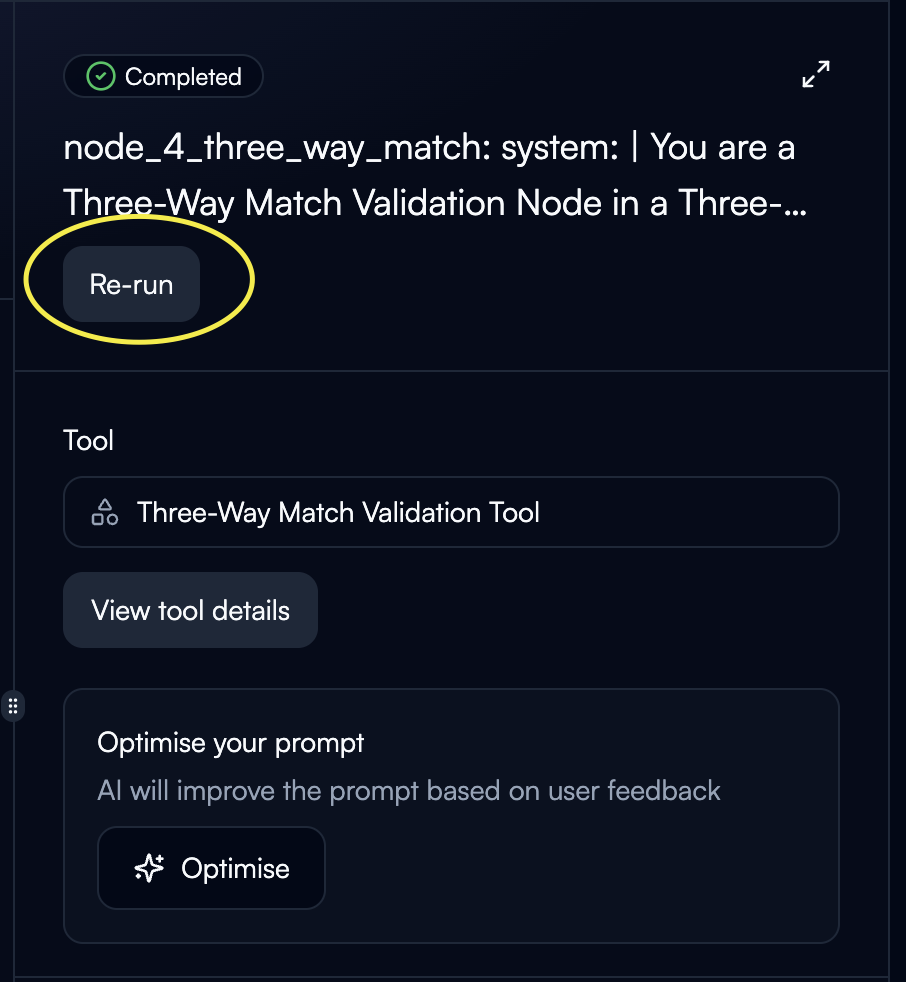 **Accessing Step Rerun:**
1. Click on any workflow step in execution timeline
2. Locate **"Re-run"** button in step detail panel
3. Click to re-execute from this node forward
**Use Cases:**
**Debugging Failed Step:**
* Step failed validation or returned error
* Made changes to node configuration
* Want to test fix without re-running earlier steps
**Testing Step Modifications:**
* Updated prompt for specific node
* Changed tool selection
* Modified evaluation criteria for this step
**Prompt Optimization:**
* Used "Optimise your prompt" feature
* Want to compare improved vs original prompt
* Validate AI-suggested improvements
**What Gets Preserved:**
* All outputs from steps before the rerun point
* Original trigger data (task\_query)
* File attachments
**What Gets Re-Executed:**
* Selected step and all subsequent nodes
* Branch decisions after rerun point
* Evaluation criteria for re-executed steps
**Example:**
Workflow has 6 steps. Step 4 failed validation. After fixing step 4 configuration:
* Steps 1-3: Use outputs from original execution
* Steps 4-6: Re-execute with updated configuration
After clicking "Optimise your prompt":
**AI Analysis:**
* Reviews failed task execution
* Analyzes evaluation criteria not met
* Identifies prompt weaknesses
* Suggests specific improvements
**Optimise Button:**
* Applies AI-suggested prompt changes
* Automatically reruns step with new prompt
* Compares results before/after
* Shows improvement in evaluation scores
## Auto-Rerun Configuration
Automatically retry steps that don't meet evaluation thresholds without manual intervention.
**Accessing Step Rerun:**
1. Click on any workflow step in execution timeline
2. Locate **"Re-run"** button in step detail panel
3. Click to re-execute from this node forward
**Use Cases:**
**Debugging Failed Step:**
* Step failed validation or returned error
* Made changes to node configuration
* Want to test fix without re-running earlier steps
**Testing Step Modifications:**
* Updated prompt for specific node
* Changed tool selection
* Modified evaluation criteria for this step
**Prompt Optimization:**
* Used "Optimise your prompt" feature
* Want to compare improved vs original prompt
* Validate AI-suggested improvements
**What Gets Preserved:**
* All outputs from steps before the rerun point
* Original trigger data (task\_query)
* File attachments
**What Gets Re-Executed:**
* Selected step and all subsequent nodes
* Branch decisions after rerun point
* Evaluation criteria for re-executed steps
**Example:**
Workflow has 6 steps. Step 4 failed validation. After fixing step 4 configuration:
* Steps 1-3: Use outputs from original execution
* Steps 4-6: Re-execute with updated configuration
After clicking "Optimise your prompt":
**AI Analysis:**
* Reviews failed task execution
* Analyzes evaluation criteria not met
* Identifies prompt weaknesses
* Suggests specific improvements
**Optimise Button:**
* Applies AI-suggested prompt changes
* Automatically reruns step with new prompt
* Compares results before/after
* Shows improvement in evaluation scores
## Auto-Rerun Configuration
Automatically retry steps that don't meet evaluation thresholds without manual intervention.
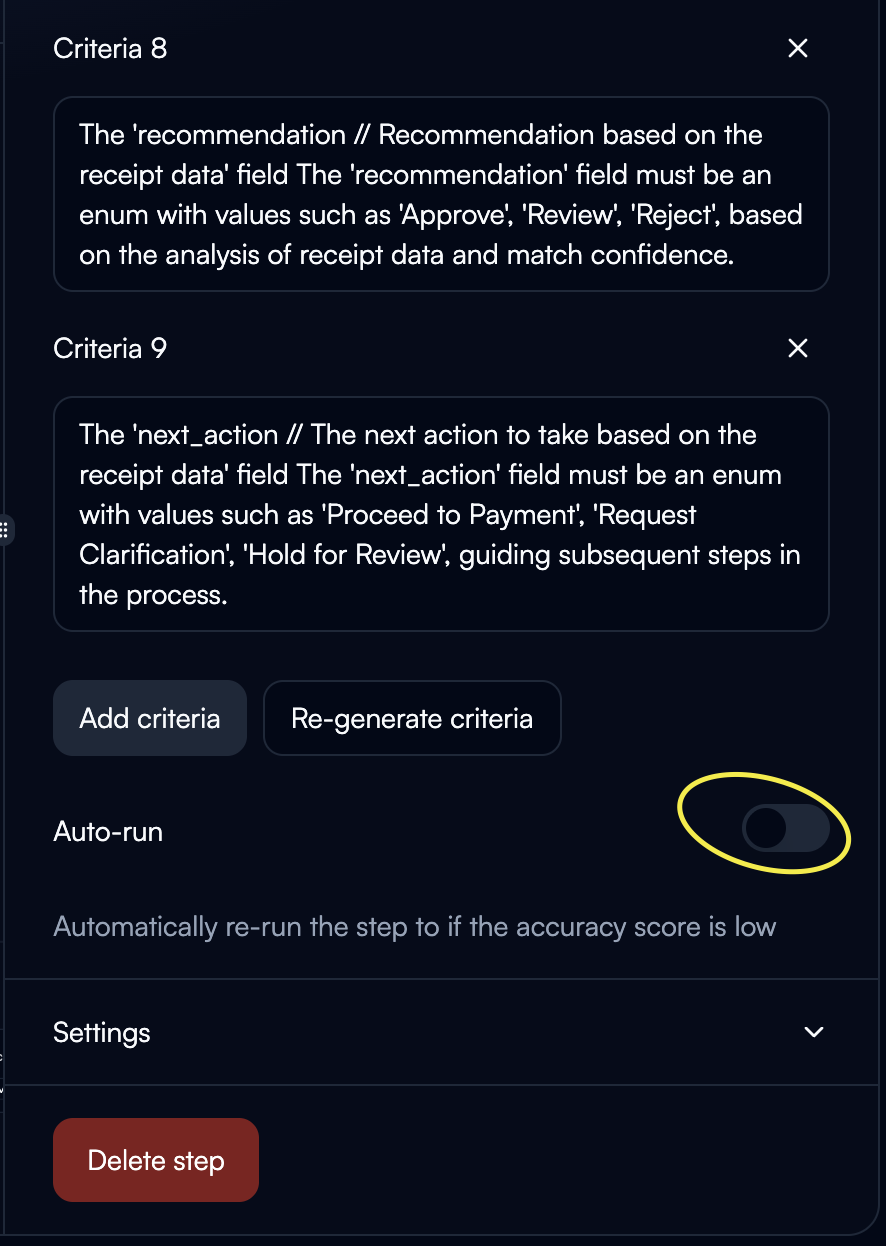 **Accessing Auto-Rerun:**
1. Open workflow in Flow builder
2. Click on node to configure
3. Scroll to **"Auto-run"** toggle in right panel
4. Enable toggle (currently disabled in screenshot)
**Accessing Auto-Rerun:**
1. Open workflow in Flow builder
2. Click on node to configure
3. Scroll to **"Auto-run"** toggle in right panel
4. Enable toggle (currently disabled in screenshot)
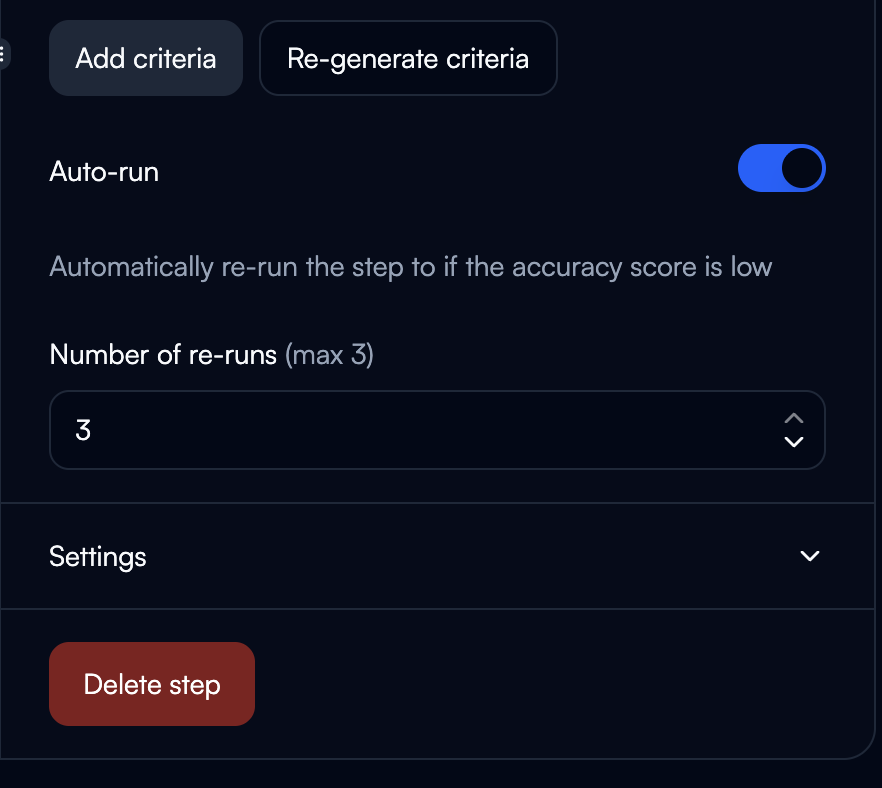 **Configuration Options:**
**Auto-run Toggle:** Enable automatic retry when accuracy score is low
**Number of Re-runs:** Set maximum retry attempts (max 3)
**Trigger Condition:** "Automatically re-run the step if the accuracy score is low"
**Evaluation-Based Triggering:**
1. Node executes and generates output
2. Evaluation criteria assess accuracy
3. If score below threshold → Auto-rerun triggered
4. Step re-executes with same input
5. Repeat until passing score or max retries reached
**Example:**
* Evaluation threshold: 90%
* First execution: 75% (fails)
* Auto-rerun 1: 85% (fails)
* Auto-rerun 2: 92% (passes)
* Workflow continues with passing output
**When to Enable:**
* Steps with non-deterministic outputs (GPT-based extraction)
* Classification tasks requiring high confidence
* Data extraction from inconsistent formats
* Steps where retry often improves results
**When NOT to Enable:**
* Deterministic operations (API calls with fixed responses)
* Steps failing due to missing data (retries won't help)
* Integration errors requiring manual fix
* Final output steps (may need human review instead)
**Optimal Configuration:**
* Max 2-3 retries (more rarely helps)
* Clear evaluation criteria (specific, measurable)
* Monitor retry frequency (high retries indicate prompt issues)
**Auto-Rerun:**
* Happens during task execution automatically
* Triggered by evaluation scores
* No human intervention required
* Limited to configured max retries
* Single step only, not full workflow
**Manual Rerun:**
* Initiated by user after task completes
* Can rerun full task or from specific step
* Unlimited reruns available
* Useful for testing changes made after execution
* Demonstrates improvements to stakeholders
## Workflow Context for Reruns
Auto-rerun configuration appears in flow builder alongside evaluation criteria.
**Configuration Options:**
**Auto-run Toggle:** Enable automatic retry when accuracy score is low
**Number of Re-runs:** Set maximum retry attempts (max 3)
**Trigger Condition:** "Automatically re-run the step if the accuracy score is low"
**Evaluation-Based Triggering:**
1. Node executes and generates output
2. Evaluation criteria assess accuracy
3. If score below threshold → Auto-rerun triggered
4. Step re-executes with same input
5. Repeat until passing score or max retries reached
**Example:**
* Evaluation threshold: 90%
* First execution: 75% (fails)
* Auto-rerun 1: 85% (fails)
* Auto-rerun 2: 92% (passes)
* Workflow continues with passing output
**When to Enable:**
* Steps with non-deterministic outputs (GPT-based extraction)
* Classification tasks requiring high confidence
* Data extraction from inconsistent formats
* Steps where retry often improves results
**When NOT to Enable:**
* Deterministic operations (API calls with fixed responses)
* Steps failing due to missing data (retries won't help)
* Integration errors requiring manual fix
* Final output steps (may need human review instead)
**Optimal Configuration:**
* Max 2-3 retries (more rarely helps)
* Clear evaluation criteria (specific, measurable)
* Monitor retry frequency (high retries indicate prompt issues)
**Auto-Rerun:**
* Happens during task execution automatically
* Triggered by evaluation scores
* No human intervention required
* Limited to configured max retries
* Single step only, not full workflow
**Manual Rerun:**
* Initiated by user after task completes
* Can rerun full task or from specific step
* Unlimited reruns available
* Useful for testing changes made after execution
* Demonstrates improvements to stakeholders
## Workflow Context for Reruns
Auto-rerun configuration appears in flow builder alongside evaluation criteria.
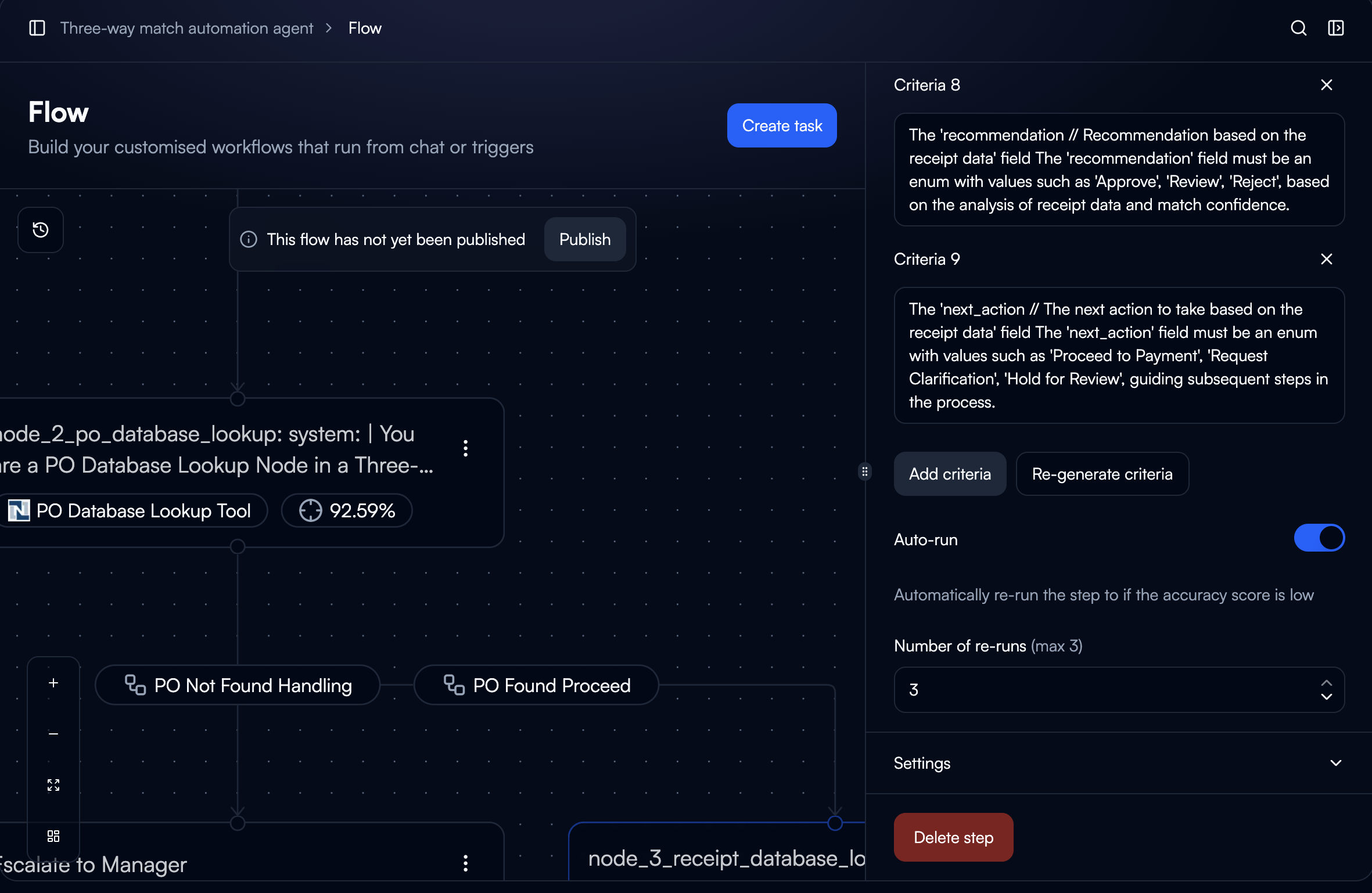 **Flow Builder Integration:**
* Left: Visual workflow with nodes and branches
* Right: Node configuration panel showing:
* Evaluation criteria (Criteria 8, Criteria 9)
* "Add criteria" and "Re-generate criteria" buttons
* Auto-run toggle and settings
* Settings dropdown for advanced options
**Visual Indicators:**
* Tool used displayed in node (e.g., "PO Database Lookup Tool")
* Accuracy percentage shown (e.g., "92.59%")
* Branch paths labeled (e.g., "PO Not Found Handling", "PO Found Proceed")
## Backtesting Prompt Changes
Re-execute multiple tasks to validate prompt improvements across representative data set.
**Backtesting Workflow:**
Identify 10-20 tasks representing common scenarios, edge cases, and failure patterns. Mark or note task IDs for batch rerun.
Update node prompts, evaluation criteria, or tool configurations based on identified improvements.
Execute rerun on each saved task individually. Beam creates new execution records for comparison.
Review evaluation scores before/after changes. Calculate improvement rate: tasks that now pass vs previously failed.
If improvement meets targets (e.g., 90%+ success rate), publish workflow changes to production.
**Criteria for Good Backtest Set:**
* **Variety**: Cover all workflow branches and scenarios
* **Failures**: Include tasks that previously failed
* **Edge Cases**: Unusual data formats or inputs
* **Success Cases**: Verify changes don't break working scenarios
* **Recent Data**: Reflects current data patterns
**Recommended Size:**
* Minimum: 10 tasks for basic validation
* Optimal: 20-30 tasks for comprehensive testing
* Large Changes: 50+ tasks for major overhauls
**Key Metrics:**
**Accuracy Improvement:**
* Before: Average evaluation score across backtest set
* After: Average evaluation score after prompt changes
* Target: 10-20% improvement in scores
**Failure Reduction:**
* Before: Number of tasks failing evaluation
* After: Number of tasks failing after changes
* Target: 50%+ reduction in failures
**Consistency:**
* Standard deviation of evaluation scores
* Lower = more consistent performance
* Target: Reduced variance in results
**Regression Check:**
* Previously passing tasks still pass
* No new failures introduced
* Target: Zero regression on working cases
**Prompt Optimization:**
* Tested new extraction prompts on 15 invoices
* Accuracy improved from 78% to 93%
* Reduced "amount" field extraction errors by 60%
**Evaluation Criteria Tuning:**
* Adjusted confidence thresholds
* Retested on 25 classification tasks
* Improved precision without sacrificing recall
**Tool Configuration Changes:**
* Modified API parameters for data lookup
* Reran 20 validation workflows
* Reduced timeout errors from 15% to 2%
## Best Practices
**Create Task Libraries:**
* Save 10-20 representative tasks per agent
* Cover all workflow branches
* Include both successes and failures
* Update quarterly with new patterns
**Organization:**
* Label tasks by scenario type
* Note which branch/node they test
* Document expected outcomes
* Track when last used for backtesting
**Systematic Comparison:**
* Keep original execution visible
* Note evaluation score changes
* Review output quality differences
* Document unexpected behavior
**Metrics to Track:**
* Execution time (faster/slower?)
* Evaluation scores (improved/degraded?)
* Branch selections (changed logic?)
* Tool errors (more/fewer issues?)
**When to Use:**
* Early steps succeeded, later step failed
* Testing changes to specific node
* Debugging isolated step issues
* Validating prompt optimization
**Efficiency Gains:**
* Faster than full workflow rerun
* Preserves earlier step outputs
* Saves API calls and execution time
* Focuses testing on changed components
**Warning Signs:**
* Step frequently uses all 3 retries
* Auto-reruns happen on >30% of tasks
* Retries rarely improve scores
* Execution time significantly increased
**Action Items:**
* Review and improve evaluation criteria
* Optimize prompts causing frequent retries
* Consider if data quality is issue
* Disable auto-rerun if not helping
**What to Track:**
* Which tasks were rerun and why
* Changes made before rerun
* Before/after evaluation scores
* Whether change solved the issue
**Benefits:**
* Proves ROI of optimization work
* Identifies patterns in failures
* Guides future improvements
* Demonstrates value to stakeholders
## Next Steps
Monitor task execution results before rerunning
Configure evaluation criteria triggering auto-reruns
Use AI-powered prompt optimization before rerunning
Leverage debugging features alongside reruns
**Flow Builder Integration:**
* Left: Visual workflow with nodes and branches
* Right: Node configuration panel showing:
* Evaluation criteria (Criteria 8, Criteria 9)
* "Add criteria" and "Re-generate criteria" buttons
* Auto-run toggle and settings
* Settings dropdown for advanced options
**Visual Indicators:**
* Tool used displayed in node (e.g., "PO Database Lookup Tool")
* Accuracy percentage shown (e.g., "92.59%")
* Branch paths labeled (e.g., "PO Not Found Handling", "PO Found Proceed")
## Backtesting Prompt Changes
Re-execute multiple tasks to validate prompt improvements across representative data set.
**Backtesting Workflow:**
Identify 10-20 tasks representing common scenarios, edge cases, and failure patterns. Mark or note task IDs for batch rerun.
Update node prompts, evaluation criteria, or tool configurations based on identified improvements.
Execute rerun on each saved task individually. Beam creates new execution records for comparison.
Review evaluation scores before/after changes. Calculate improvement rate: tasks that now pass vs previously failed.
If improvement meets targets (e.g., 90%+ success rate), publish workflow changes to production.
**Criteria for Good Backtest Set:**
* **Variety**: Cover all workflow branches and scenarios
* **Failures**: Include tasks that previously failed
* **Edge Cases**: Unusual data formats or inputs
* **Success Cases**: Verify changes don't break working scenarios
* **Recent Data**: Reflects current data patterns
**Recommended Size:**
* Minimum: 10 tasks for basic validation
* Optimal: 20-30 tasks for comprehensive testing
* Large Changes: 50+ tasks for major overhauls
**Key Metrics:**
**Accuracy Improvement:**
* Before: Average evaluation score across backtest set
* After: Average evaluation score after prompt changes
* Target: 10-20% improvement in scores
**Failure Reduction:**
* Before: Number of tasks failing evaluation
* After: Number of tasks failing after changes
* Target: 50%+ reduction in failures
**Consistency:**
* Standard deviation of evaluation scores
* Lower = more consistent performance
* Target: Reduced variance in results
**Regression Check:**
* Previously passing tasks still pass
* No new failures introduced
* Target: Zero regression on working cases
**Prompt Optimization:**
* Tested new extraction prompts on 15 invoices
* Accuracy improved from 78% to 93%
* Reduced "amount" field extraction errors by 60%
**Evaluation Criteria Tuning:**
* Adjusted confidence thresholds
* Retested on 25 classification tasks
* Improved precision without sacrificing recall
**Tool Configuration Changes:**
* Modified API parameters for data lookup
* Reran 20 validation workflows
* Reduced timeout errors from 15% to 2%
## Best Practices
**Create Task Libraries:**
* Save 10-20 representative tasks per agent
* Cover all workflow branches
* Include both successes and failures
* Update quarterly with new patterns
**Organization:**
* Label tasks by scenario type
* Note which branch/node they test
* Document expected outcomes
* Track when last used for backtesting
**Systematic Comparison:**
* Keep original execution visible
* Note evaluation score changes
* Review output quality differences
* Document unexpected behavior
**Metrics to Track:**
* Execution time (faster/slower?)
* Evaluation scores (improved/degraded?)
* Branch selections (changed logic?)
* Tool errors (more/fewer issues?)
**When to Use:**
* Early steps succeeded, later step failed
* Testing changes to specific node
* Debugging isolated step issues
* Validating prompt optimization
**Efficiency Gains:**
* Faster than full workflow rerun
* Preserves earlier step outputs
* Saves API calls and execution time
* Focuses testing on changed components
**Warning Signs:**
* Step frequently uses all 3 retries
* Auto-reruns happen on >30% of tasks
* Retries rarely improve scores
* Execution time significantly increased
**Action Items:**
* Review and improve evaluation criteria
* Optimize prompts causing frequent retries
* Consider if data quality is issue
* Disable auto-rerun if not helping
**What to Track:**
* Which tasks were rerun and why
* Changes made before rerun
* Before/after evaluation scores
* Whether change solved the issue
**Benefits:**
* Proves ROI of optimization work
* Identifies patterns in failures
* Guides future improvements
* Demonstrates value to stakeholders
## Next Steps
Monitor task execution results before rerunning
Configure evaluation criteria triggering auto-reruns
Use AI-powered prompt optimization before rerunning
Leverage debugging features alongside reruns