> ## Documentation Index
> Fetch the complete documentation index at: https://docs.beam.ai/llms.txt
> Use this file to discover all available pages before exploring further.
# Automation Modes
> Configure human-in-the-loop workflows with consent approvals, input requests, and failure handling for controlled agent autonomy
Configure human approval on the individual Flow nodes that need it. Tasks can also pause with an **Input required** status when a node needs a value to continue.
Understanding Automation Modes
For a tool node, open **Settings** in the node sidebar and use **Consent required**. When enabled, Beam states that the task pauses at that step and waits for user approval before proceeding.
Human-in-the-Loop (HITL)
Inbox Overview
Inbox is Beam's workspace notification view. Select a task notification to open its task details and respond to the requested action.
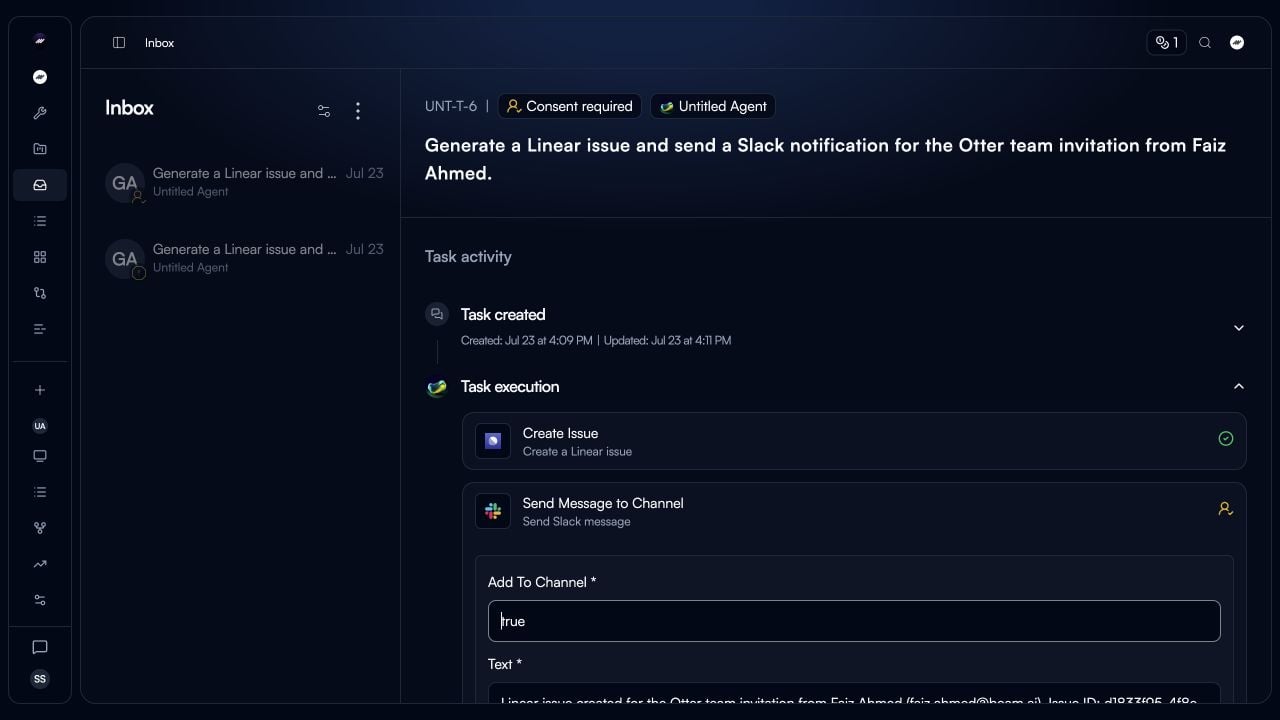 **When you open a notification:**
* **Task status**: shows why the task needs attention, such as **Consent required**.
* **Task activity**: shows the task creation event and the Flow's execution steps.
* **Requested action**: expands the paused step so you can review it and make the required decision.
**Task states to review in Tasks:**
Agent needs approval before executing sensitive action
Agent missing variable or data needed to continue workflow
Workflow stopped due to error requiring human intervention
**When you open a notification:**
* **Task status**: shows why the task needs attention, such as **Consent required**.
* **Task activity**: shows the task creation event and the Flow's execution steps.
* **Requested action**: expands the paused step so you can review it and make the required decision.
**Task states to review in Tasks:**
Agent needs approval before executing sensitive action
Agent missing variable or data needed to continue workflow
Workflow stopped due to error requiring human intervention
Consent Approvals
Agents pause before executing actions requiring explicit human permission.
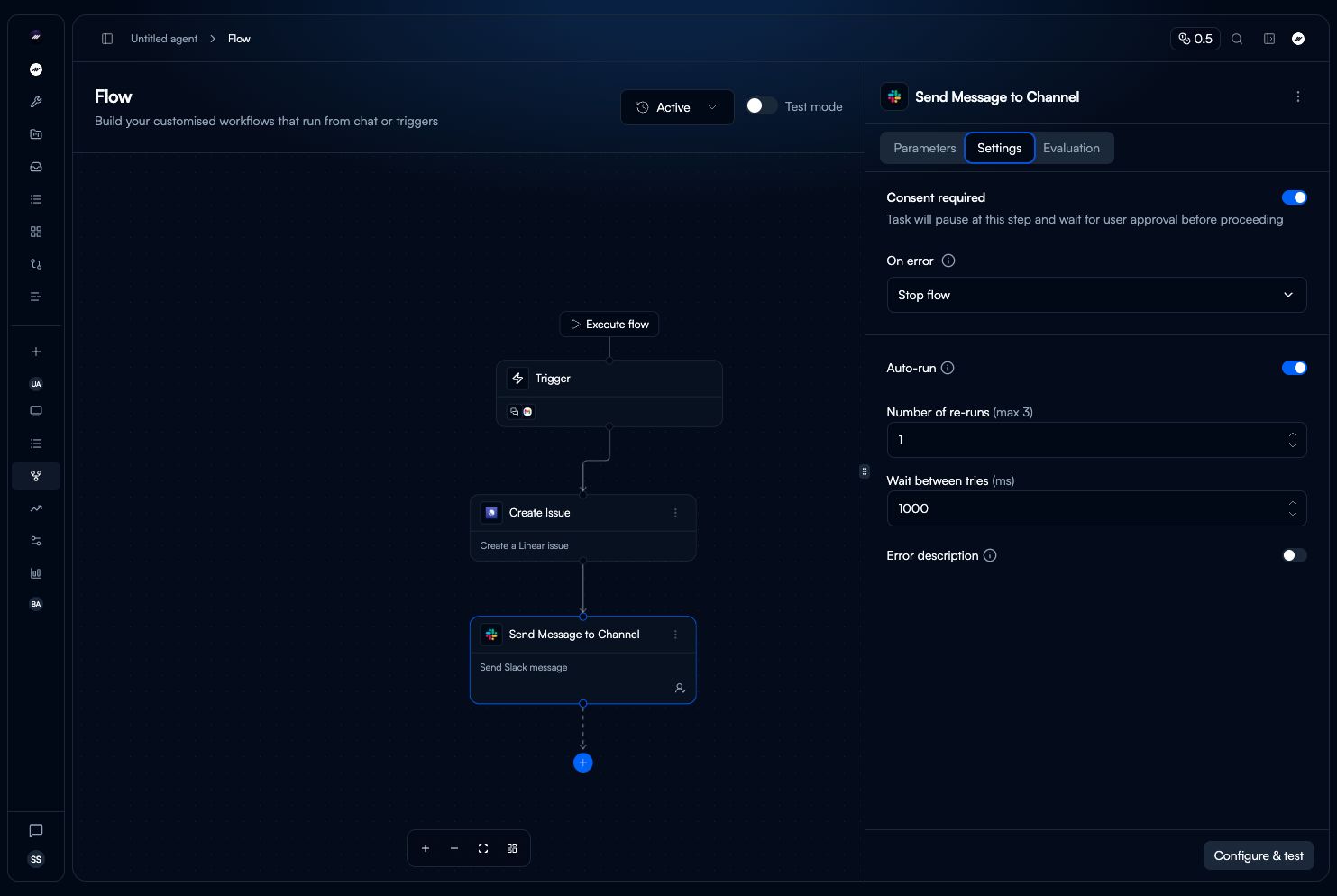 **Consent Workflow:**
1. Open the agent's **Flow**.
2. Select the tool node that needs approval.
3. Open **Settings** in the node sidebar.
4. Enable **Consent required**.
**Example Use Case:**
Agent drafts customer email response after extracting invoice data and checking payment records. Before sending, requires human approval to ensure tone and accuracy.
**Recommended for:**
* Sending emails or messages to external parties
* Updating critical database records
* Financial transactions or payments
* Deleting data or making irreversible changes
* Publishing content to public channels
* Compliance-sensitive operations
**Configuration:**
In the tool node's **Settings** tab, enable **Consent required** before publishing the Flow.
**Clear Context:**
* Show what agent has done so far
* Display exact action requiring approval
* Provide reasoning for proposed action
**Actionable Decisions:**
* Make approval/rejection consequences clear
* Allow feedback to improve future decisions
* Log all consent decisions for audit trail
**Response Time:**
* Set SLA for consent review (e.g., 2 hours)
* Configure escalation if no response
* Send notifications to relevant team members
Agents pause when missing required data or variables to complete workflow.
**Consent Workflow:**
1. Open the agent's **Flow**.
2. Select the tool node that needs approval.
3. Open **Settings** in the node sidebar.
4. Enable **Consent required**.
**Example Use Case:**
Agent drafts customer email response after extracting invoice data and checking payment records. Before sending, requires human approval to ensure tone and accuracy.
**Recommended for:**
* Sending emails or messages to external parties
* Updating critical database records
* Financial transactions or payments
* Deleting data or making irreversible changes
* Publishing content to public channels
* Compliance-sensitive operations
**Configuration:**
In the tool node's **Settings** tab, enable **Consent required** before publishing the Flow.
**Clear Context:**
* Show what agent has done so far
* Display exact action requiring approval
* Provide reasoning for proposed action
**Actionable Decisions:**
* Make approval/rejection consequences clear
* Allow feedback to improve future decisions
* Log all consent decisions for audit trail
**Response Time:**
* Set SLA for consent review (e.g., 2 hours)
* Configure escalation if no response
* Send notifications to relevant team members
Agents pause when missing required data or variables to complete workflow.
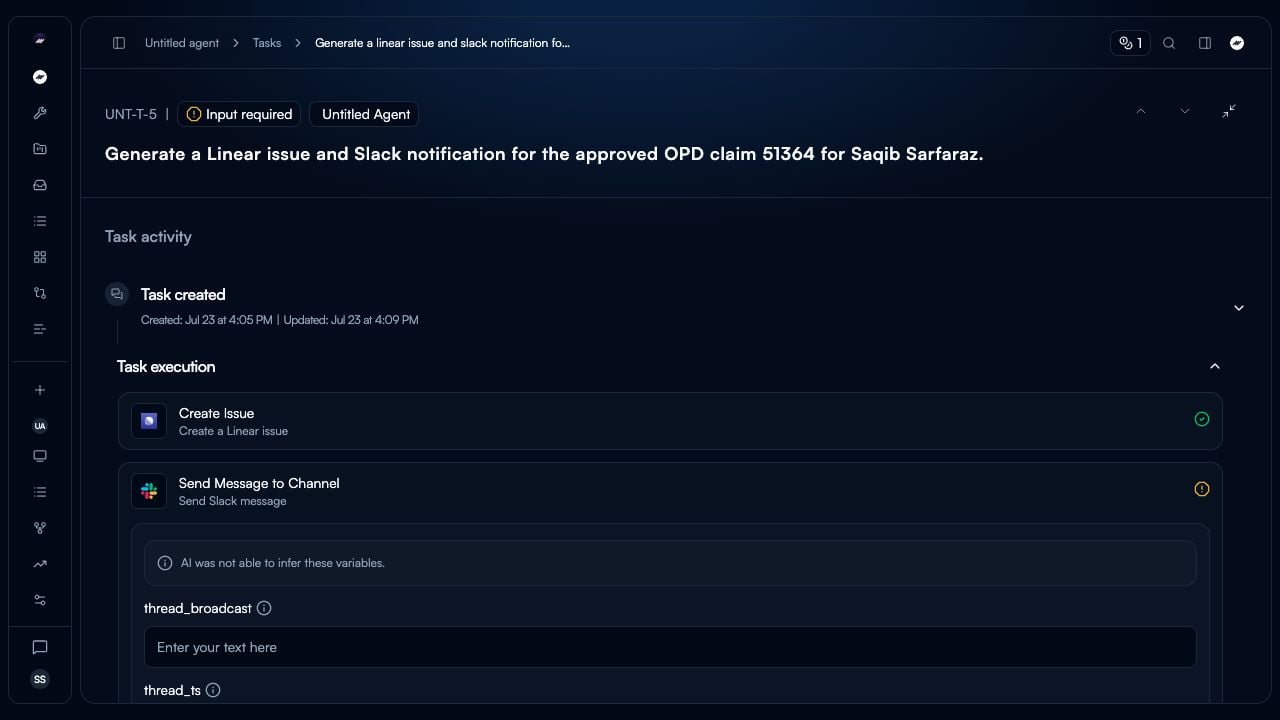 **Input Request Workflow:**
1. A node needs a value to continue.
2. The task shows an **Input required** status.
3. The task's execution panel shows the question, a text field, and **Continue**.
**Example:**
Agent classifying debt reminder tier needs "days past due" variable. After fetching debt details from database, cannot determine this value and requests human input.
**Input Form Elements:**
* **Question**: The value requested by the node
* **Input field**: A field for the value
* **Continue**: The control for continuing the task after providing the value
**Common Scenarios:**
* Variable not available in trigger data or memory
* Conditional logic requires human judgment
* External system unavailable, manual lookup needed
* Ambiguous data requiring clarification
* Custom business rules not encoded in workflow
**Configuration:**
Configure the input variable on the relevant Flow node and give it a clear description. The current node sidebar shows each input variable's fill method and description.
**Minimize Input Requests:**
* Automate data fetching where possible
* Use integrations to pull missing data
* Configure memory files with reference data
* Set default values for optional fields
**Clear Communication:**
* Explain why input is needed
* Show what agent has done so far
* Indicate how response will be used
* Provide examples of valid inputs
**Validation:**
* Define expected data type and format
* Validate input before resuming workflow
* Provide error messages for invalid data
**Input Request Workflow:**
1. A node needs a value to continue.
2. The task shows an **Input required** status.
3. The task's execution panel shows the question, a text field, and **Continue**.
**Example:**
Agent classifying debt reminder tier needs "days past due" variable. After fetching debt details from database, cannot determine this value and requests human input.
**Input Form Elements:**
* **Question**: The value requested by the node
* **Input field**: A field for the value
* **Continue**: The control for continuing the task after providing the value
**Common Scenarios:**
* Variable not available in trigger data or memory
* Conditional logic requires human judgment
* External system unavailable, manual lookup needed
* Ambiguous data requiring clarification
* Custom business rules not encoded in workflow
**Configuration:**
Configure the input variable on the relevant Flow node and give it a clear description. The current node sidebar shows each input variable's fill method and description.
**Minimize Input Requests:**
* Automate data fetching where possible
* Use integrations to pull missing data
* Configure memory files with reference data
* Set default values for optional fields
**Clear Communication:**
* Explain why input is needed
* Show what agent has done so far
* Indicate how response will be used
* Provide examples of valid inputs
**Validation:**
* Define expected data type and format
* Validate input before resuming workflow
* Provide error messages for invalid data
Managing Inbox Tasks
Task Details View
Select an Inbox notification or open a task from **Tasks** to see its execution context and take action.
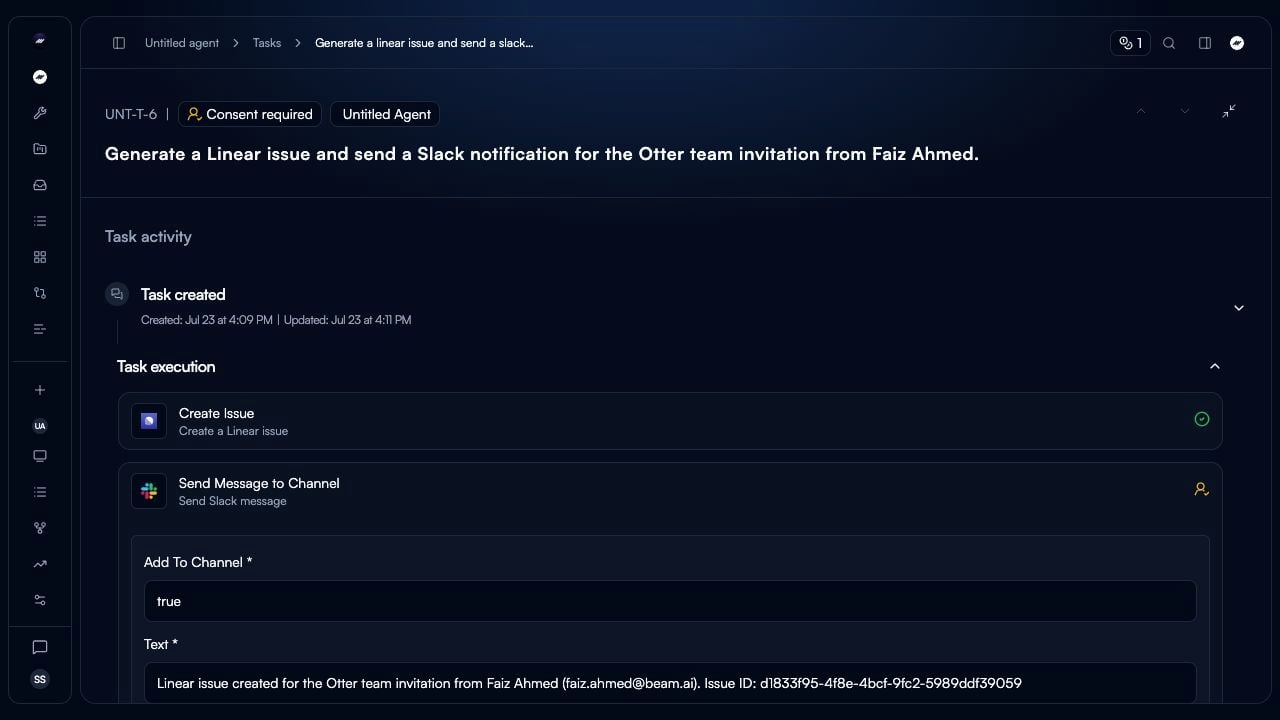 **Detail Panel Sections:**
**Task Header** - Shows task ID, type (Consent/Input/Failed), agent name
**Task Activity** - Timeline of creation and updates
**Task Execution** - Visual workflow showing completed steps and where agent paused
**Context Documents** - Files, emails, or data agent processed
**Action Required** - Form, approval buttons, or re-run option
**Detail Panel Sections:**
**Task Header** - Shows task ID, type (Consent/Input/Failed), agent name
**Task Activity** - Timeline of creation and updates
**Task Execution** - Visual workflow showing completed steps and where agent paused
**Context Documents** - Files, emails, or data agent processed
**Action Required** - Form, approval buttons, or re-run option
Workflow Continuation
When a node has **Consent required** enabled, the task detail page shows a **Consent required** status and the Flow nodes completed before the pause. Use the task's decision controls to accept or reject the proposed action.
The screenshot shows a completed **Create Issue** node and the **Send Message to Channel** node where the consent checkpoint is waiting.
Handle multiple inbox items efficiently:
**Filtering:**
* Filter by task type (Consent, Input, Failed)
* Filter by agent
* Filter by age or priority
**Bulk Actions:**
* Approve multiple similar consent requests
* Mark multiple failures for batch re-run
* Delegate tasks to team members
**Prioritization:**
* Sort by creation date (oldest first)
* Sort by agent criticality
* Custom priority tags
Stay informed of tasks requiring attention:
**Email Notifications:**
* New consent request created
* Input needed for critical workflow
* Failed execution requiring review
**Slack Integration:**
* Post to dedicated channel for urgent items
* @mention specific team members
* Include direct link to inbox task
**In-App Badges:**
* Inbox count indicator in navigation
* Real-time updates as tasks arrive
* Desktop notifications for high-priority items
Handle execution failures in inbox:
**Review Failure:**
* See which step failed and why
* Check error messages from tools/integrations
* Examine input data that caused failure
**Recovery Options:**
* **Re-run**: Retry from beginning with same inputs
* **Modify & Re-run**: Edit trigger data before retry
* **Fix Workflow**: Update agent flow to prevent future failures
* **Mark Resolved**: Document failure and close task
**Failure Prevention:**
* Add error handling nodes
* Improve validation criteria
* Enhance tool configurations
* Update prompts for edge cases
Configuring Automation Modes
Add human checkpoints to your workflow for controlled execution.
**Consent configuration:**
In **Flow**, select the tool node for the action that requires approval.
Open **Settings** and enable **Consent required**. Beam pauses the task at that step and waits for user approval before proceeding.
**Input-required tasks:**
When a node needs a value, the task panel can show **Input required** with a question, input field, and **Continue** control. See [Task Executions](/03-running-operations/task-management/task-executions/task-executions) for the current task-detail flow.
Automation Strategy
Choose the right balance of autonomy vs oversight for each workflow.
**Fully Autonomous:**
* **Use When**: High confidence in agent accuracy, low-risk actions, well-tested workflows
* **Examples**: Data extraction, classification, reporting, simple notifications
* **Benefits**: Maximum efficiency, 24/7 operation, instant processing
* **Risks**: Errors propagate without review, missed edge cases
**Human-in-the-Loop:**
* **Use When**: Sensitive actions, compliance requirements, learning phase, complex decisions
* **Examples**: Customer communications, financial transactions, legal documents, hiring decisions
* **Benefits**: Quality control, compliance adherence, human judgment
* **Tradeoffs**: Slower processing, requires human availability, potential bottlenecks
**Hybrid Approach:**
* **Use When**: Most production scenarios balancing efficiency and control
* **Examples**: Agent extracts/analyzes autonomously, human approves final action
* **Benefits**: 80% automation with 20% oversight on critical steps
* **Configuration**: Enable consent on the specific tool nodes that require approval, and review input-required exceptions in task detail.
Start with oversight, remove as confidence grows:
**Phase 1: Full HITL (Weeks 1-2)**
* Consent required for all actions
* Review every agent decision
* Identify patterns in approvals/rejections
**Phase 2: Selective HITL (Weeks 3-4)**
* Remove consent for consistently approved actions
* Keep oversight on edge cases
* Monitor evaluation scores
**Phase 3: Autonomous with Exceptions (Weeks 5+)**
* Fully autonomous for standard cases
* HITL only for low-confidence predictions
* Periodic spot-checks for quality
**Metrics to Track:**
* Approval rate by action type
* Time to resolve inbox items
* Error rate in autonomous vs HITL modes
Distribute inbox management across team:
**Role-Based Routing:**
* Finance team handles payment approvals
* Customer success reviews client communications
* Legal approves compliance-sensitive actions
**Assignment Rules:**
* Auto-assign based on agent or task type
* Round-robin distribution
* Skill-based routing
**Handoff Workflows:**
* First approver reviews, second approver finalizes
* Escalation path for complex decisions
* Delegation when team member unavailable
Best Practices
Make agent reasoning clear for human reviewers:
**Show Work:**
* Display data extraction results
* Explain classification logic
* Highlight confidence scores
* Surface validation checks performed
**Provide Context:**
* Link to source documents
* Show related historical tasks
* Display relevant memory/knowledge base references
Reduce inbox bottlenecks:
**SLA Targets:**
* Set response time goals (e.g., 2 hours for consent)
* Monitor actual vs target
* Alert when approaching deadline
**Reduce Friction:**
* Pre-fill forms with best guesses
* Provide one-click approvals for simple cases
* Batch similar requests for efficient review
**Fallback Handling:**
* Auto-approve after timeout for low-risk items
* Escalate to manager for high-stakes decisions
* Queue for next business hours if after-hours
Use inbox data to improve automation:
**Approval Analytics:**
* Track approval/rejection rates by task type
* Identify consistently approved categories
* Find patterns in rejections
**Automation Opportunities:**
* High approval rate (95%+) → Remove consent requirement
* Repeated input requests → Add data source integration
* Common failures → Improve error handling
**Continuous Improvement:**
* Review inbox monthly for optimization
* Gradually increase autonomy for proven patterns
* Add checkpoints when quality degrades
Maintain records for regulated workflows:
**Decision Logging:**
* Record all consent approvals/rejections
* Capture human input provided
* Store failure resolution actions
**Audit Trail:**
* Who made decision and when
* Reasoning/feedback provided
* Original vs modified data
* Outcome of continued workflow
**Retention:**
* Archive completed inbox tasks
* Export for compliance reporting
* Link to final workflow execution records
Next Steps
Monitor full workflow execution including HITL pause points
Set confidence thresholds triggering HITL requests
Add consent and input nodes to workflows
Configure triggers feeding HITL workflows