> ## Documentation Index
> Fetch the complete documentation index at: https://docs.beam.ai/llms.txt
> Use this file to discover all available pages before exploring further.
# Task Executions
> Review an agent's task list, filter task records, and open individual tasks for execution details.
Task executions show the current state and activity of work handled by your agents. Open a task from **Tasks** to review the executed Flow path, respond when input is required, or re-run the task when that control is available.
Understanding task executions
Every task execution represents a single workflow run from trigger to completion. Beam captures the complete execution trace including:
**Execution Metadata** - Task ID, trigger source, start/end timestamps, overall status
**Workflow Steps** - Every node executed with inputs, outputs, and tool usage
**Branch Decisions** - Which paths were selected and why based on conditions
**Evaluation Metrics** - Accuracy scores and validation results per step
**Performance Data** - Execution duration, token usage, API calls made
Viewing task executions
Tasks overview
The workspace **Tasks** page lists tasks across your workspace. An individual agent's **Tasks** page shows only tasks for that agent.
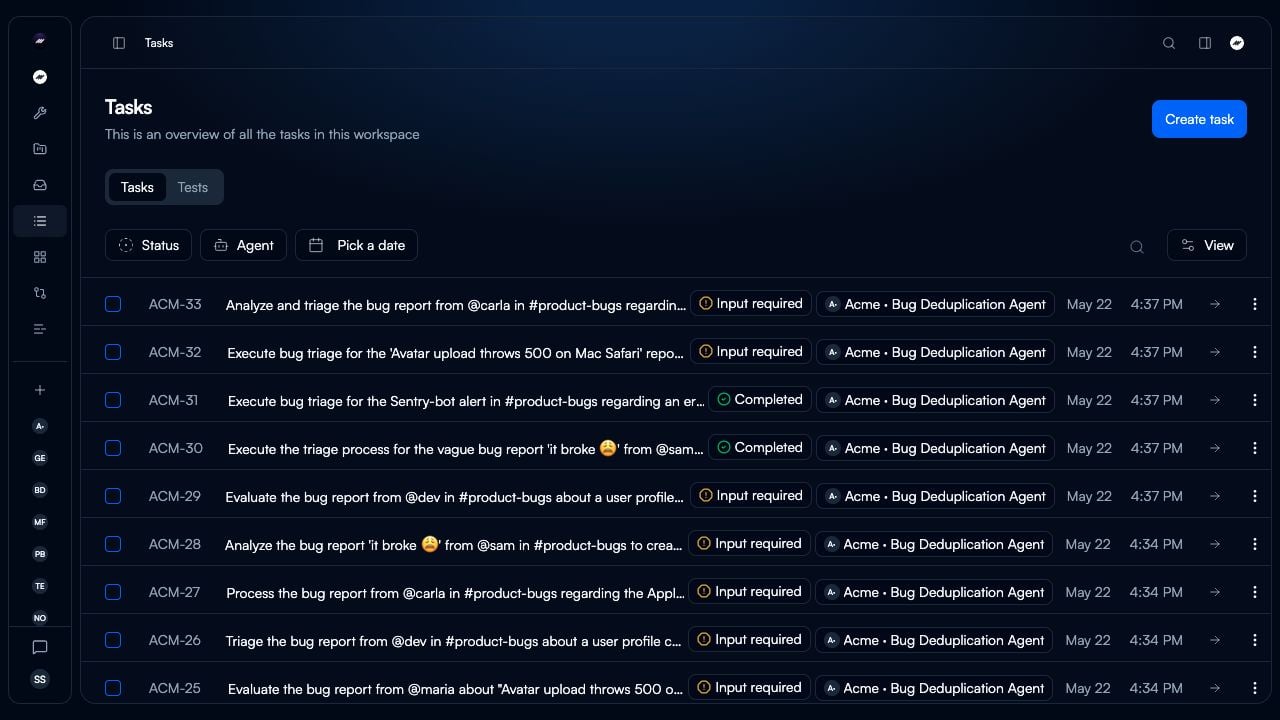 **Task list features:**
* **Tasks and Tests** tabs: switch between task records and tests in the current scope.
* **Create task**: start a task manually.
* **Task ID and description**: identify a task and its request.
* **Status, agent, and date filters**: narrow the task list.
* **View control**: change the task-list view.
**Observed status types:**
Workflow finished successfully through all nodes to exit point
The task is waiting for user input.
**Task list features:**
* **Tasks and Tests** tabs: switch between task records and tests in the current scope.
* **Create task**: start a task manually.
* **Task ID and description**: identify a task and its request.
* **Status, agent, and date filters**: narrow the task list.
* **View control**: change the task-list view.
**Observed status types:**
Workflow finished successfully through all nodes to exit point
The task is waiting for user input.
Task execution details
Click any task to open its execution details in the right panel.
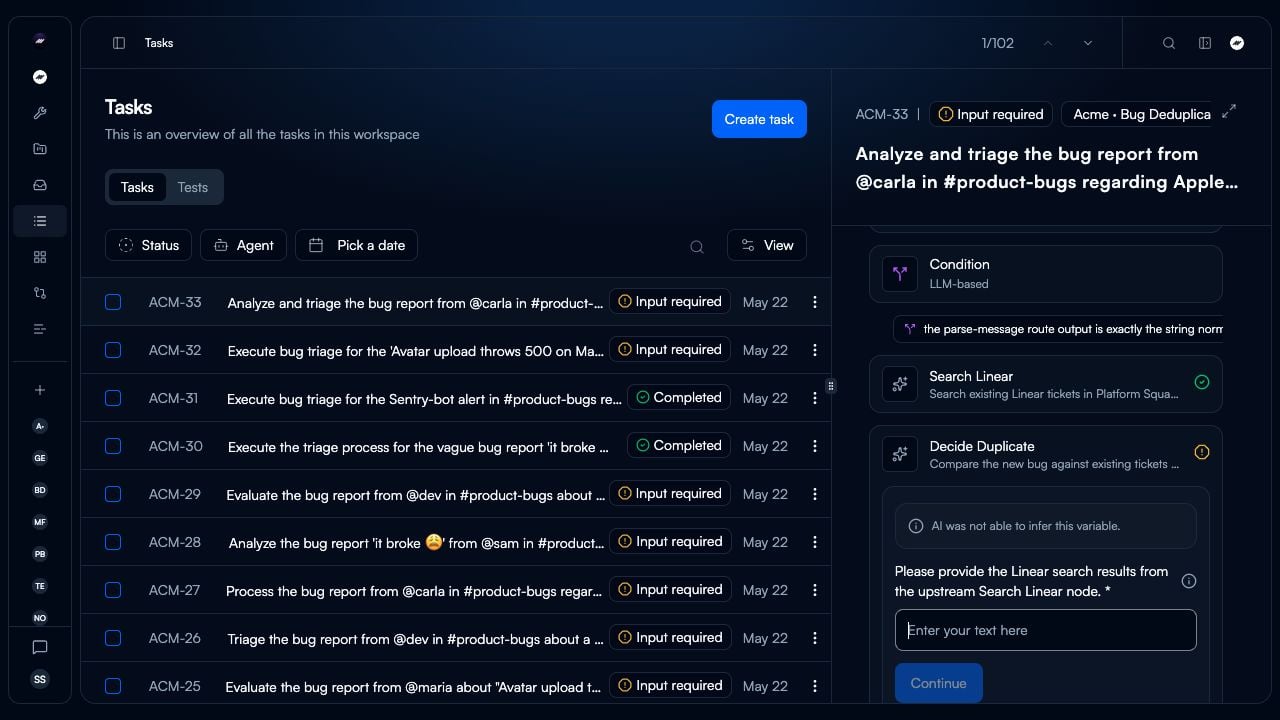 **Execution Panel Sections:**
**Task header** - Shows the task ID, current status, assigned agent, and task title.
**Task activity** - Shows task activity with created and updated timestamps.
**Task execution** - Shows the executed Flow nodes, including tool and condition nodes.
**Input required** - When a node needs a value, the panel shows the input prompt and a **Continue** control. A **Re-run task** control can also be available for the task.
**Execution Panel Sections:**
**Task header** - Shows the task ID, current status, assigned agent, and task title.
**Task activity** - Shows task activity with created and updated timestamps.
**Task execution** - Shows the executed Flow nodes, including tool and condition nodes.
**Input required** - When a node needs a value, the panel shows the input prompt and a **Continue** control. A **Re-run task** control can also be available for the task.
Analyzing executions
Workflow step breakdown
Select a node in **Task execution** to open its detail panel.
**Node detail controls:**
* **View full details** opens the selected node's detail view.
* **Step actions** provides actions for that node.
* **Parameters** shows the node's execution data.
* **Evaluation** is shown as a separate tab and can be unavailable when the task has no evaluation data.
The **Parameters** tab groups the selected node's **Output**, **Reasoning**, and **Input**. Input values display the fill method used for each value when it is available.
Use **View full details** to inspect the selected node. The exact information depends on the node and task data.
The node panel includes an **Evaluation** tab. It can be disabled when no evaluation data is available for the selected task.
Branch logic and path selection
Select a Condition node in **Task execution** to view its detail panel.
For an LLM-based condition, the panel shows that the condition evaluates branches semantically with an AI model and lists the configured branch outcomes. Select **View full details** for the selected condition's complete detail view.
Creating and managing tasks
Manual task creation
Select **Create task** to open **Execute flow**. It has **Trigger** and **Manual** tabs.
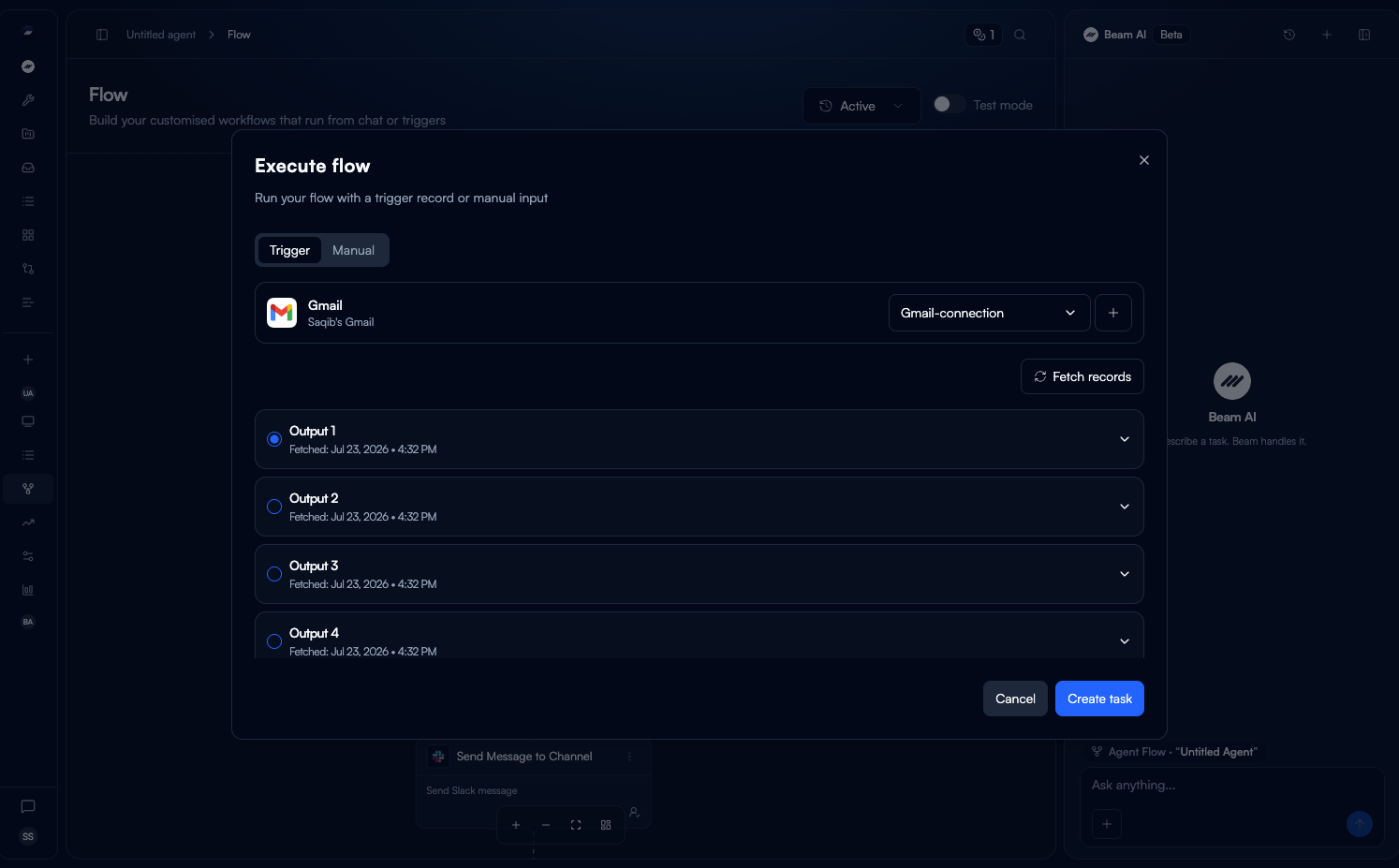 * In **Trigger**, select an agent, then fetch and select one of its past trigger records.
* In **Manual**, select an agent, provide instructions, and optionally add attachments. Attachments support **File upload** and **Fetch from URL**; the URL option accepts multiple URLs on separate lines.
* The Manual tab also includes **Re-run your most recent task** when an eligible task is available.
* Select **Create task** after completing the required inputs.
Track agent performance across all task executions:
**Completion Rate** - Percentage of tasks finishing successfully
**Average Runtime** - Mean execution duration from start to completion
**Evaluation Scores** - Average accuracy across all steps and tasks
**Success by Trigger** - Completion rates by trigger source (Email, Webhook, Manual, Timer)
Access detailed performance data through the Analytics tab.
**Completion Trends** - Visualize task completion rates over time with daily, weekly, monthly aggregation
**Runtime Analysis** - Identify slowest steps and bottlenecks in execution flow
**Evaluation Insights** - Track quality improvements and failure patterns
**Tool Performance** - See which integrations perform best with success rates and response times
* In **Trigger**, select an agent, then fetch and select one of its past trigger records.
* In **Manual**, select an agent, provide instructions, and optionally add attachments. Attachments support **File upload** and **Fetch from URL**; the URL option accepts multiple URLs on separate lines.
* The Manual tab also includes **Re-run your most recent task** when an eligible task is available.
* Select **Create task** after completing the required inputs.
Track agent performance across all task executions:
**Completion Rate** - Percentage of tasks finishing successfully
**Average Runtime** - Mean execution duration from start to completion
**Evaluation Scores** - Average accuracy across all steps and tasks
**Success by Trigger** - Completion rates by trigger source (Email, Webhook, Manual, Timer)
Access detailed performance data through the Analytics tab.
**Completion Trends** - Visualize task completion rates over time with daily, weekly, monthly aggregation
**Runtime Analysis** - Identify slowest steps and bottlenecks in execution flow
**Evaluation Insights** - Track quality improvements and failure patterns
**Tool Performance** - See which integrations perform best with success rates and response times
Debugging and best practices
Debugging failed executions
Failed tasks appear with red status indicator in task list.
**Common Failure Causes:**
**Validation Failure** - Step didn't meet evaluation criteria (e.g., accuracy \< 90%)
**Tool Error** - Integration API returned error or timeout
**Missing Data** - Required field not present in trigger input or previous step output
**Timeout** - Execution exceeded maximum duration limit
Scroll through execution timeline to find red X status icon. Failed step shows error message and which criteria wasn't met.
Verify the node received expected data format. Common issues: incorrect variable mapping, null/empty previous step, data type mismatch.
Examine what the tool actually returned vs expected. Integration errors often include API error codes.
Look at which evaluation criteria failed. Adjust criteria thresholds or improve prompts based on failures.
Make changes to workflow, then re-run the same task to verify fix.
Check task executions daily during initial deployment:
* Monitor completion rates
* Review evaluation scores
* Identify recurring failures
* Validate output quality
Gradually reduce frequency as agent stabilizes (95%+ success rate).
Configure notifications for execution failures via email, Slack, or webhook to ticketing system. Respond quickly to prevent backlog buildup.
Establish expected performance benchmarks:
* Target completion rate (e.g., 95%)
* Maximum acceptable runtime (e.g., 2 minutes)
* Minimum evaluation scores (e.g., 90%)
Alert when metrics deviate beyond thresholds.
Use re-run feature to test changes:
* Keep 10-20 representative tasks saved
* Re-run after workflow modifications
* Compare results before/after changes
Maintain test case library for regression testing.
**Cause**: Human-in-the-loop approval required or queue backlog
**Solution**:
* Check Automation Modes settings (HITL enabled?)
* Review pending approvals in Inbox
* Verify agent has sufficient processing capacity
**Cause**: Evaluation criteria too broad or subjective
**Solution**:
* Make criteria more specific and measurable
* Use exact value matching instead of fuzzy matching
* Regenerate criteria based on successful tasks
**Cause**: Real-time connection lost or browser cached state
**Solution**:
* Refresh page to reconnect WebSocket
* Check network connection stability
* Clear browser cache if issue persists
Next steps
Configure human-in-the-loop workflows and approval processes
Test workflow changes with previous task data
Set up quality criteria and accuracy scoring
Improve agent performance with AI-assisted optimization