> ## Documentation Index
> Fetch the complete documentation index at: https://docs.beam.ai/llms.txt
> Use this file to discover all available pages before exploring further.
# Evaluation Framework
> Validate agent accuracy with evaluation criteria, Auto-run retries, and Analytics monitoring.
The evaluation framework ensures agent quality by validating outputs against defined criteria, scoring accuracy, and enabling Auto-run retries when configured.
## Understanding Evaluation Framework
Every Flow node can have evaluation criteria that automatically validate outputs and score accuracy.
**Evaluation Criteria** - Plain-language validation rules checking if node outputs meet quality standards
**Accuracy Score** - Percentage (0-100%) measuring how well node output matches evaluation criteria
**Auto-run** - Automatic retry when a node's evaluation result falls below its configured accuracy score
**Analytics Dashboard** - Track completion rates, average evaluation scores, and performance trends over time
## Setting Evaluation Criteria
Define validation rules for Flow nodes to automatically measure output quality.
Open the agent's **Flow** and select the node requiring validation. Focus on critical extraction, classification, or decision points.
In the node sidebar, open **Evaluation**. Turn on **Evaluation metrics** to add criteria and Auto-run controls.
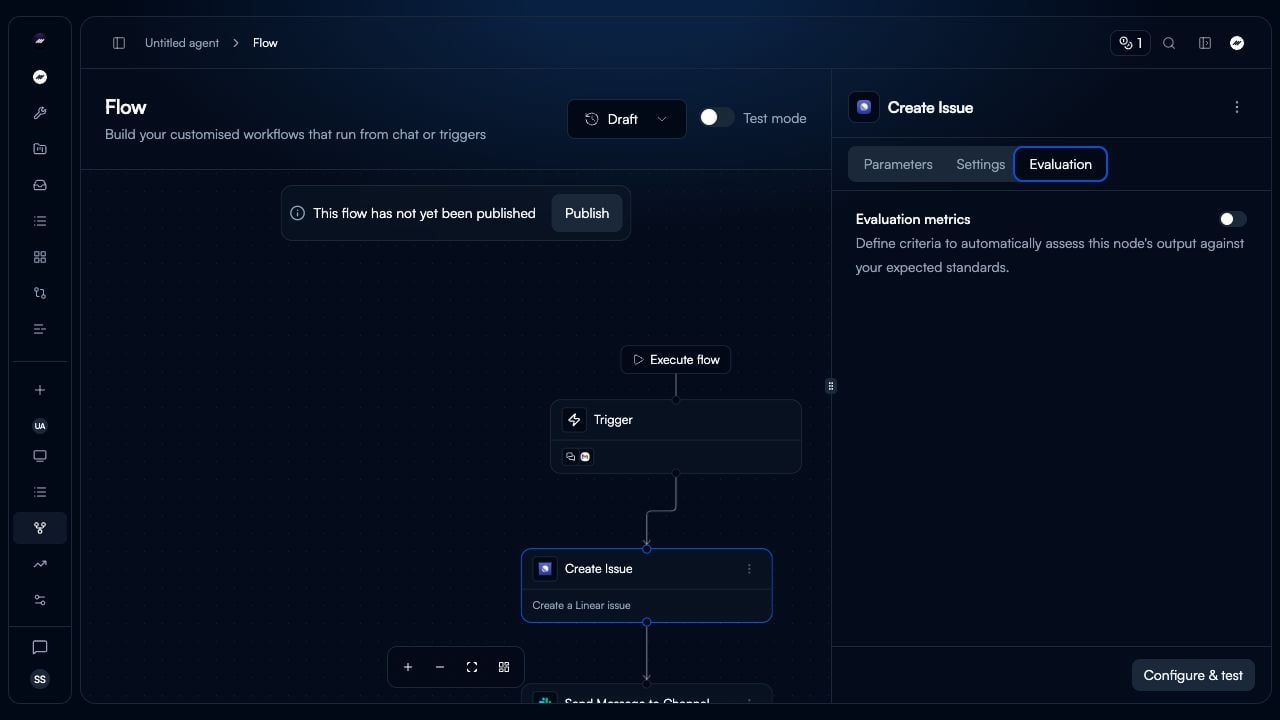 With **Evaluation metrics** enabled, select **Add criteria** to create a rule. Define what the node output must meet.
**Manual Entry:** Write criteria in plain language describing validation requirement
**AI Generation:** Select **Generate criteria** to create suggested validation rules from the node configuration.
Specify validation rule checking specific output field. Examples:
* "The 'invoice\_date' field must contain a date string in format YYYY-MM-DD"
* "The 'amount\_due' field must contain a numeric value greater than zero"
* "The 'currency' field must contain a three-letter ISO 4217 currency code"
* "The 'priority' field must be High, Medium, or Low"
With **Evaluation metrics** enabled, select **Add criteria** to create a rule. Define what the node output must meet.
**Manual Entry:** Write criteria in plain language describing validation requirement
**AI Generation:** Select **Generate criteria** to create suggested validation rules from the node configuration.
Specify validation rule checking specific output field. Examples:
* "The 'invoice\_date' field must contain a date string in format YYYY-MM-DD"
* "The 'amount\_due' field must contain a numeric value greater than zero"
* "The 'currency' field must contain a three-letter ISO 4217 currency code"
* "The 'priority' field must be High, Medium, or Low"
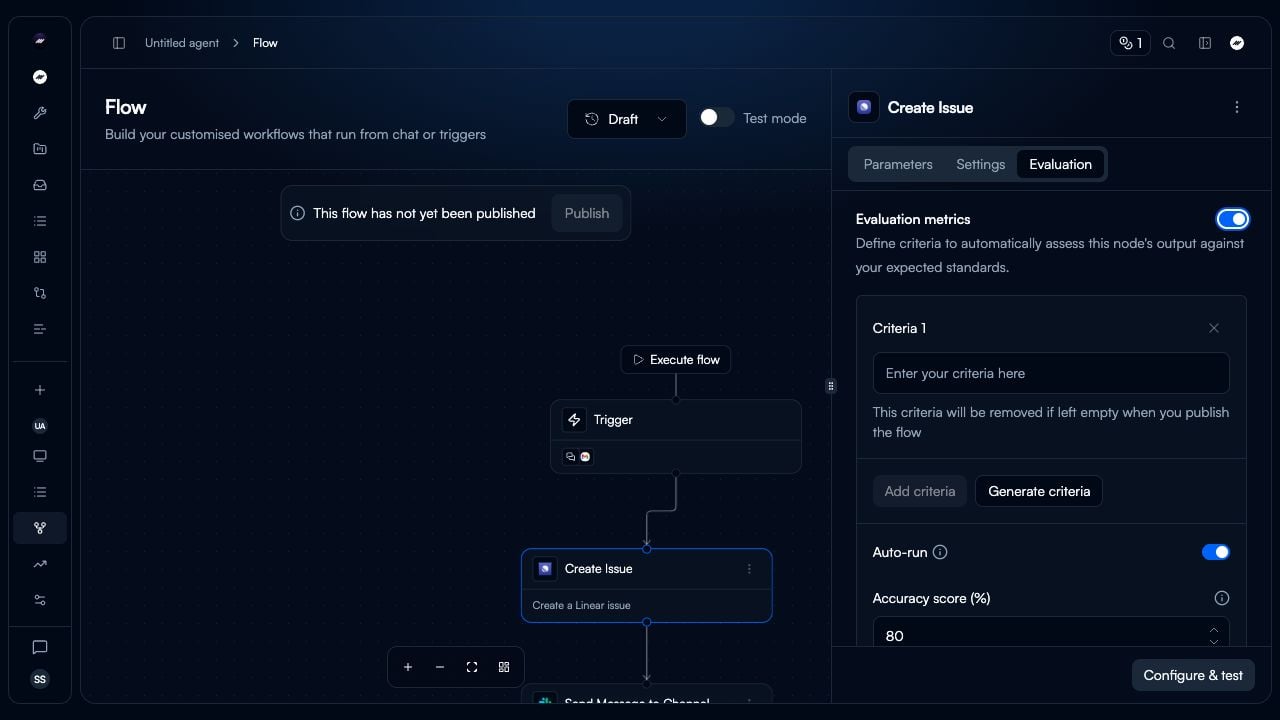 Turn on **Auto-run**, set the **Accuracy score (%)**, and choose the **Number of re-runs** (up to three).
Click **Publish** to activate the Flow changes. They take effect on the next agent run.
**Be Specific:**
* Check individual fields, not entire output
* Define exact format requirements
* Specify acceptable values or ranges
**Good Examples:**
* "The 'email' field must contain a valid email address with @ symbol"
* "The 'invoice\_number' must be alphanumeric and 10-15 characters long"
* "The 'status' field must be one of: pending, approved, rejected"
**Poor Examples:**
* "Output should be good" (too vague)
* "Extract all information correctly" (not measurable)
* "Make sure data is accurate" (unclear definition)
**Test Criteria:**
* Run node with test input after adding criteria
* Verify criteria correctly identifies valid/invalid outputs
* Adjust wording if too strict or too lenient
**Manual Entry:**
* Full control over validation logic
* Tailored to specific business rules
* Best for unique or complex requirements
* Requires domain expertise
**AI-Generated ("Generate criteria"):**
* Analyzes node prompt and configuration
* Automatically suggests validation rules
* Fast setup for standard extraction tasks
* Can refine suggestions manually
**Recommended Approach:**
1. Use AI generation as starting point
2. Review suggested criteria for accuracy
3. Add business-specific rules manually
4. Test with sample inputs
5. Refine based on results
Each criterion should validate one specific field:
**Data Type Checks:**
* Number fields contain numeric values
* Date fields match expected format
* Boolean fields are true/false
**Format Validation:**
* Email addresses have @ symbol
* Phone numbers match pattern
* URLs start with http\:// or https\://
**Business Rules:**
* Amount greater than zero
* Date not in future
* Status matches allowed values
* Currency from approved list
**Relationship Checks:**
* Due date after invoice date
* Discount less than total amount
* End time after start time
## Auto-run configuration
Enable Auto-run when a node should retry after its evaluation result falls below the configured accuracy score.
**How Auto-run Works:**
1. Node executes and generates output
2. Evaluation criteria assess output quality
3. System calculates accuracy score (0-100%)
4. If the score is below the configured accuracy score → Auto-run retries the node
5. Repeat until passing score or max retries reached
6. Workflow continues with best output
**Enable in Evaluation:**
1. Select the node in the agent's **Flow**.
2. Open the **Evaluation** tab in the node sidebar.
3. Enable **Evaluation metrics**, then add or generate criteria.
4. Turn on **Auto-run**, set **Accuracy score (%)**, and choose **Number of re-runs** (up to three).
**Trigger Condition:**
Auto-run triggers when the node's evaluation result is below its configured accuracy score.
**Best For:**
* GPT-based extraction with variable outputs
* Classification tasks needing high confidence
* Data parsing from inconsistent formats
* Steps where retry often improves results
**Not Recommended:**
* Deterministic operations (always same output)
* Integration API calls (retry won't change response)
* Steps failing due to missing data
* Final output nodes (may need human review)
**Retry Limits:**
* Start with 2-3 max retries
* More retries increase execution time
* High retry rates indicate prompt issues
**Monitor Frequency:**
* Track how often auto-run triggers
* Review tasks using all retry attempts
* Optimize prompts if >30% tasks need retries
**Combine with Evaluation:**
* Clear, measurable criteria essential
* Vague criteria cause unnecessary retries
* Test criteria before enabling auto-run
**Performance Impact:**
* Each retry adds execution time
* Cost increases with retry attempts
* Balance quality vs speed/cost
**Auto-run (Automatic):**
* Happens during task execution
* Triggered by low evaluation scores
* No human intervention
* Limited to configured max retries
* Single node only
**Manual Rerun (User-Initiated):**
* After task completes (see [Rerunning Tasks](/03-running-operations/debugging-testing/rerunning-tasks/rerunning-tasks))
* User decides when to rerun
* Unlimited reruns available
* Re-runs the complete task
* Useful for testing changes
## Monitoring Evaluation Performance
Track agent accuracy and evaluation metrics over time through Analytics dashboard.
Turn on **Auto-run**, set the **Accuracy score (%)**, and choose the **Number of re-runs** (up to three).
Click **Publish** to activate the Flow changes. They take effect on the next agent run.
**Be Specific:**
* Check individual fields, not entire output
* Define exact format requirements
* Specify acceptable values or ranges
**Good Examples:**
* "The 'email' field must contain a valid email address with @ symbol"
* "The 'invoice\_number' must be alphanumeric and 10-15 characters long"
* "The 'status' field must be one of: pending, approved, rejected"
**Poor Examples:**
* "Output should be good" (too vague)
* "Extract all information correctly" (not measurable)
* "Make sure data is accurate" (unclear definition)
**Test Criteria:**
* Run node with test input after adding criteria
* Verify criteria correctly identifies valid/invalid outputs
* Adjust wording if too strict or too lenient
**Manual Entry:**
* Full control over validation logic
* Tailored to specific business rules
* Best for unique or complex requirements
* Requires domain expertise
**AI-Generated ("Generate criteria"):**
* Analyzes node prompt and configuration
* Automatically suggests validation rules
* Fast setup for standard extraction tasks
* Can refine suggestions manually
**Recommended Approach:**
1. Use AI generation as starting point
2. Review suggested criteria for accuracy
3. Add business-specific rules manually
4. Test with sample inputs
5. Refine based on results
Each criterion should validate one specific field:
**Data Type Checks:**
* Number fields contain numeric values
* Date fields match expected format
* Boolean fields are true/false
**Format Validation:**
* Email addresses have @ symbol
* Phone numbers match pattern
* URLs start with http\:// or https\://
**Business Rules:**
* Amount greater than zero
* Date not in future
* Status matches allowed values
* Currency from approved list
**Relationship Checks:**
* Due date after invoice date
* Discount less than total amount
* End time after start time
## Auto-run configuration
Enable Auto-run when a node should retry after its evaluation result falls below the configured accuracy score.
**How Auto-run Works:**
1. Node executes and generates output
2. Evaluation criteria assess output quality
3. System calculates accuracy score (0-100%)
4. If the score is below the configured accuracy score → Auto-run retries the node
5. Repeat until passing score or max retries reached
6. Workflow continues with best output
**Enable in Evaluation:**
1. Select the node in the agent's **Flow**.
2. Open the **Evaluation** tab in the node sidebar.
3. Enable **Evaluation metrics**, then add or generate criteria.
4. Turn on **Auto-run**, set **Accuracy score (%)**, and choose **Number of re-runs** (up to three).
**Trigger Condition:**
Auto-run triggers when the node's evaluation result is below its configured accuracy score.
**Best For:**
* GPT-based extraction with variable outputs
* Classification tasks needing high confidence
* Data parsing from inconsistent formats
* Steps where retry often improves results
**Not Recommended:**
* Deterministic operations (always same output)
* Integration API calls (retry won't change response)
* Steps failing due to missing data
* Final output nodes (may need human review)
**Retry Limits:**
* Start with 2-3 max retries
* More retries increase execution time
* High retry rates indicate prompt issues
**Monitor Frequency:**
* Track how often auto-run triggers
* Review tasks using all retry attempts
* Optimize prompts if >30% tasks need retries
**Combine with Evaluation:**
* Clear, measurable criteria essential
* Vague criteria cause unnecessary retries
* Test criteria before enabling auto-run
**Performance Impact:**
* Each retry adds execution time
* Cost increases with retry attempts
* Balance quality vs speed/cost
**Auto-run (Automatic):**
* Happens during task execution
* Triggered by low evaluation scores
* No human intervention
* Limited to configured max retries
* Single node only
**Manual Rerun (User-Initiated):**
* After task completes (see [Rerunning Tasks](/03-running-operations/debugging-testing/rerunning-tasks/rerunning-tasks))
* User decides when to rerun
* Unlimited reruns available
* Re-runs the complete task
* Useful for testing changes
## Monitoring Evaluation Performance
Track agent accuracy and evaluation metrics over time through Analytics dashboard.
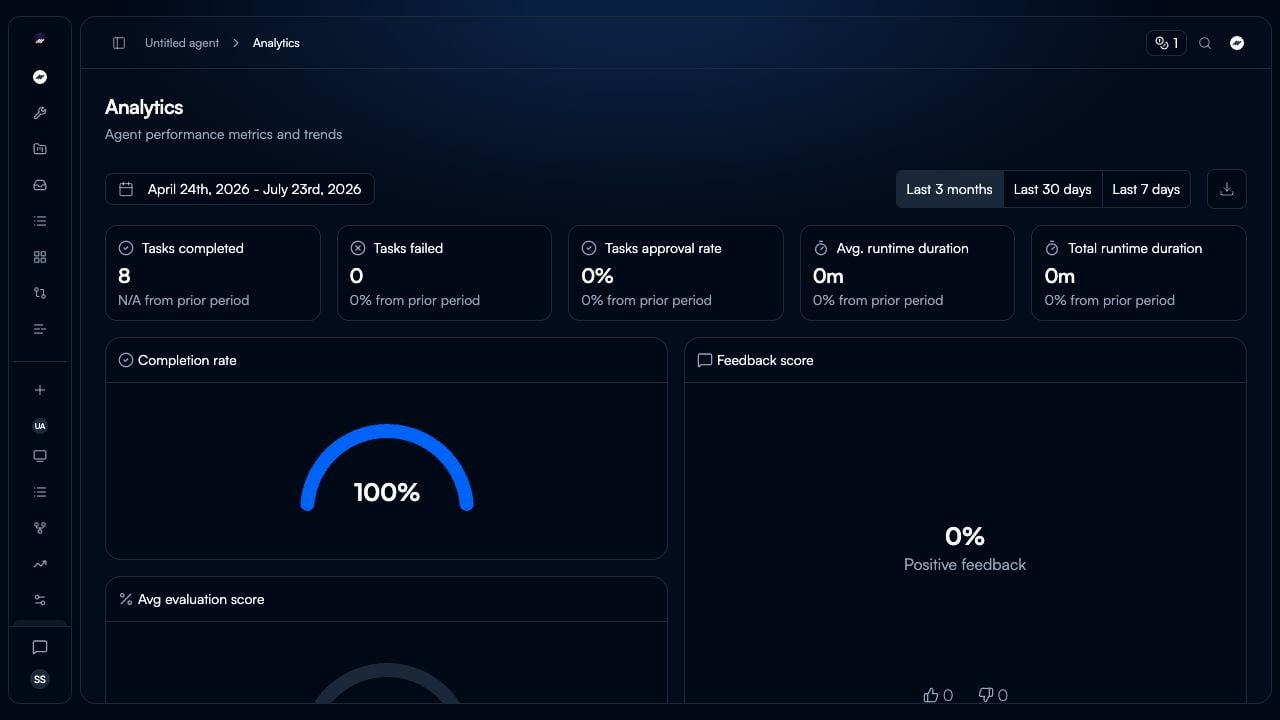 **Key Metrics:**
**Completion Rate** - Percentage of tasks completing successfully (98.95% in example)
**Average Evaluation Score** - Mean accuracy across all evaluated nodes (98.41% in example)
**Feedback Score** - Human feedback on agent outputs (100% positive in example)
**Tasks Completed vs Failed** - Track success/failure counts and trends
**Accessing Analytics:**
1. Navigate to agent in Beam AI
2. Click "Analytics" in left sidebar
3. Use the date picker or select **Last 7 days**, **Last 30 days**, or **Last 3 months**
4. Review metrics and trends
**95-100% Score:**
* Agent performing excellently
* Criteria well-calibrated
* Minimal failures
* Ready for production scaling
**85-94% Score:**
* Good performance with room for improvement
* Review failed cases for patterns
* Consider prompt optimization
* May need criteria adjustment
**70-84% Score:**
* Acceptable but needs optimization
* Identify common failure types
* Use [Optimize Outputs](/04-observability-analytics/optimize-outputs/optimize-outputs) for prompt improvement
* Review criteria strictness
**Below 70%:**
* Significant issues requiring attention
* Check if criteria too strict
* Review prompt quality
* Verify training data relevance
* Consider workflow redesign
**Improving Scores:**
* Prompt optimizations working
* Agents learning from feedback
* Criteria calibrated correctly
**Declining Scores:**
* Data drift (new input patterns)
* Criteria becoming outdated
* Integration changes
* Need prompt refresh
**Stable Scores:**
* Agent performing consistently
* Monitor for sudden changes
* Periodic optimization still valuable
**Action Items:**
* Review analytics weekly
* Investigate score drops immediately
* Celebrate improvements with stakeholders
* Document optimization changes
**Identify Weak Points:**
* Which nodes have lowest scores?
* Are failures clustered in specific steps?
* Do certain branches perform worse?
**Optimization Priority:**
1. Nodes with \<85% scores
2. High-volume nodes with 85-94% scores
3. Critical workflow steps regardless of score
4. Recently changed nodes
**Compare Across Agents:**
* Similar nodes in different agents
* Same task type performance
* Identify best practices to replicate
## Creating Expected Outputs
Define ground truth outputs from successful task executions to use in [Test Datasets](/03-running-operations/debugging-testing/test-datasets/test-datasets).
**Process:**
1. Run agent with sample input
2. Review task execution output
3. Verify output correctness
4. Export as expected output for test dataset
5. Use in batch testing for validation
**Expected Output Structure:**
Match exact output schema your workflow produces, including all evaluated fields.
```json theme={null}
{
"invoice_number": "INV-2025-001234",
"invoice_date": "2025-01-15",
"due_date": "2025-02-15",
"amount_due": 1500.00,
"currency": "USD",
"vendor_name": "Acme Corp",
"email_recipient": "billing@example.com"
}
```
**Successful Production Tasks:**
1. Find task with perfect evaluation scores
2. Review output for accuracy
3. Export complete node outputs
4. Verify all fields present and correct
**Manual Specification:**
* Domain expert defines correct output
* Based on input data analysis
* Follows business rules exactly
* Validated by stakeholders
**Corrected Agent Outputs:**
* Run agent on test input
* Human reviews and corrects errors
* Corrected version becomes expected
* Faster than manual from scratch
**Precision:**
* Exact field names matching node output
* Correct data types (string, number, boolean)
* Proper date/time formats (YYYY-MM-DD)
* Accurate currency/number precision
**Completeness:**
* All fields that will be evaluated
* Optional fields with null if not present
* Nested objects fully specified
**Documentation:**
* Note why this is correct answer
* Document business rules applied
* Mark edge case handling
* Keep updated as requirements change
**Validation:**
* Test expected outputs against criteria
* Ensure they would score 100%
* Use in dataset runs to verify
* Update when criteria change
## Integration with Test Datasets
Use evaluation framework with test datasets for systematic quality assurance. See [Test Datasets](/03-running-operations/debugging-testing/test-datasets/test-datasets) for comprehensive testing guidance.
**Workflow:**
1. Define evaluation criteria for nodes
2. Create test inputs with expected outputs
3. Run test dataset via webhook
4. Evaluation criteria score each output
5. Compare actual vs expected
6. Calculate overall dataset accuracy
7. Optimize prompts based on failures
**Benefits:**
* Automated quality validation
* Quantitative performance measurement
* Regression testing for changes
* Continuous improvement tracking
## Best Practices
**Priority Order:**
1. Data extraction nodes (invoice details, form fields)
2. Classification/routing nodes (priority, category)
3. Decision nodes (approval logic, validation)
4. Integration nodes (API calls, database lookups)
5. Final output formatting
**Rationale:**
* Focus effort where accuracy matters most
* Build expertise before tackling all nodes
* Demonstrate value quickly
* Iterate based on learnings
**Initial Setup:**
* Start with basic validation rules
* Use AI generation for suggestions
* Test with 5-10 sample inputs
**Refinement:**
* Too strict? Relax constraints
* Too lenient? Add specific checks
* Missing edge cases? Add coverage
* Review failed evaluations for patterns
**Continuous Improvement:**
* Update criteria quarterly
* Add rules for new failure types
* Remove outdated requirements
* Document changes and rationale
**Evaluation Criteria:**
* Automated validation of format/structure
* Check required fields present
* Verify data type correctness
**Human Review:**
* Semantic accuracy (correct meaning)
* Business logic appropriateness
* Edge case handling quality
* Overall output quality
**Use Both:**
* Criteria catch 80% of issues automatically
* Human review for remaining 20%
* Incorporate human feedback into criteria
* Reduce manual review over time
**Warning Signs:**
* Node using all retries frequently (>30% of tasks)
* Auto-run rarely improves scores
* Execution time significantly increased
* Cost impact from retries
**Actions:**
* Review and optimize prompts (see [Optimize Outputs](/04-observability-analytics/optimize-outputs/optimize-outputs))
* Adjust evaluation criteria if too strict
* Consider if auto-run appropriate for node
* Disable if not providing value
**Ideal State:**
* Auto-run triggers on \<10% of tasks
* Retries improve scores 80%+ of time
* Average 1-2 retries when triggered
* Clear ROI from quality improvement
## Next Steps
Create test datasets using evaluation criteria for validation
Use AI-powered optimization to improve failing evaluations
Rerun tasks after updating evaluation criteria
Monitor evaluation scores in task execution results
**Key Metrics:**
**Completion Rate** - Percentage of tasks completing successfully (98.95% in example)
**Average Evaluation Score** - Mean accuracy across all evaluated nodes (98.41% in example)
**Feedback Score** - Human feedback on agent outputs (100% positive in example)
**Tasks Completed vs Failed** - Track success/failure counts and trends
**Accessing Analytics:**
1. Navigate to agent in Beam AI
2. Click "Analytics" in left sidebar
3. Use the date picker or select **Last 7 days**, **Last 30 days**, or **Last 3 months**
4. Review metrics and trends
**95-100% Score:**
* Agent performing excellently
* Criteria well-calibrated
* Minimal failures
* Ready for production scaling
**85-94% Score:**
* Good performance with room for improvement
* Review failed cases for patterns
* Consider prompt optimization
* May need criteria adjustment
**70-84% Score:**
* Acceptable but needs optimization
* Identify common failure types
* Use [Optimize Outputs](/04-observability-analytics/optimize-outputs/optimize-outputs) for prompt improvement
* Review criteria strictness
**Below 70%:**
* Significant issues requiring attention
* Check if criteria too strict
* Review prompt quality
* Verify training data relevance
* Consider workflow redesign
**Improving Scores:**
* Prompt optimizations working
* Agents learning from feedback
* Criteria calibrated correctly
**Declining Scores:**
* Data drift (new input patterns)
* Criteria becoming outdated
* Integration changes
* Need prompt refresh
**Stable Scores:**
* Agent performing consistently
* Monitor for sudden changes
* Periodic optimization still valuable
**Action Items:**
* Review analytics weekly
* Investigate score drops immediately
* Celebrate improvements with stakeholders
* Document optimization changes
**Identify Weak Points:**
* Which nodes have lowest scores?
* Are failures clustered in specific steps?
* Do certain branches perform worse?
**Optimization Priority:**
1. Nodes with \<85% scores
2. High-volume nodes with 85-94% scores
3. Critical workflow steps regardless of score
4. Recently changed nodes
**Compare Across Agents:**
* Similar nodes in different agents
* Same task type performance
* Identify best practices to replicate
## Creating Expected Outputs
Define ground truth outputs from successful task executions to use in [Test Datasets](/03-running-operations/debugging-testing/test-datasets/test-datasets).
**Process:**
1. Run agent with sample input
2. Review task execution output
3. Verify output correctness
4. Export as expected output for test dataset
5. Use in batch testing for validation
**Expected Output Structure:**
Match exact output schema your workflow produces, including all evaluated fields.
```json theme={null}
{
"invoice_number": "INV-2025-001234",
"invoice_date": "2025-01-15",
"due_date": "2025-02-15",
"amount_due": 1500.00,
"currency": "USD",
"vendor_name": "Acme Corp",
"email_recipient": "billing@example.com"
}
```
**Successful Production Tasks:**
1. Find task with perfect evaluation scores
2. Review output for accuracy
3. Export complete node outputs
4. Verify all fields present and correct
**Manual Specification:**
* Domain expert defines correct output
* Based on input data analysis
* Follows business rules exactly
* Validated by stakeholders
**Corrected Agent Outputs:**
* Run agent on test input
* Human reviews and corrects errors
* Corrected version becomes expected
* Faster than manual from scratch
**Precision:**
* Exact field names matching node output
* Correct data types (string, number, boolean)
* Proper date/time formats (YYYY-MM-DD)
* Accurate currency/number precision
**Completeness:**
* All fields that will be evaluated
* Optional fields with null if not present
* Nested objects fully specified
**Documentation:**
* Note why this is correct answer
* Document business rules applied
* Mark edge case handling
* Keep updated as requirements change
**Validation:**
* Test expected outputs against criteria
* Ensure they would score 100%
* Use in dataset runs to verify
* Update when criteria change
## Integration with Test Datasets
Use evaluation framework with test datasets for systematic quality assurance. See [Test Datasets](/03-running-operations/debugging-testing/test-datasets/test-datasets) for comprehensive testing guidance.
**Workflow:**
1. Define evaluation criteria for nodes
2. Create test inputs with expected outputs
3. Run test dataset via webhook
4. Evaluation criteria score each output
5. Compare actual vs expected
6. Calculate overall dataset accuracy
7. Optimize prompts based on failures
**Benefits:**
* Automated quality validation
* Quantitative performance measurement
* Regression testing for changes
* Continuous improvement tracking
## Best Practices
**Priority Order:**
1. Data extraction nodes (invoice details, form fields)
2. Classification/routing nodes (priority, category)
3. Decision nodes (approval logic, validation)
4. Integration nodes (API calls, database lookups)
5. Final output formatting
**Rationale:**
* Focus effort where accuracy matters most
* Build expertise before tackling all nodes
* Demonstrate value quickly
* Iterate based on learnings
**Initial Setup:**
* Start with basic validation rules
* Use AI generation for suggestions
* Test with 5-10 sample inputs
**Refinement:**
* Too strict? Relax constraints
* Too lenient? Add specific checks
* Missing edge cases? Add coverage
* Review failed evaluations for patterns
**Continuous Improvement:**
* Update criteria quarterly
* Add rules for new failure types
* Remove outdated requirements
* Document changes and rationale
**Evaluation Criteria:**
* Automated validation of format/structure
* Check required fields present
* Verify data type correctness
**Human Review:**
* Semantic accuracy (correct meaning)
* Business logic appropriateness
* Edge case handling quality
* Overall output quality
**Use Both:**
* Criteria catch 80% of issues automatically
* Human review for remaining 20%
* Incorporate human feedback into criteria
* Reduce manual review over time
**Warning Signs:**
* Node using all retries frequently (>30% of tasks)
* Auto-run rarely improves scores
* Execution time significantly increased
* Cost impact from retries
**Actions:**
* Review and optimize prompts (see [Optimize Outputs](/04-observability-analytics/optimize-outputs/optimize-outputs))
* Adjust evaluation criteria if too strict
* Consider if auto-run appropriate for node
* Disable if not providing value
**Ideal State:**
* Auto-run triggers on \<10% of tasks
* Retries improve scores 80%+ of time
* Average 1-2 retries when triggered
* Clear ROI from quality improvement
## Next Steps
Create test datasets using evaluation criteria for validation
Use AI-powered optimization to improve failing evaluations
Rerun tasks after updating evaluation criteria
Monitor evaluation scores in task execution results