> ## Documentation Index
> Fetch the complete documentation index at: https://docs.beam.ai/llms.txt
> Use this file to discover all available pages before exploring further.
# Azure SSO Setup
> Configure Azure Single Sign-On integration with Beam AI platform for enterprise authentication
Configure Single Sign-On (SSO) with Azure Entra ID (formerly Azure Active Directory) to enable your team to access Beam using your organization's existing credentials.
Workspace settings
Open **Workspace settings** from the workspace menu to manage shared workspace configuration. The current settings surface includes **General**, **Access**, **Notifications**, **SSO**, and **Usage** tabs.
* Use **General** to update the workspace name, icon, and domain.
* Use **Access** to invite teammates, search the workspace by name or email, and change who holds which role. Owners and admins also get a **Roles** tab here for building roles of their own. See [Roles and Permissions](/05-resources/roles-and-permissions/roles-and-permissions).
* Use **SSO** to access this Azure SSO configuration.
The **SSO** tab only appears for people whose role can manage SSO. If you cannot see it, ask
an owner or admin to give your role that permission, or to run the setup for you.
Prerequisites
Before configuring SSO, ensure you have:
* A workspace on the **Pro** plan. Single sign-on is not available on Free
* A role that can manage SSO, which is how the **SSO** tab becomes visible
* Administrative access to Microsoft Entra ID
* Administrative access to your Beam workspace
* Access to your organization's Azure tenant
On the Free plan the **SSO** tab still appears in **Workspace settings**, with a padlock beside
it, but you cannot open it. Hovering the tab explains that single sign-on is available on Pro.
Upgrade the workspace first, then come back and follow this guide from the top.
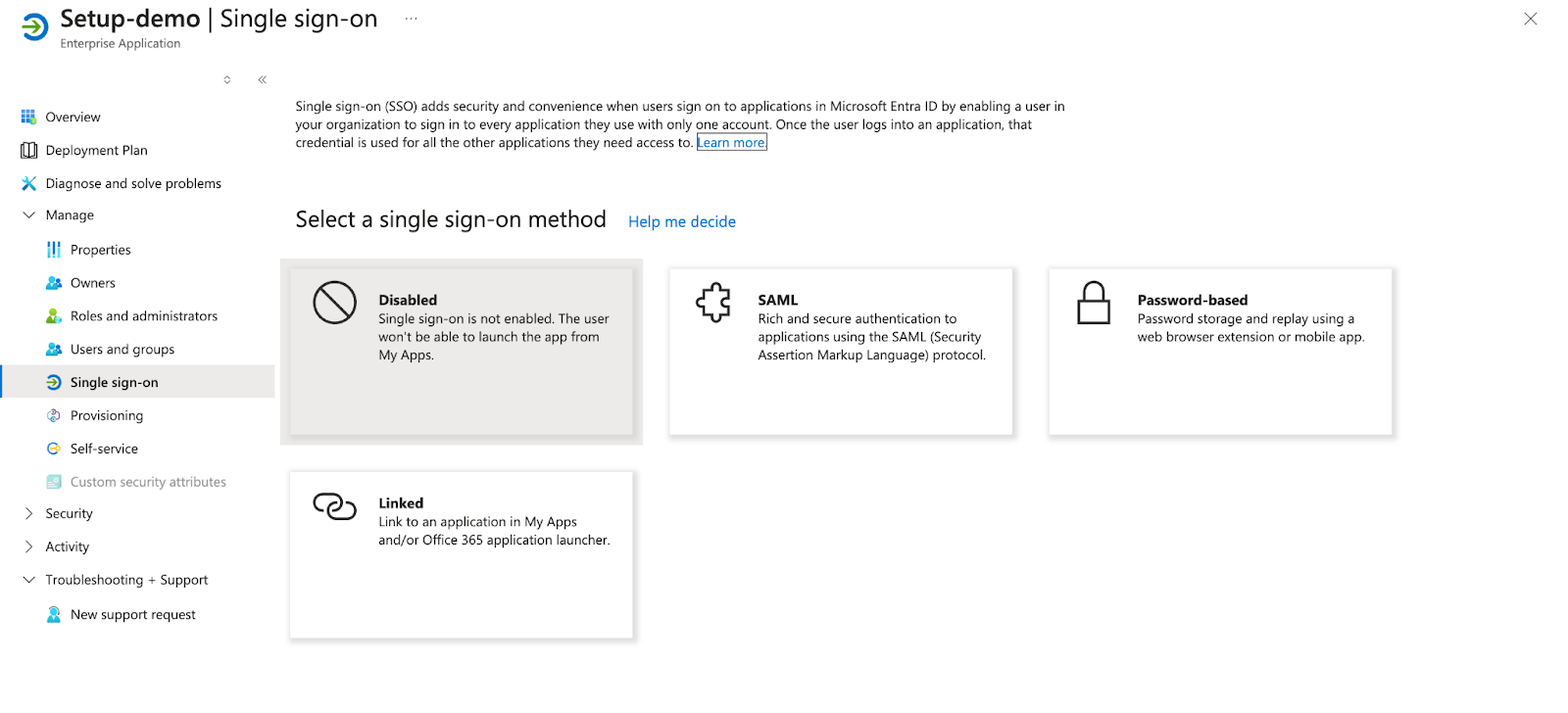
**Authentication Method**: Beam uses SAML 2.0 for SSO integration with Azure Entra ID. This guide walks through the complete setup process in both Azure and Beam.
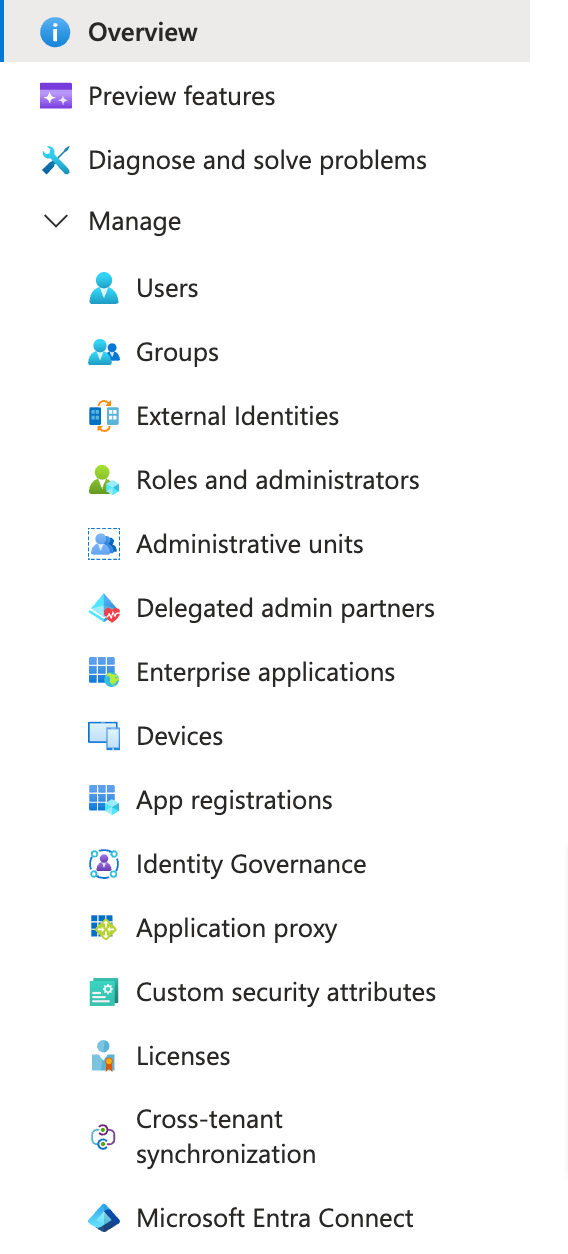
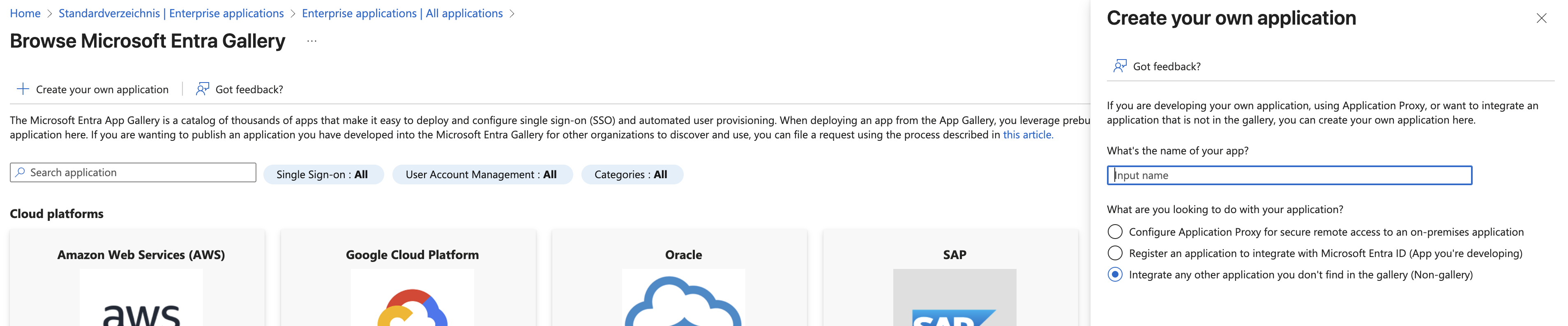
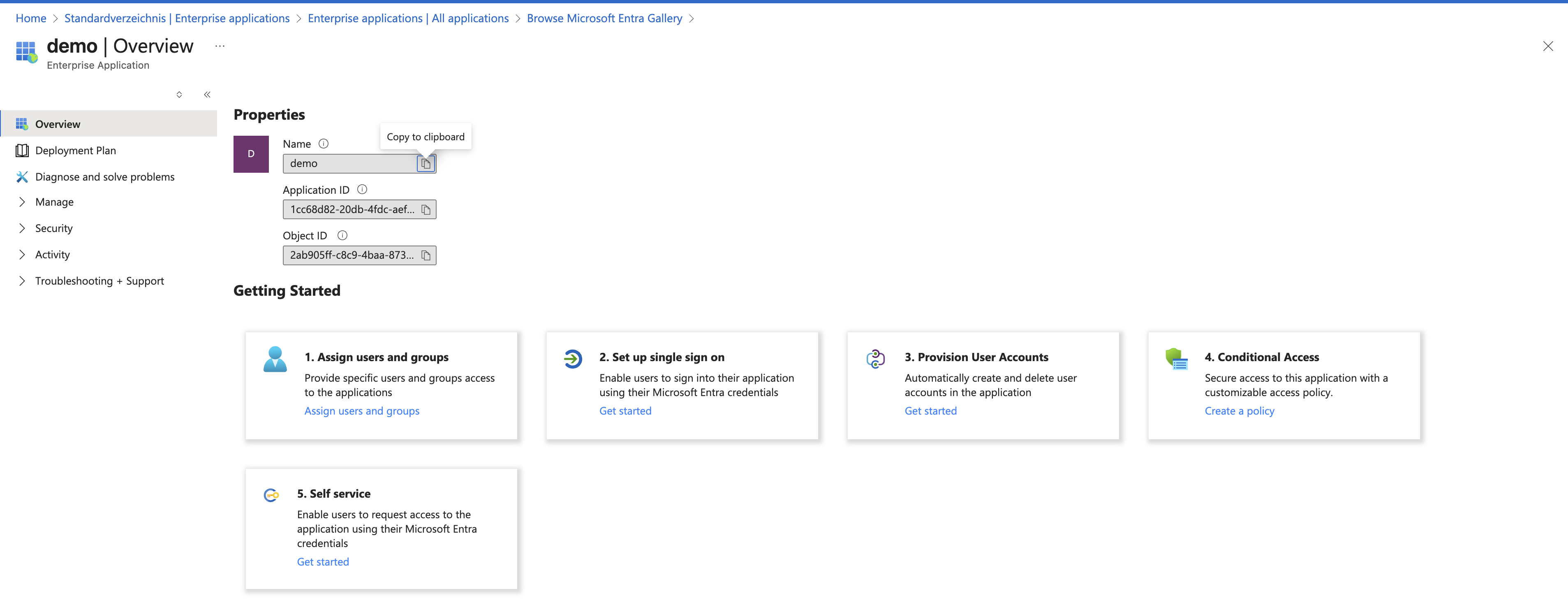
Log into the Azure Portal and navigate to **Microsoft Entra ID**.


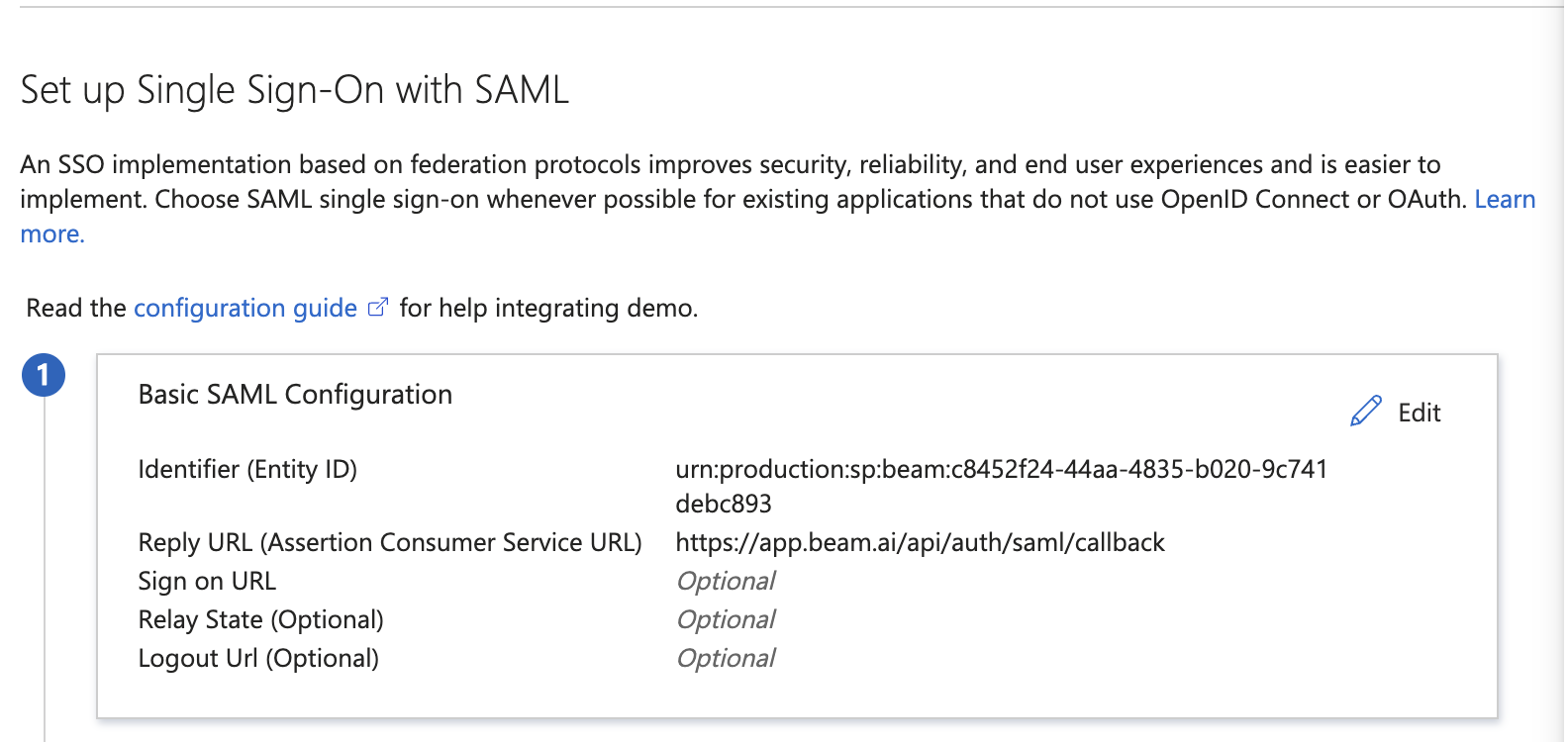
 **Identifier (Entity ID)**:
```text theme={null}
urn:production:sp:beam:
```
**Reply URL**:
```text theme={null}
https://app.beam.ai/api/auth/saml/callback
```
**Identifier (Entity ID)**:
```text theme={null}
urn:production:sp:beam:
```
**Reply URL**:
```text theme={null}
https://app.beam.ai/api/auth/saml/callback
```
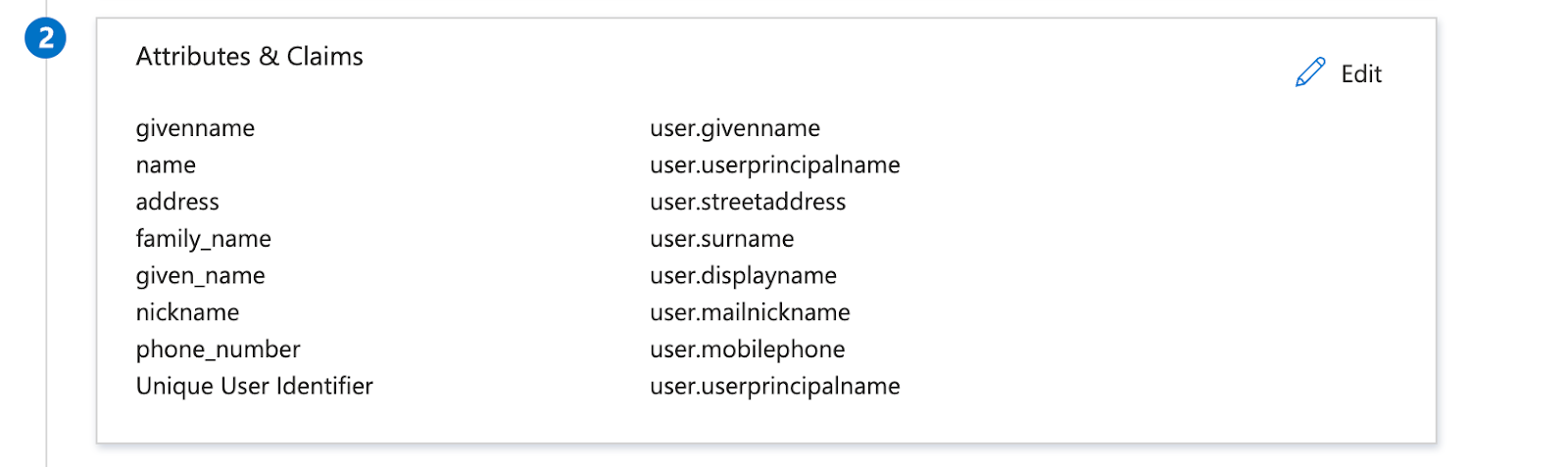 **Attribute Mappings**:
```text theme={null}
email: http://schemas.xmlsoap.org/ws/2005/05/identity/claims/name
family_name: http://schemas.xmlsoap.org/ws/2005/05/identity/claims/surname
name: http://schemas.xmlsoap.org/ws/2005/05/identity/claims/name
given_name: http://schemas.xmlsoap.org/ws/2005/05/identity/claims/givenname
nickname: http://schemas.xmlsoap.org/ws/2005/05/identity/claims/nickname
```
Upload the **Federation Metadata XML** file you downloaded from Azure.
Click **Save** to enable SSO for your workspace.
**SSO Activation**: Once saved, users can access Beam by clicking "Sign in with SSO" on the login page and entering their company email address.
**Attribute Mappings**:
```text theme={null}
email: http://schemas.xmlsoap.org/ws/2005/05/identity/claims/name
family_name: http://schemas.xmlsoap.org/ws/2005/05/identity/claims/surname
name: http://schemas.xmlsoap.org/ws/2005/05/identity/claims/name
given_name: http://schemas.xmlsoap.org/ws/2005/05/identity/claims/givenname
nickname: http://schemas.xmlsoap.org/ws/2005/05/identity/claims/nickname
```
Upload the **Federation Metadata XML** file you downloaded from Azure.
Click **Save** to enable SSO for your workspace.
**SSO Activation**: Once saved, users can access Beam by clicking "Sign in with SSO" on the login page and entering their company email address.
Testing Your SSO Setup
After configuration, test the SSO integration:
Log out of Beam (if currently logged in), navigate to [app.beam.ai](https://app.beam.ai), and click **Sign in with SSO**. Enter a user's company email address. The user should be redirected to Azure for authentication, then logged into Beam after successful Azure login.
Check that user profile information is correctly populated, verify email and name match the Azure profile, and confirm workspace access is granted appropriately.
Troubleshooting
**Cause**: The Beam application may be blocked by your organization's Azure security policies.
**Solution**:
* Have an Azure administrator locate the Beam application in the Enterprise Applications list
* Grant necessary permissions for the application
* Ensure users or groups are assigned to the application
* Verify the application is not blocked by Conditional Access policies
**Cause**: Attribute claim names in Azure don't match the expected format in Beam.
**Solution**:
* Verify the attribute mappings in Azure match exactly
* Check that source attributes are available in user profiles
* Re-download and re-upload the Federation Metadata XML file
* Contact Beam support if issues persist
**Cause**: SSO configuration may not be saved correctly or needs time to propagate.
**Solution**:
* Verify SSO configuration is saved in Beam workspace settings
* Wait 5-10 minutes for configuration to propagate
* Clear browser cache and try again
* Check that Federation Metadata XML was uploaded successfully
**Cause**: Users may not have workspace access or proper role assignments.
**Solution**:
* Ensure users are invited to the Beam workspace
* Check user role assignments in workspace settings
* Verify email addresses match between Azure and Beam invitations
* Have users check spam/junk folders for invitation emails
Next Steps
Configure workspace settings and invite team members
Build your first AI agent after SSO is configured