

The evaluation framework ensures agent quality by automatically validating outputs against defined criteria, scoring accuracy, and enabling self-healing workflows.Documentation Index
Fetch the complete documentation index at: https://docs.beam.ai/llms.txt
Use this file to discover all available pages before exploring further.
Understanding Evaluation Framework
Every workflow node can have evaluation criteria that automatically validate outputs and score accuracy. Evaluation Criteria - Plain-language validation rules checking if node outputs meet quality standards Accuracy Score - Percentage (0-100%) measuring how well node output matches evaluation criteria Auto-Run - Automatic retry when evaluation scores fall below threshold, enabling self-healing workflows Analytics Dashboard - Track completion rates, average evaluation scores, and performance trends over timeSetting Evaluation Criteria
Define validation rules for workflow nodes to automatically measure output quality.Select Node to Evaluate
Open Flow builder and click the node requiring validation. Focus on critical extraction, classification, or decision points.
Access Evaluation Settings
In node configuration panel (right side), locate “Evaluation” or “Criteria” section showing existing validation rules.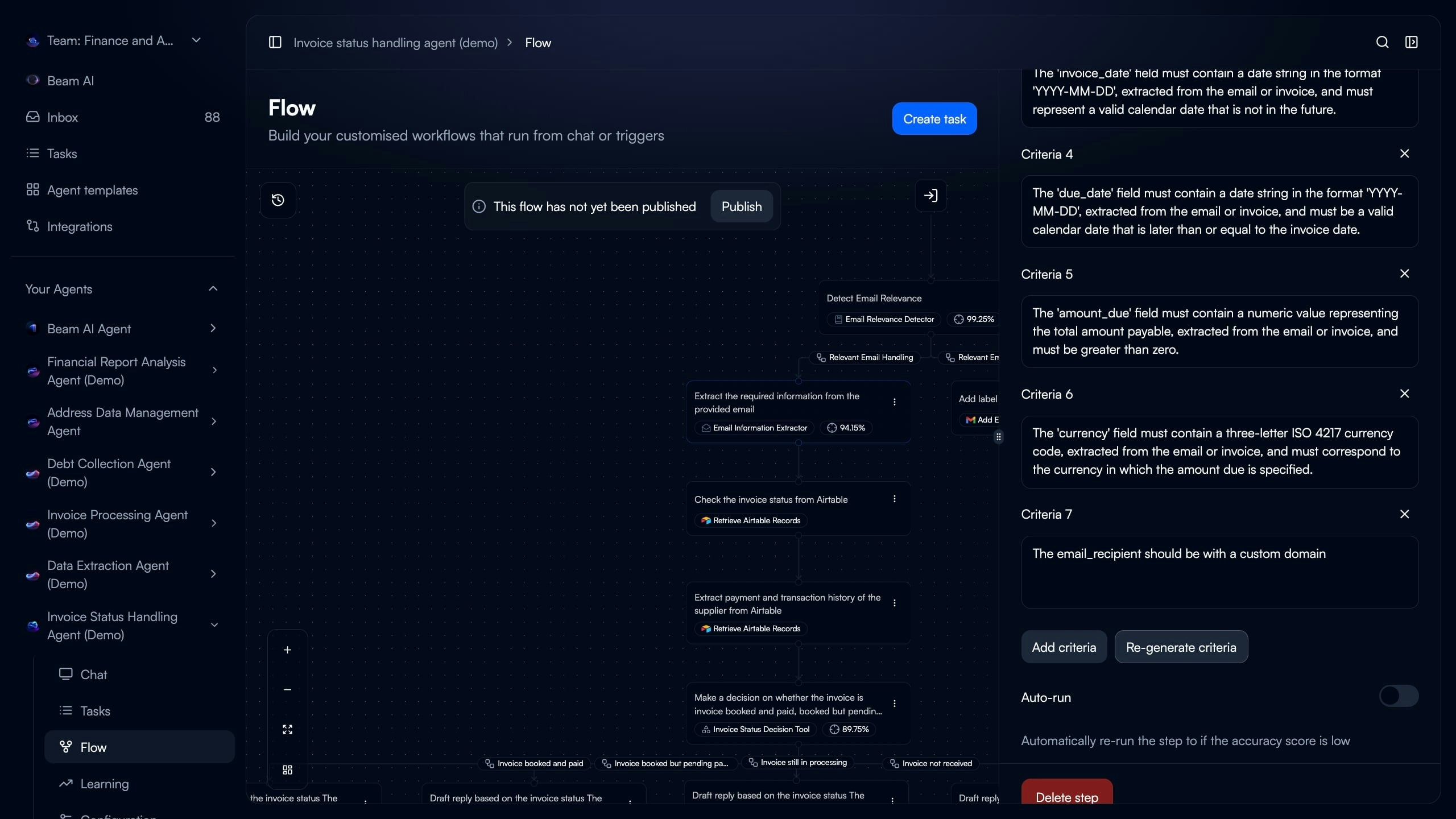
Add Validation Criteria
Click “Add criteria” to create new validation rule. Define what field to check and what makes it valid.Manual Entry: Write criteria in plain language describing validation requirementAI Generation: Click “Re-generate criteria” to automatically create validation rules based on node prompt and configuration
Define Criteria Details
Specify validation rule checking specific output field. Examples: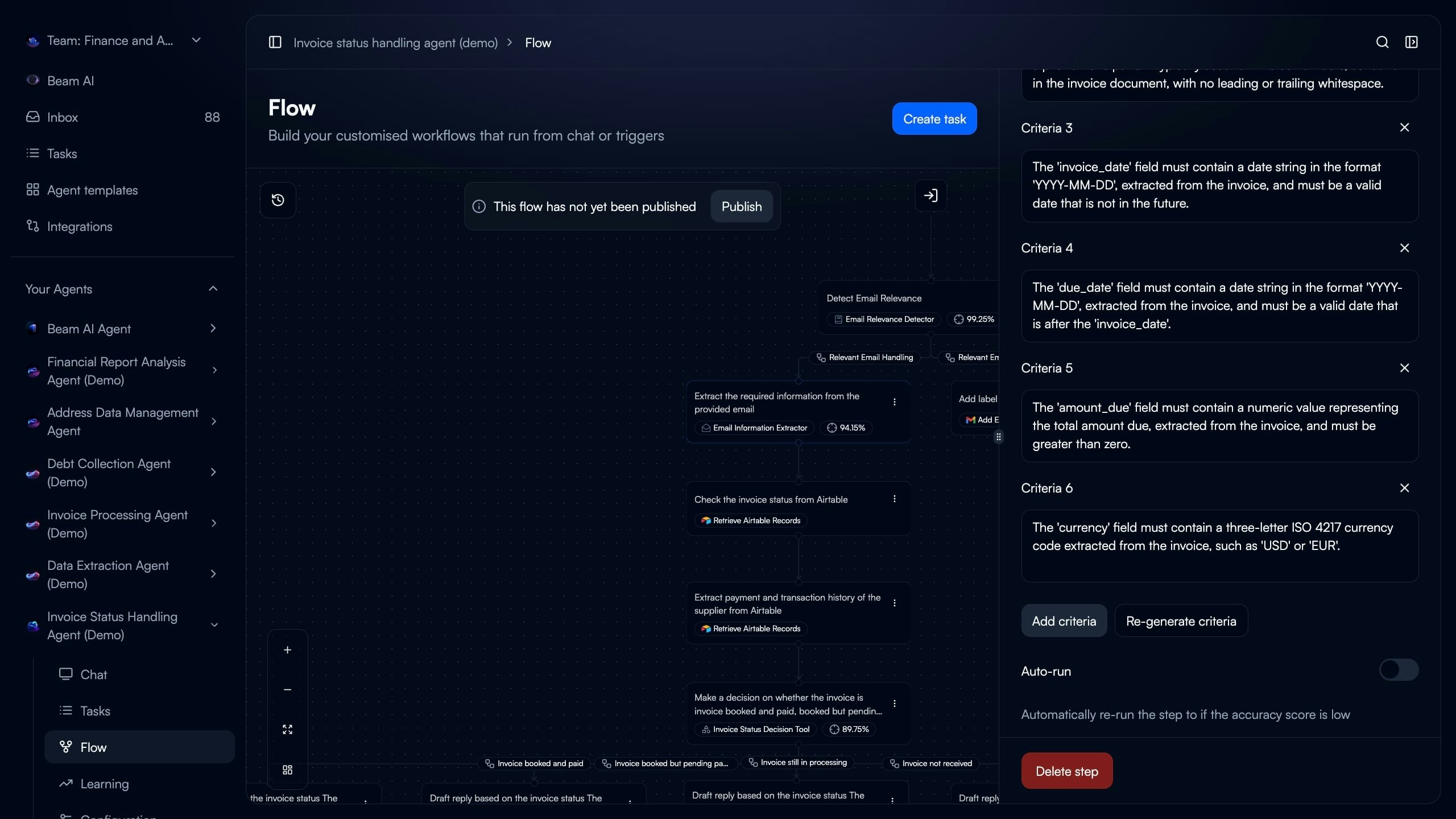
- “The ‘invoice_date’ field must contain a date string in format YYYY-MM-DD”
- “The ‘amount_due’ field must contain a numeric value greater than zero”
- “The ‘currency’ field must contain a three-letter ISO 4217 currency code”
- “The ‘priority’ field must be High, Medium, or Low”
Configure Auto-Run (Optional)
Enable “Auto-run” toggle to automatically retry node when evaluation scores are low. Set maximum retry attempts (typically 2-3).
Writing Effective Criteria
Writing Effective Criteria
Be Specific:
- Check individual fields, not entire output
- Define exact format requirements
- Specify acceptable values or ranges
- “The ‘email’ field must contain a valid email address with @ symbol”
- “The ‘invoice_number’ must be alphanumeric and 10-15 characters long”
- “The ‘status’ field must be one of: pending, approved, rejected”
- “Output should be good” (too vague)
- “Extract all information correctly” (not measurable)
- “Make sure data is accurate” (unclear definition)
- Run node with test input after adding criteria
- Verify criteria correctly identifies valid/invalid outputs
- Adjust wording if too strict or too lenient
Manual vs AI-Generated Criteria
Manual vs AI-Generated Criteria
Manual Entry:
- Full control over validation logic
- Tailored to specific business rules
- Best for unique or complex requirements
- Requires domain expertise
- Analyzes node prompt and configuration
- Automatically suggests validation rules
- Fast setup for standard extraction tasks
- Can refine suggestions manually
- Use AI generation as starting point
- Review suggested criteria for accuracy
- Add business-specific rules manually
- Test with sample inputs
- Refine based on results
Field-Level Validation
Field-Level Validation
Each criterion should validate one specific field:Data Type Checks:
- Number fields contain numeric values
- Date fields match expected format
- Boolean fields are true/false
- Email addresses have @ symbol
- Phone numbers match pattern
- URLs start with http:// or https://
- Amount greater than zero
- Date not in future
- Status matches allowed values
- Currency from approved list
- Due date after invoice date
- Discount less than total amount
- End time after start time
Auto-Run Configuration
Enable automatic retries when node evaluation scores fall below threshold, creating self-healing workflows. How Auto-Run Works:- Node executes and generates output
- Evaluation criteria assess output quality
- System calculates accuracy score (0-100%)
- If score below threshold → Node automatically retries
- Repeat until passing score or max retries reached
- Workflow continues with best output
Configuring Auto-Run
Configuring Auto-Run
Enable in Node Settings:
- Open node configuration in Flow builder
- Scroll to “Auto-run” section below evaluation criteria
- Toggle “Auto-run” switch to enabled
- Set “Number of re-runs” (max attempts, typically 2-3)
- GPT-based extraction with variable outputs
- Classification tasks needing high confidence
- Data parsing from inconsistent formats
- Steps where retry often improves results
- Deterministic operations (always same output)
- Integration API calls (retry won’t change response)
- Steps failing due to missing data
- Final output nodes (may need human review)
Auto-Run Best Practices
Auto-Run Best Practices
Retry Limits:
- Start with 2-3 max retries
- More retries increase execution time
- High retry rates indicate prompt issues
- Track how often auto-run triggers
- Review tasks using all retry attempts
- Optimize prompts if >30% tasks need retries
- Clear, measurable criteria essential
- Vague criteria cause unnecessary retries
- Test criteria before enabling auto-run
- Each retry adds execution time
- Cost increases with retry attempts
- Balance quality vs speed/cost
Auto-Run vs Manual Rerun
Auto-Run vs Manual Rerun
Auto-Run (Automatic):
- Happens during task execution
- Triggered by low evaluation scores
- No human intervention
- Limited to configured max retries
- Single node only
- After task completes (see Rerunning Tasks)
- User decides when to rerun
- Unlimited reruns available
- Can rerun full workflow or specific step
- Useful for testing changes
Monitoring Evaluation Performance
Track agent accuracy and evaluation metrics over time through Analytics dashboard.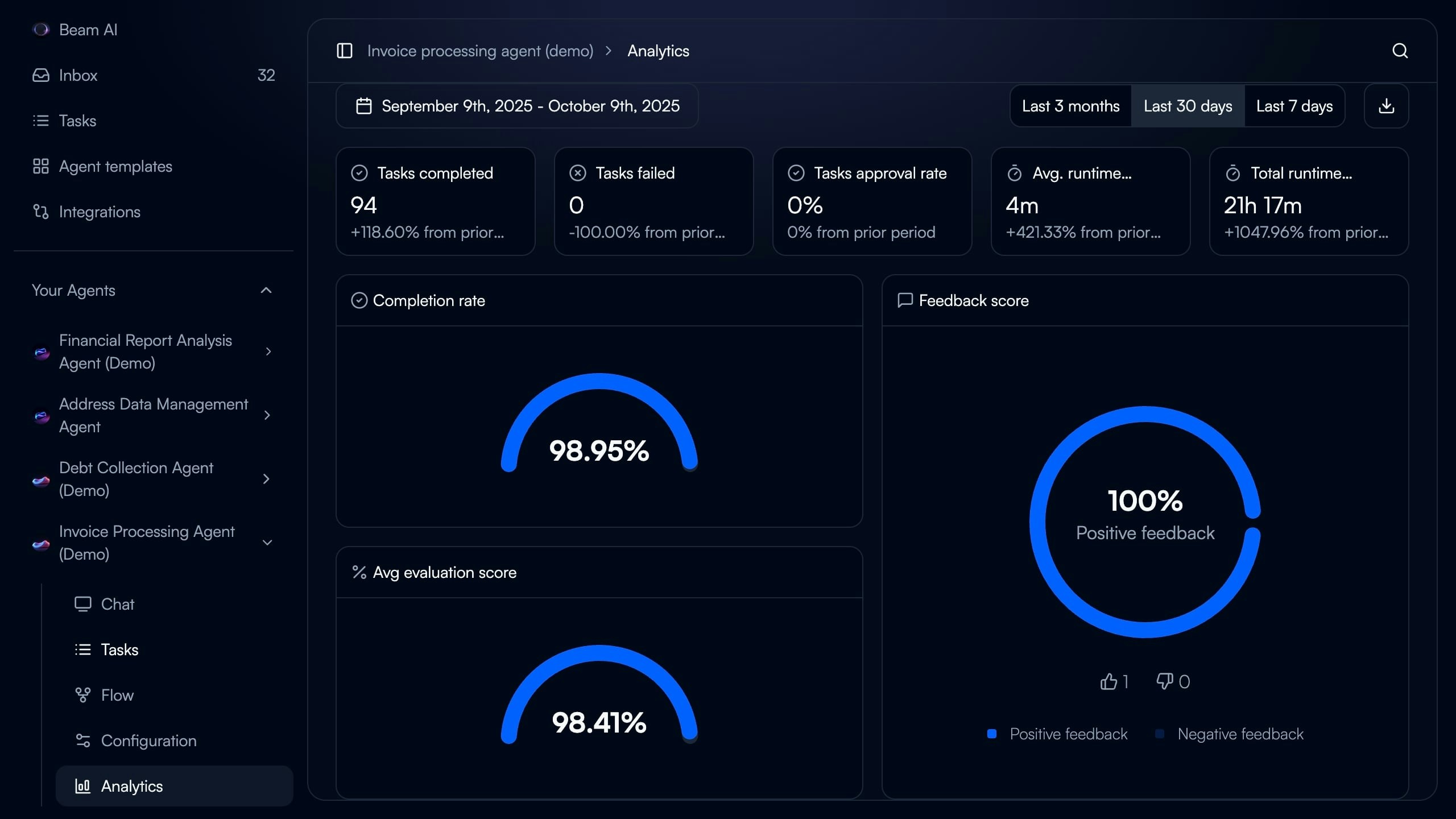
- Navigate to agent in Beam AI
- Click “Analytics” in left sidebar
- Select date range (Last 7 days, Last 30 days, Last 3 months)
- Review metrics and trends
Interpreting Evaluation Scores
Interpreting Evaluation Scores
95-100% Score:
- Agent performing excellently
- Criteria well-calibrated
- Minimal failures
- Ready for production scaling
- Good performance with room for improvement
- Review failed cases for patterns
- Consider prompt optimization
- May need criteria adjustment
- Acceptable but needs optimization
- Identify common failure types
- Use Optimize Outputs for prompt improvement
- Review criteria strictness
- Significant issues requiring attention
- Check if criteria too strict
- Review prompt quality
- Verify training data relevance
- Consider workflow redesign
Tracking Trends
Tracking Trends
Improving Scores:
- Prompt optimizations working
- Agents learning from feedback
- Criteria calibrated correctly
- Data drift (new input patterns)
- Criteria becoming outdated
- Integration changes
- Need prompt refresh
- Agent performing consistently
- Monitor for sudden changes
- Periodic optimization still valuable
- Review analytics weekly
- Investigate score drops immediately
- Celebrate improvements with stakeholders
- Document optimization changes
Per-Node Performance
Per-Node Performance
Identify Weak Points:
- Which nodes have lowest scores?
- Are failures clustered in specific steps?
- Do certain branches perform worse?
- Nodes with <85% scores
- High-volume nodes with 85-94% scores
- Critical workflow steps regardless of score
- Recently changed nodes
- Similar nodes in different agents
- Same task type performance
- Identify best practices to replicate
Creating Expected Outputs
Define ground truth outputs from successful task executions to use in Test Datasets. Process:- Run agent with sample input
- Review task execution output
- Verify output correctness
- Export as expected output for test dataset
- Use in batch testing for validation
Expected Output Sources
Expected Output Sources
Successful Production Tasks:
- Find task with perfect evaluation scores
- Review output for accuracy
- Export complete node outputs
- Verify all fields present and correct
- Domain expert defines correct output
- Based on input data analysis
- Follows business rules exactly
- Validated by stakeholders
- Run agent on test input
- Human reviews and corrects errors
- Corrected version becomes expected
- Faster than manual from scratch
Expected Output Best Practices
Expected Output Best Practices
Precision:
- Exact field names matching node output
- Correct data types (string, number, boolean)
- Proper date/time formats (YYYY-MM-DD)
- Accurate currency/number precision
- All fields that will be evaluated
- Optional fields with null if not present
- Nested objects fully specified
- Note why this is correct answer
- Document business rules applied
- Mark edge case handling
- Keep updated as requirements change
- Test expected outputs against criteria
- Ensure they would score 100%
- Use in dataset runs to verify
- Update when criteria change
Integration with Test Datasets
Use evaluation framework with test datasets for systematic quality assurance. See Test Datasets for comprehensive testing guidance. Workflow:- Define evaluation criteria for nodes
- Create test inputs with expected outputs
- Run test dataset via webhook
- Evaluation criteria score each output
- Compare actual vs expected
- Calculate overall dataset accuracy
- Optimize prompts based on failures
- Automated quality validation
- Quantitative performance measurement
- Regression testing for changes
- Continuous improvement tracking
Best Practices
Start with Critical Nodes
Start with Critical Nodes
Priority Order:
- Data extraction nodes (invoice details, form fields)
- Classification/routing nodes (priority, category)
- Decision nodes (approval logic, validation)
- Integration nodes (API calls, database lookups)
- Final output formatting
- Focus effort where accuracy matters most
- Build expertise before tackling all nodes
- Demonstrate value quickly
- Iterate based on learnings
Iterate on Criteria
Iterate on Criteria
Initial Setup:
- Start with basic validation rules
- Use AI generation for suggestions
- Test with 5-10 sample inputs
- Too strict? Relax constraints
- Too lenient? Add specific checks
- Missing edge cases? Add coverage
- Review failed evaluations for patterns
- Update criteria quarterly
- Add rules for new failure types
- Remove outdated requirements
- Document changes and rationale
Combine with Human Feedback
Combine with Human Feedback
Evaluation Criteria:
- Automated validation of format/structure
- Check required fields present
- Verify data type correctness
- Semantic accuracy (correct meaning)
- Business logic appropriateness
- Edge case handling quality
- Overall output quality
- Criteria catch 80% of issues automatically
- Human review for remaining 20%
- Incorporate human feedback into criteria
- Reduce manual review over time
Monitor Auto-Run Usage
Monitor Auto-Run Usage
Warning Signs:
- Node using all retries frequently (>30% of tasks)
- Auto-run rarely improves scores
- Execution time significantly increased
- Cost impact from retries
- Review and optimize prompts (see Optimize Outputs)
- Adjust evaluation criteria if too strict
- Consider if auto-run appropriate for node
- Disable if not providing value
- Auto-run triggers on <10% of tasks
- Retries improve scores 80%+ of time
- Average 1-2 retries when triggered
- Clear ROI from quality improvement
Next Steps
Test Datasets
Create test datasets using evaluation criteria for validation
Optimize Outputs
Use AI-powered optimization to improve failing evaluations
Rerunning Tasks
Rerun tasks after updating evaluation criteria
Task Executions
Monitor evaluation scores in task execution results