

Understanding Optimize Outputs
Watch AI agents learn from failures and fix themselves automatically—no code required. Learning Hub - Tracks tool performance across all workflow nodes, identifying underperforming tools below accuracy thresholds Feedback-Driven Optimization - Mark what went wrong in failed outputs, and AI uses examples to rewrite prompts with better context Automatic Prompt Rewriting - AI analyzes failures, identifies patterns, rewrites prompts with clearer instructions and structured logic Validation Testing - Automatically retests new prompts against same failed cases to verify improvement before deployment Key Benefit: Transform 5% accuracy tools to 100% accuracy in ~30 seconds by providing AI with feedback on what went wrong.Accessing Learning Hub
Monitor tool performance and identify optimization opportunities across your agent workflows.Open Learning
Review Tool Performance
Identify Underperforming Tools
Access Optimization
Performance Metrics
Performance Metrics
- Percentage of tool outputs meeting evaluation criteria
- Based on Evaluation Framework validation
- Updated with each task execution
- 90-100%: Excellent performance
- 70-89%: Good, minor optimization beneficial
- 50-69%: Moderate issues, optimization recommended
- Below 50%: Significant problems, optimization critical
- Number of times tool has run
- Larger sample size = more reliable accuracy metric
- Minimum 5-10 executions for meaningful optimization
Comparing Tool Performance
Comparing Tool Performance
- 100% accuracy tools show optimization works when configured correctly
- Low accuracy tools (5-20%) indicate prompt issues, not capability limits
- Similar tasks performing differently = prompt quality difference
- Critical workflow tools with <50% accuracy
- High-volume tools with 50-89% accuracy
- Recently added tools needing calibration
- Tools with declining accuracy trends
Reviewing Failed Outputs
Examine failed task executions to understand what went wrong before optimization.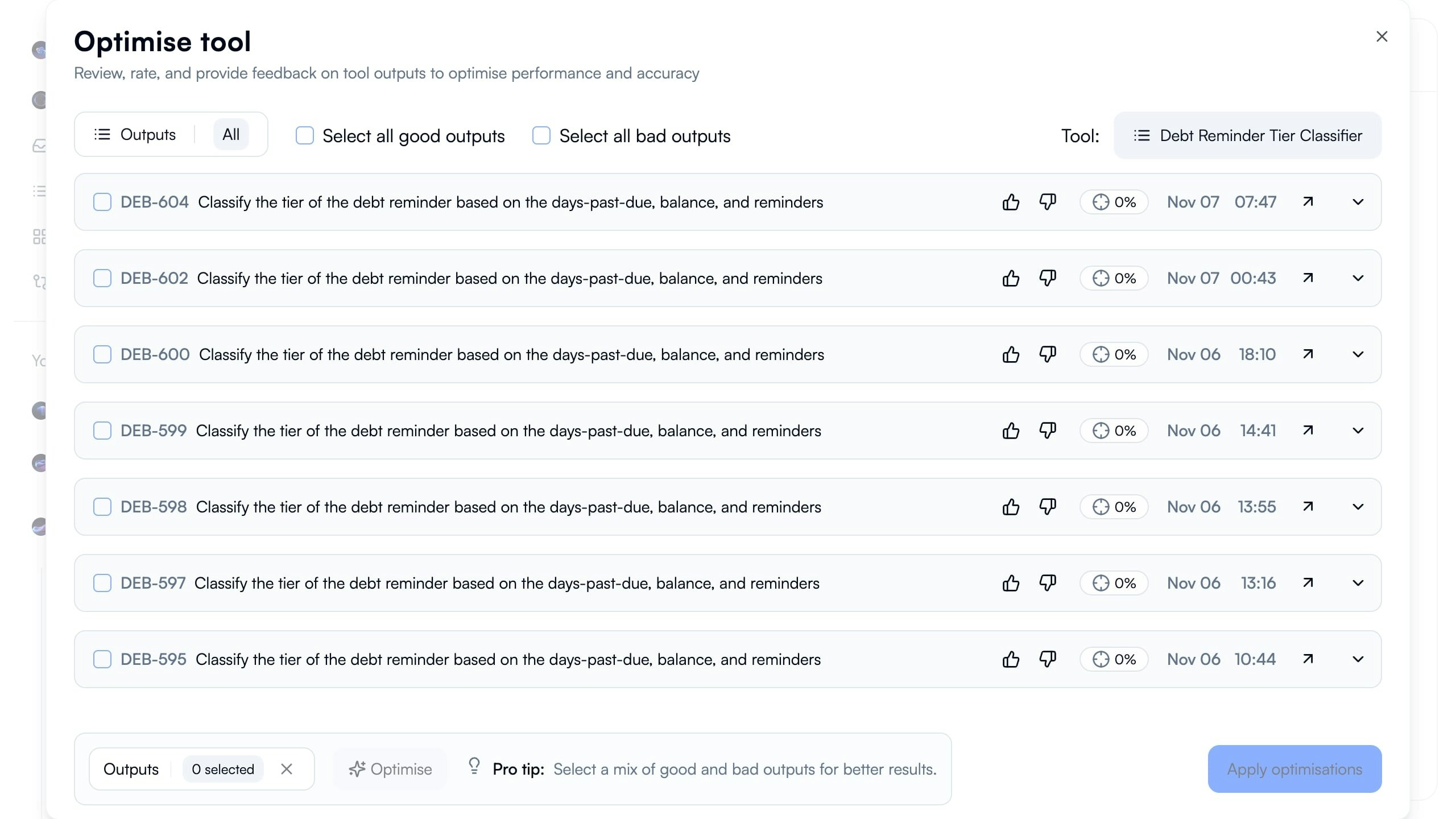
- Each row represents single task execution
- Shows task ID, description, thumbs up/down rating, accuracy score (0%), timestamp
- All failures displayed for pattern identification
- Checkbox for selecting outputs to provide feedback
Open Optimization Modal
Review Failed Executions
Select Examples for Feedback
Output Review Criteria
Output Review Criteria
- Consistent error patterns (same mistake repeated)
- Missing information in outputs
- Incorrect classifications or extractions
- Hallucinations (AI making up data not in input)
- Format issues (wrong structure, missing fields)
- Different input scenarios
- Various error types
- Edge cases and common cases
- Recent and older failures
Filter Options
Filter Options
- Check outputs that were correct
- Helps AI learn what success looks like
- Provides positive examples alongside failures
- Quickly select all failed cases
- Useful when all outputs have same issue
- Uncheck outliers that failed for different reasons
- Choose specific mix of good and bad
- Recommended: 60-70% bad, 30-40% good
- Provides balanced learning signal
Providing Feedback
Mark what went wrong in failed outputs so AI can learn and improve prompts.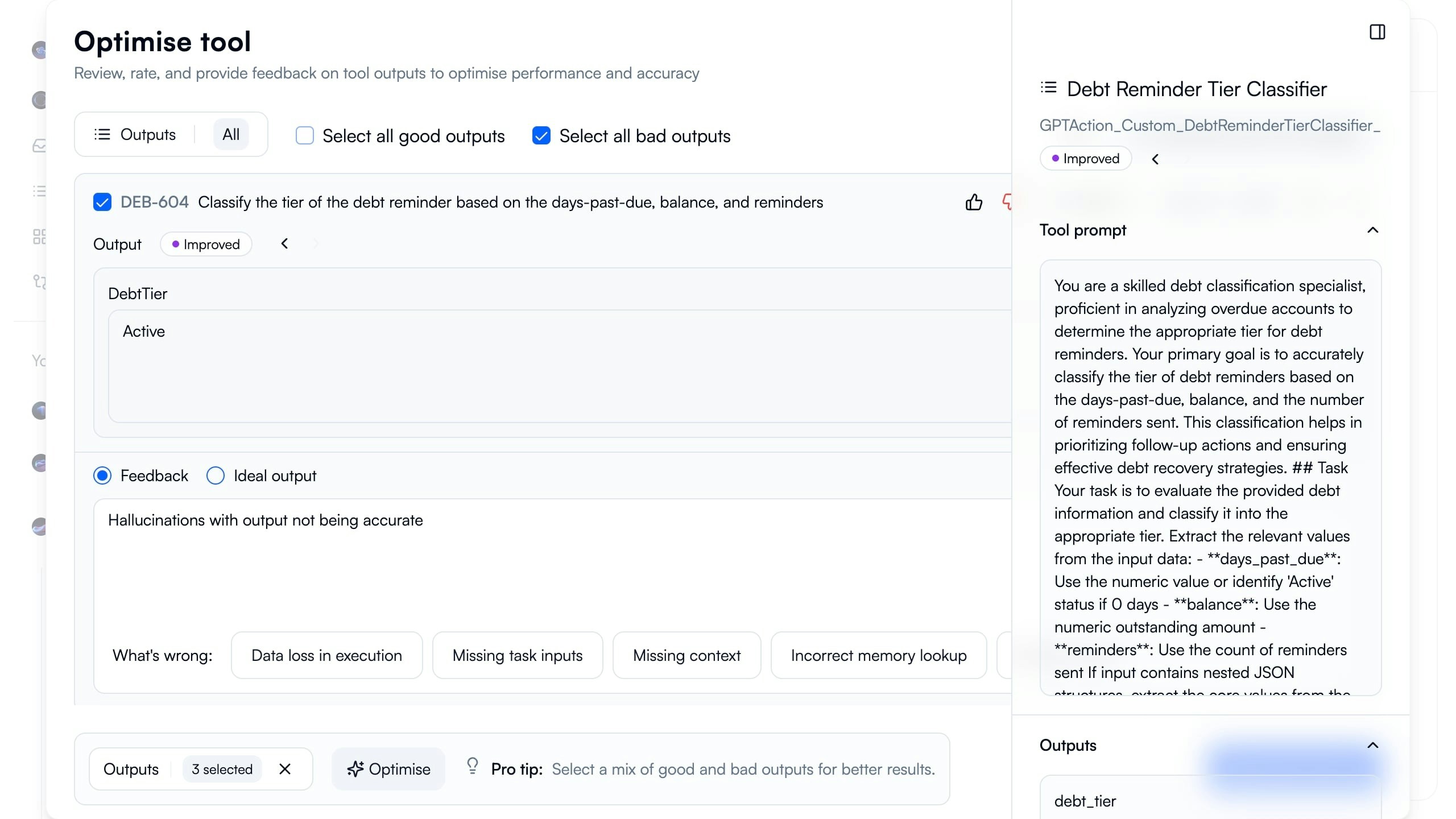
Select Failed Output
Review Output Content
Choose Feedback Type
Tag Error Type
- Data loss in execution: Information from input missing in output
- Missing task inputs: Required data not provided to tool
- Missing context: Tool lacks background information needed
- Incorrect memory lookup: Wrong reference data retrieved
- Hallucinations: AI inventing data not in input (common for low-accuracy tools)
Repeat for Multiple Examples
Effective Feedback Strategies
Effective Feedback Strategies
- “Output classified as ‘Active’ but should be ‘Tier 2’ based on days past due”
- Not just “Wrong classification”
- “Missing consideration of balance amount in tier determination”
- “Hallucinating ‘Active’ status not present in input data”
- “Tool should use days_past_due, balance, and reminders count”
- “Classification requires comparing against tier thresholds”
- Hallucinations: AI making up data
- Data loss: Correct data ignored
- Missing context: Need domain knowledge added to prompt
- Missing inputs: Input schema incomplete
Ideal Output vs Feedback
Ideal Output vs Feedback
- Extraction tasks (exact values to extract)
- Classification (correct category)
- Structured data output (fill in JSON)
- Clear right/wrong answers
- Explaining reasoning errors
- Complex decision logic
- Nuanced improvements
- Process problems vs output problems
- Provide ideal output for 1-2 examples
- Explain what’s wrong via feedback for others
- Gives AI both target and reasoning
Common Error Patterns
Common Error Patterns
- AI inventing classifications not in input
- Making up field values
- Creating data from assumptions
- Ignoring key input fields
- Missing important context
- Overlooking edge case data
- Wrong decision criteria
- Misunderstanding task requirements
- Incorrect priority/weighting
- Wrong output structure
- Missing required fields
- Incorrect data types
AI Optimization Process
Watch AI analyze failures, rewrite prompts, and validate improvements automatically. Optimization Steps:- Analysis (~10 seconds): AI reviews all selected outputs and feedback to identify failure patterns
- Prompt Rewriting (~15 seconds): Generates improved prompt with better role context, structured logic, and clear output requirements
- Validation Testing (~5 seconds): Automatically retests new prompt against same failed cases
- Results Display: Shows before/after comparison with accuracy improvements
What AI Changes in Prompts
What AI Changes in Prompts
- “You are a skilled debt classification specialist…”
- Provides domain expertise framing
- Sets expectations for task complexity
- Breaks down decision process into steps
- Defines exact criteria for each tier
- Specifies how to weigh different factors
- Exact format specifications
- Required fields clearly listed
- Data type expectations (string, number, boolean)
- Validation rules embedded
- What to do when data missing
- How to handle boundary conditions
- Fallback logic defined
Validation Testing
Validation Testing
- Runs new prompt on same inputs that previously failed
- Compares outputs against evaluation criteria
- Calculates new accuracy scores
- Shows improvement percentage
- Original: 0% accuracy on 3 test cases
- Optimized: 100% accuracy on same 3 cases
- Improvement: +100 percentage points
- All outputs you provided feedback on
- Additional recent failures if available
- Diverse input scenarios
- Edge cases from feedback
Optimization Success Indicators
Optimization Success Indicators
- Accuracy jumps 50+ percentage points
- All test cases now passing
- Clear pattern recognition visible
- Prompt significantly more detailed
- Accuracy increases 20-49 points
- Most test cases passing
- Some edge cases still failing
- May need additional feedback iteration
- Accuracy increases <20 points
- Many test cases still failing
- Pattern unclear or complex
- Need more diverse feedback examples
- Add more feedback examples (aim for 5-10)
- Include diverse error types
- Provide ideal outputs
- Consider if tool has right input data
Applying Optimizations
Deploy improved prompts to production after validating accuracy improvements.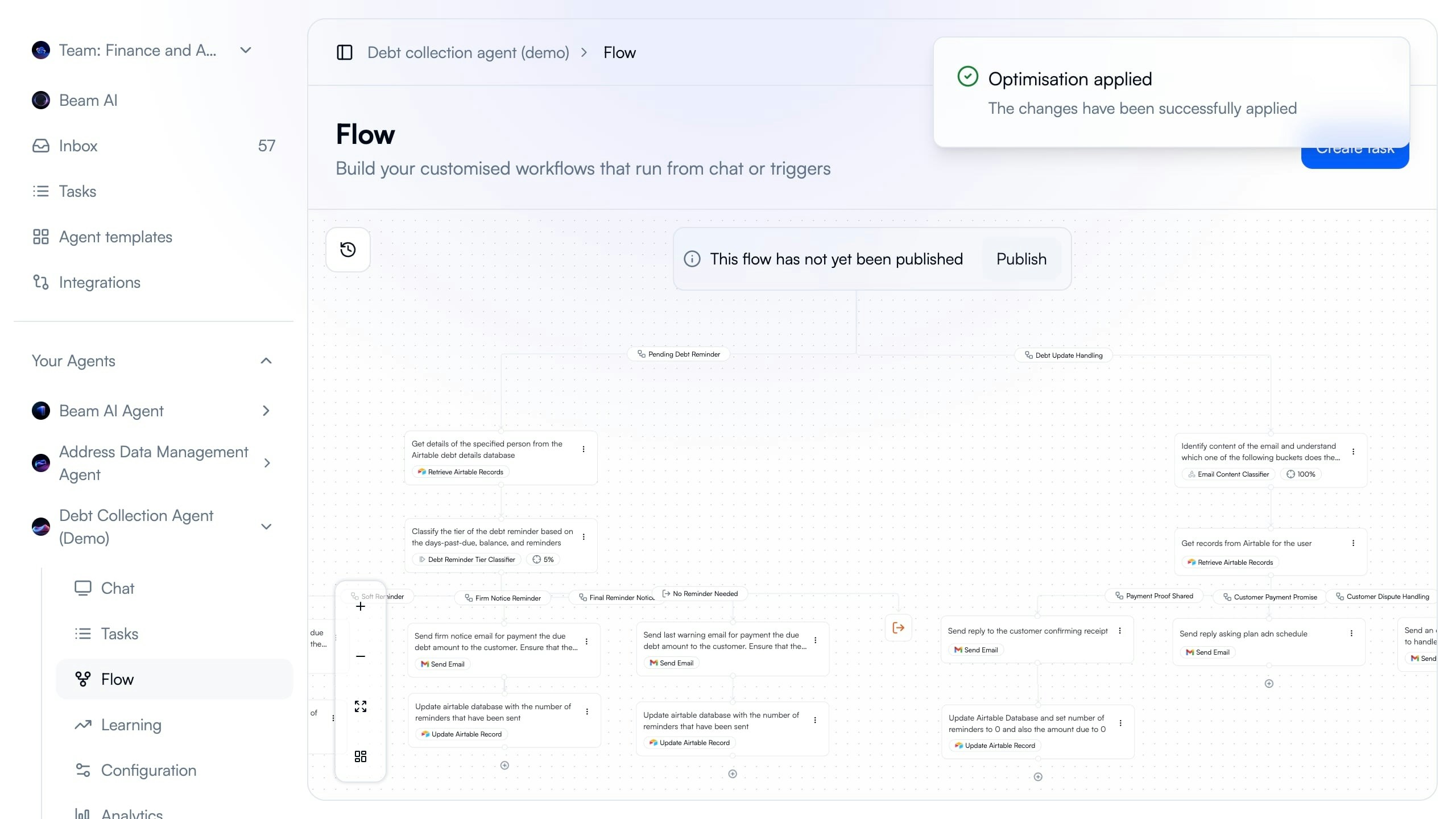
Review Optimization Results
Click Apply Optimizations
Review in Flow Builder
Publish Changes
Monitor Performance
Pre-Publishing Checklist
Pre-Publishing Checklist
- ✅ Accuracy increased significantly (ideally 90%+)
- ✅ All test cases passing
- ✅ Prompt changes logical and clear
- ✅ No unintended side effects visible
- Run manual test task with new prompt
- Verify output format unchanged
- Check integration compatibility
- Test with edge case inputs
- Document original prompt before publishing
- Monitor first 10-20 production tasks closely
- Revert if accuracy drops unexpectedly
- Iterate with more feedback if needed
Post-Publishing Monitoring
Post-Publishing Monitoring
- Check Learning Hub for updated accuracy
- Review first 10 task outputs manually
- Monitor for new error patterns
- Compare pre/post optimization metrics
- Track daily accuracy trends
- Analyze any failures with new prompt
- Gather feedback from users/reviewers
- Iterate if accuracy below target
- Weekly accuracy reviews
- Monthly optimization opportunities check
- Quarterly full prompt review
- Continuous feedback collection
Multiple Optimization Iterations
Multiple Optimization Iterations
- Initial optimization improved but still <90% accuracy
- New failure patterns emerge over time
- Input data characteristics changed
- Business rules updated
- Deploy first optimization
- Monitor for 1-2 weeks
- Collect new failure examples
- Run optimization again with fresh feedback
- Repeat until target accuracy achieved
- First optimization: Often 40-60% improvement
- Second optimization: 10-20% improvement
- Third+ optimization: <10% improvement
- Consider if prompting limits reached
Optimization Best Practices
Select Quality Feedback Examples
Select Quality Feedback Examples
- Include different error types
- Cover various input scenarios
- Mix recent and older failures
- Representative of production data
- Minimum: 3 examples (basic optimization)
- Recommended: 5-7 examples (good optimization)
- Maximum useful: 10-15 examples (comprehensive)
- Beyond 15: Diminishing returns
- 60-70% bad outputs (what to fix)
- 30-40% good outputs (what to preserve)
- Helps AI maintain good behavior while fixing issues
Write Clear, Actionable Feedback
Write Clear, Actionable Feedback
- “Output classified as ‘Active’ but input shows 45 days past due, should be Tier 2”
- “Missing consideration of balance amount - only used days_past_due”
- “Hallucinating ‘paid’ status not present in input data”
- “Wrong” (too vague)
- “Bad output” (not actionable)
- “Doesn’t work” (no specific guidance)
- What’s wrong: “Output shows X”
- Why it’s wrong: “But input indicates Y”
- What’s needed: “Should classify as Z based on [criteria]”
Validate Before Publishing
Validate Before Publishing
- Apply optimizations (don’t publish)
- Copy prompt to E2E agent version
- Run test dataset (see Test Datasets)
- Verify 90%+ accuracy maintained
- Publish to production if validated
- Run 5-10 manual test tasks
- Review outputs for correctness
- Check for format consistency
- Verify edge case handling
- Save original prompt version
- Document changes made
- Have revert process ready
- Monitor closely post-deployment
Iterate Based on Results
Iterate Based on Results
- Publish and monitor
- Document what worked
- Apply learnings to other tools
- Run second optimization with more examples
- Add ideal outputs for clarity
- Test again before publishing
- Review if tool has right inputs
- Check if task too complex for single prompt
- Consider workflow redesign
- Consult Debug Tools
- Verify feedback quality and diversity
- Check if evaluation criteria correct
- Review if fundamental data missing
- May need human-in-the-loop (see Automation Modes)
Integration with Evaluation Framework
Optimize Outputs works seamlessly with Evaluation Framework for continuous quality improvement. Connected Workflow:- Evaluation Framework defines validation criteria for outputs
- Task executions generate accuracy scores against criteria
- Learning Hub aggregates scores to identify low-performing tools
- Optimize Outputs uses failed evaluations as feedback for improvement
- Improved prompts increase future evaluation scores
- Analytics track improvement trends over time
- Automated quality measurement
- Data-driven optimization
- Quantifiable improvements
- Continuous learning loop