

Understanding Automation Modes
Beam supports three automation modes that determine agent behavior when encountering specific workflow checkpoints: Fully Autonomous - Agents execute end-to-end without human intervention Human-in-the-Loop (HITL) - Agents pause at designated checkpoints for human review and approval Hybrid - Combination of autonomous execution with selective human oversight at critical steps Inbox System: All tasks requiring human attention route to a centralized Inbox across all agents in your workspace.Human-in-the-Loop (HITL)
Inbox Overview
The Inbox consolidates all agent tasks requiring human attention in one location..jpg?fit=max&auto=format&n=YDqllBKSmU7636m6&q=85&s=3e35e1fc92d25fde481b66646563a3ab)
- Task Count: Total pending items requiring attention (24 in example)
- Task List: All paused workflows across different agents
- Task Type Indicators: Visual icons showing consent required, input needed, or failed execution
- Agent Context: Which agent created the task
- Timestamp: How long ago the task was created
Consent Required
Agent needs approval before executing sensitive action
Input Required
Agent missing variable or data needed to continue workflow
Failed Execution
Workflow stopped due to error requiring human intervention
Consent Approvals
Agents pause before executing actions requiring explicit human permission.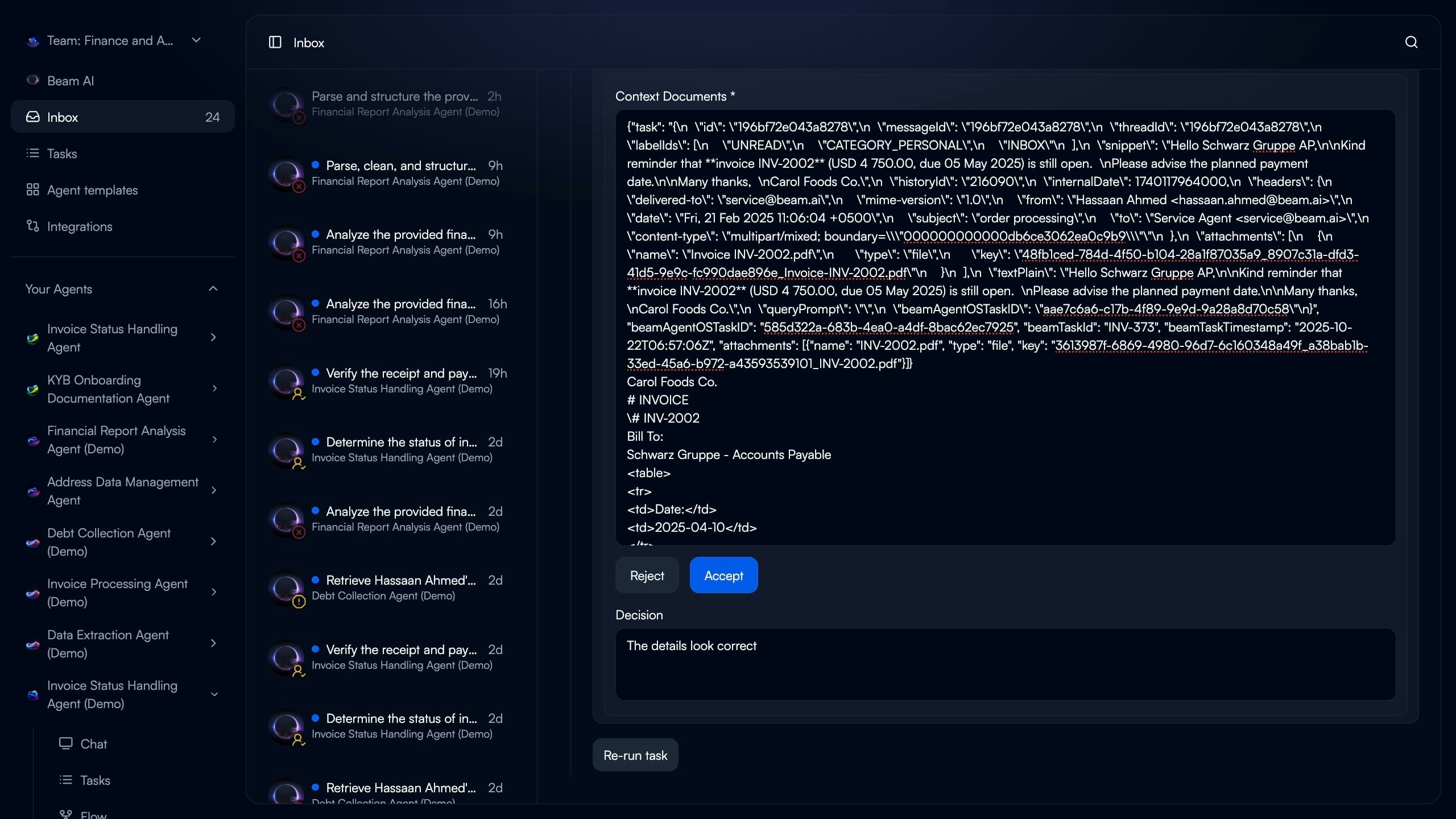
- Agent Pauses: Workflow stops at consent checkpoint node
- Context Provided: Shows execution steps completed so far and proposed action
- Human Reviews: Examines agent reasoning, data extracted, and draft output
- Decision Made: Approve to continue or Reject to stop workflow
- Accept: Agent proceeds to next workflow step with approved action
- Reject: Workflow terminates with rejection reason logged
- Provide Feedback: Optional context on why rejected for agent learning
When to Use Consent Checkpoints
When to Use Consent Checkpoints
Recommended for:
- Sending emails or messages to external parties
- Updating critical database records
- Financial transactions or payments
- Deleting data or making irreversible changes
- Publishing content to public channels
- Compliance-sensitive operations
Consent Best Practices
Consent Best Practices
Clear Context:
- Show what agent has done so far
- Display exact action requiring approval
- Provide reasoning for proposed action
- Make approval/rejection consequences clear
- Allow feedback to improve future decisions
- Log all consent decisions for audit trail
- Set SLA for consent review (e.g., 2 hours)
- Configure escalation if no response
- Send notifications to relevant team members
Input Requests
Agents pause when missing required data or variables to complete workflow..jpg?fit=max&auto=format&n=YDqllBKSmU7636m6&q=85&s=800b2f47d2c44f734036a4b8c617efdf)
- Agent Identifies Gap: Cannot infer or extract required variable
- Execution Pauses: Workflow stops at step needing the data
- Input Form Presented: Human sees what’s needed with context
- Data Provided: User fills in missing information
- Agent Resumes: Continues from pause point without restarting
- Question: Clear prompt for what data is needed
- Context: Why agent needs this information
- Input Field: Form field matching expected data type
- Continue Button: Submits response and resumes workflow
When Agents Request Input
When Agents Request Input
Common Scenarios:
- Variable not available in trigger data or memory
- Conditional logic requires human judgment
- External system unavailable, manual lookup needed
- Ambiguous data requiring clarification
- Custom business rules not encoded in workflow
- Use “Request Input” node in workflow
- Define variable name and data type
- Provide clear question text
- Set optional timeout and default value
Input Handling Best Practices
Input Handling Best Practices
Minimize Input Requests:
- Automate data fetching where possible
- Use integrations to pull missing data
- Configure memory files with reference data
- Set default values for optional fields
- Explain why input is needed
- Show what agent has done so far
- Indicate how response will be used
- Provide examples of valid inputs
- Define expected data type and format
- Validate input before resuming workflow
- Provide error messages for invalid data
Managing Inbox Tasks
Task Details View
Click any inbox item to see complete execution context and take action.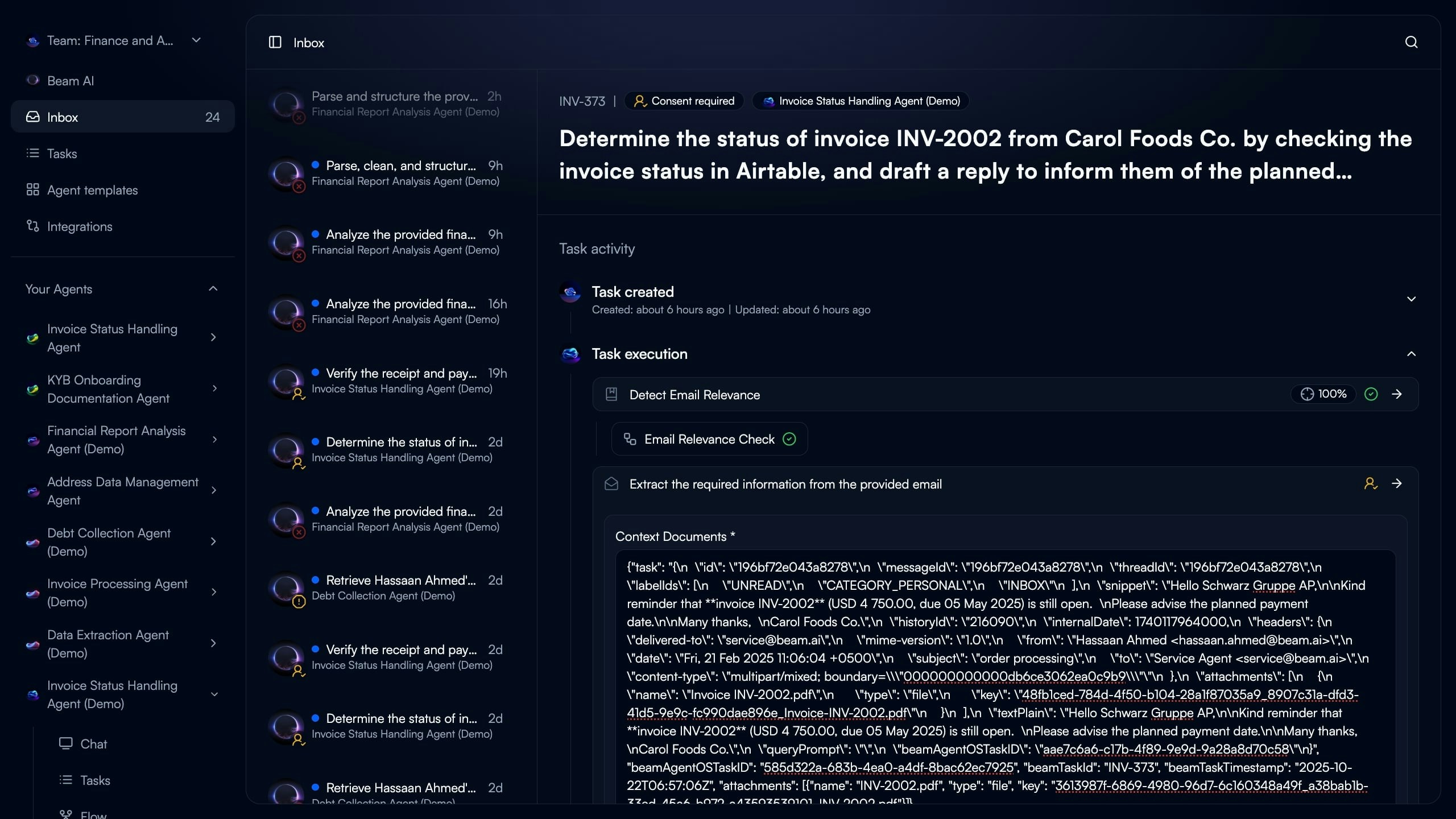
Workflow Continuation
After providing input or approval, agents resume exactly where they paused.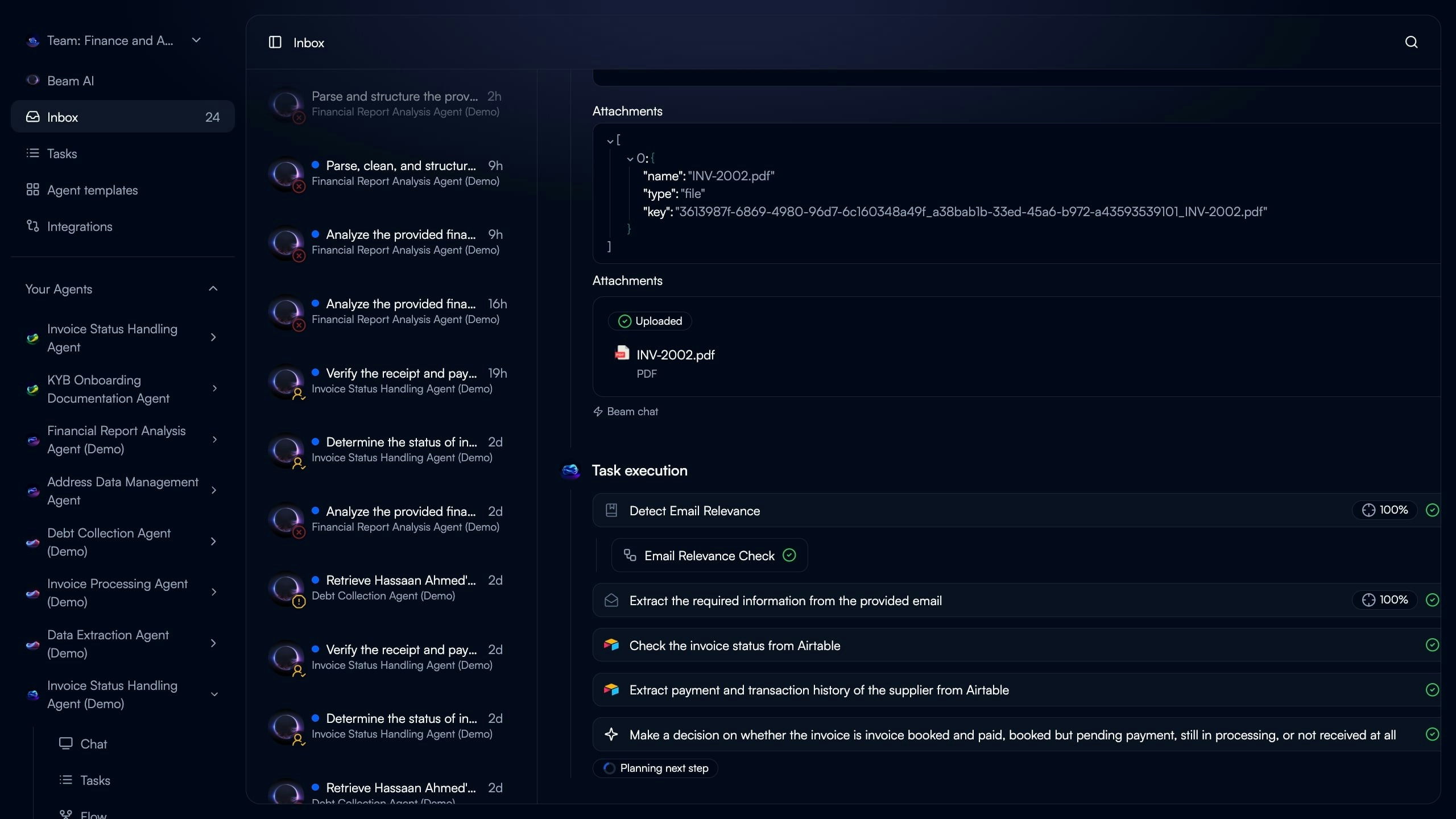
- No workflow restart required
- Completed steps not re-executed
- New input/approval incorporated
- Execution continues to next node
Bulk Task Management
Bulk Task Management
Handle multiple inbox items efficiently:Filtering:
- Filter by task type (Consent, Input, Failed)
- Filter by agent
- Filter by age or priority
- Approve multiple similar consent requests
- Mark multiple failures for batch re-run
- Delegate tasks to team members
- Sort by creation date (oldest first)
- Sort by agent criticality
- Custom priority tags
Notifications & Alerts
Notifications & Alerts
Stay informed of tasks requiring attention:Email Notifications:
- New consent request created
- Input needed for critical workflow
- Failed execution requiring review
- Post to dedicated channel for urgent items
- @mention specific team members
- Include direct link to inbox task
- Inbox count indicator in navigation
- Real-time updates as tasks arrive
- Desktop notifications for high-priority items
Failed Task Recovery
Failed Task Recovery
Handle execution failures in inbox:Review Failure:
- See which step failed and why
- Check error messages from tools/integrations
- Examine input data that caused failure
- Re-run: Retry from beginning with same inputs
- Modify & Re-run: Edit trigger data before retry
- Fix Workflow: Update agent flow to prevent future failures
- Mark Resolved: Document failure and close task
- Add error handling nodes
- Improve validation criteria
- Enhance tool configurations
- Update prompts for edge cases
Configuring Automation Modes
Setting Up HITL Nodes
Add human checkpoints to your workflow for controlled execution. Consent Node Configuration:Add Consent Node
Insert “Require Consent” node before action requiring approval. Position after preparation steps (data extraction, analysis) but before execution step (send email, update database).
Configure Consent Context
Define what information human reviewer sees:
- Previous step outputs to review
- Proposed action to approve
- Reasoning for recommendation
- Deadline for response (optional)
Add Input Request Node
Insert “Request Input” node where variable is needed. Place when agent cannot reliably infer or extract the required data.
Define Input Schema
Specify what data to collect:
- Variable name matching workflow reference
- Data type (text, number, date, boolean)
- Question text prompting for input
- Validation rules (optional)
Automation Strategy
Choose the right balance of autonomy vs oversight for each workflow. Fully Autonomous:- Use When: High confidence in agent accuracy, low-risk actions, well-tested workflows
- Examples: Data extraction, classification, reporting, simple notifications
- Benefits: Maximum efficiency, 24/7 operation, instant processing
- Risks: Errors propagate without review, missed edge cases
- Use When: Sensitive actions, compliance requirements, learning phase, complex decisions
- Examples: Customer communications, financial transactions, legal documents, hiring decisions
- Benefits: Quality control, compliance adherence, human judgment
- Tradeoffs: Slower processing, requires human availability, potential bottlenecks
- Use When: Most production scenarios balancing efficiency and control
- Examples: Agent extracts/analyzes autonomously, human approves final action
- Benefits: 80% automation with 20% oversight on critical steps
- Configuration: Consent nodes at decision points, input nodes for exceptions
Gradual Automation
Gradual Automation
Start with oversight, remove as confidence grows:Phase 1: Full HITL (Weeks 1-2)
- Consent required for all actions
- Review every agent decision
- Identify patterns in approvals/rejections
- Remove consent for consistently approved actions
- Keep oversight on edge cases
- Monitor evaluation scores
- Fully autonomous for standard cases
- HITL only for low-confidence predictions
- Periodic spot-checks for quality
- Approval rate by action type
- Time to resolve inbox items
- Error rate in autonomous vs HITL modes
Team Collaboration
Team Collaboration
Distribute inbox management across team:Role-Based Routing:
- Finance team handles payment approvals
- Customer success reviews client communications
- Legal approves compliance-sensitive actions
- Auto-assign based on agent or task type
- Round-robin distribution
- Skill-based routing
- First approver reviews, second approver finalizes
- Escalation path for complex decisions
- Delegation when team member unavailable
Best Practices
Design for Transparency
Design for Transparency
Make agent reasoning clear for human reviewers:Show Work:
- Display data extraction results
- Explain classification logic
- Highlight confidence scores
- Surface validation checks performed
- Link to source documents
- Show related historical tasks
- Display relevant memory/knowledge base references
Optimize Response Times
Optimize Response Times
Reduce inbox bottlenecks:SLA Targets:
- Set response time goals (e.g., 2 hours for consent)
- Monitor actual vs target
- Alert when approaching deadline
- Pre-fill forms with best guesses
- Provide one-click approvals for simple cases
- Batch similar requests for efficient review
- Auto-approve after timeout for low-risk items
- Escalate to manager for high-stakes decisions
- Queue for next business hours if after-hours
Learn from Patterns
Learn from Patterns
Use inbox data to improve automation:Approval Analytics:
- Track approval/rejection rates by task type
- Identify consistently approved categories
- Find patterns in rejections
- High approval rate (95%+) → Remove consent requirement
- Repeated input requests → Add data source integration
- Common failures → Improve error handling
- Review inbox monthly for optimization
- Gradually increase autonomy for proven patterns
- Add checkpoints when quality degrades
Audit & Compliance
Audit & Compliance
Maintain records for regulated workflows:Decision Logging:
- Record all consent approvals/rejections
- Capture human input provided
- Store failure resolution actions
- Who made decision and when
- Reasoning/feedback provided
- Original vs modified data
- Outcome of continued workflow
- Archive completed inbox tasks
- Export for compliance reporting
- Link to final workflow execution records
Next Steps
Task Executions
Monitor full workflow execution including HITL pause points
Evaluation Framework
Set confidence thresholds triggering HITL requests
Creating Flows
Add consent and input nodes to workflows
Triggers & Webhooks
Configure triggers feeding HITL workflows