

task_query.
From Building Agents: Triggers are configured during agent setup. This page covers detailed configuration and webhook implementation for production deployments. See Creating Agents for initial setup.
Understanding Triggers
Every trigger serves two functions: Execution Initiation - Determines when the workflow starts (event occurs, schedule fires, HTTP request received, or manual execution) Data Provisioning - Defines input schema that becomestask_query variable accessible to all workflow nodes
Adding Triggers
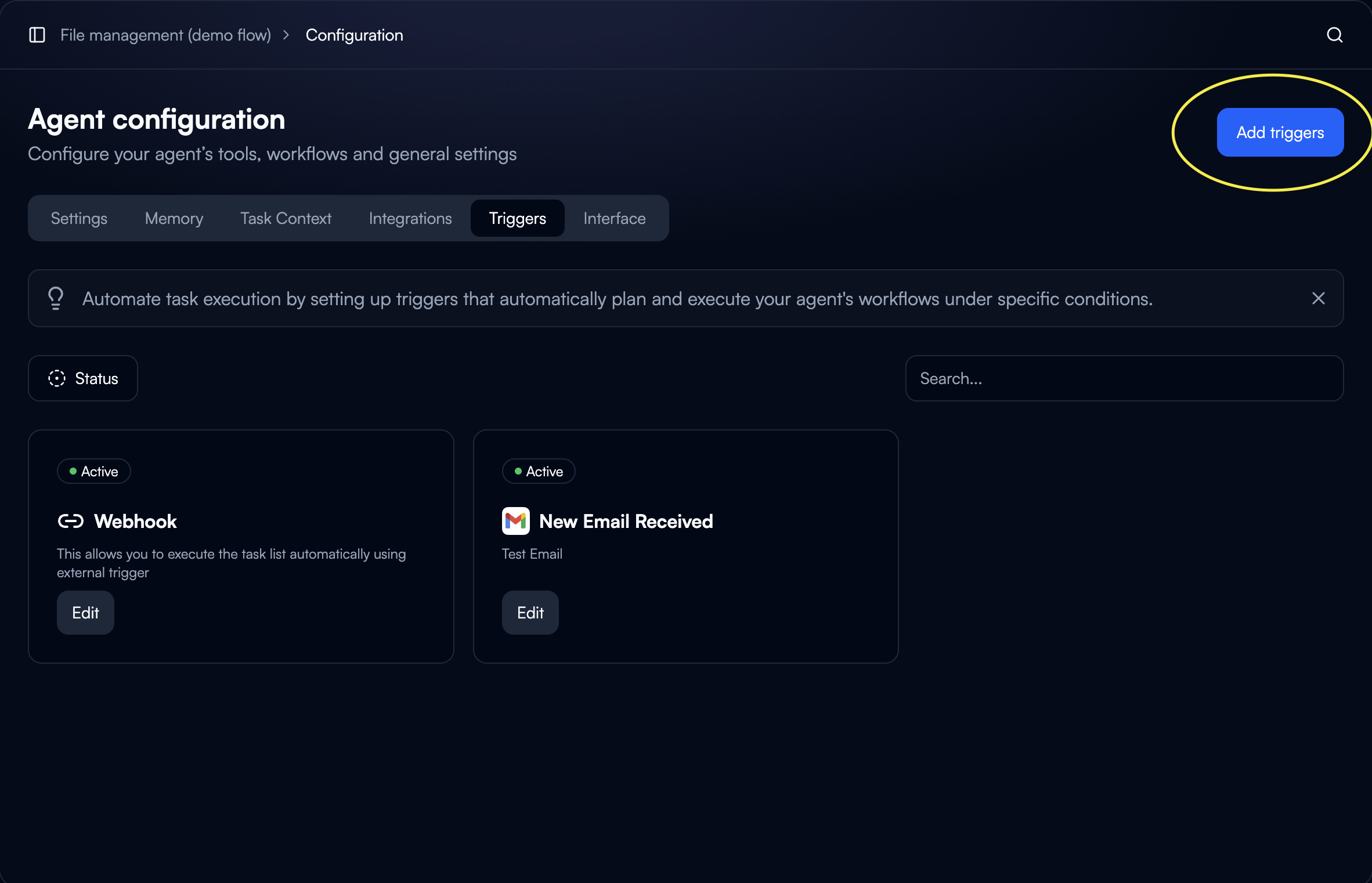
Select Trigger Type
Choose from available trigger types: integration-based (Gmail, Slack, GitHub), schedule-based (Timer), HTTP (Webhook), or manual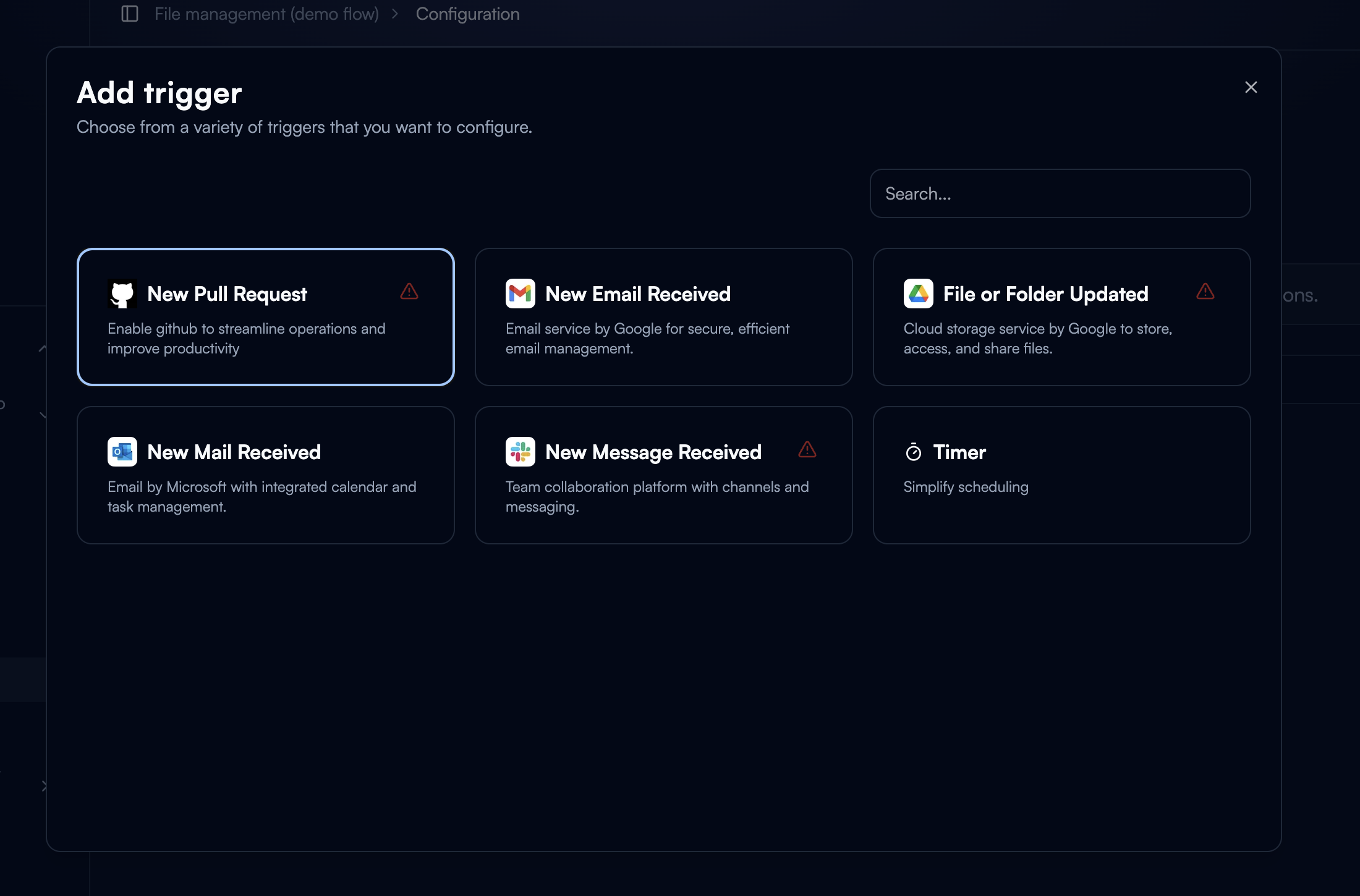
Configure Trigger
Define trigger-specific settings based on selected type. Configuration varies by trigger.Example: Gmail Trigger Configuration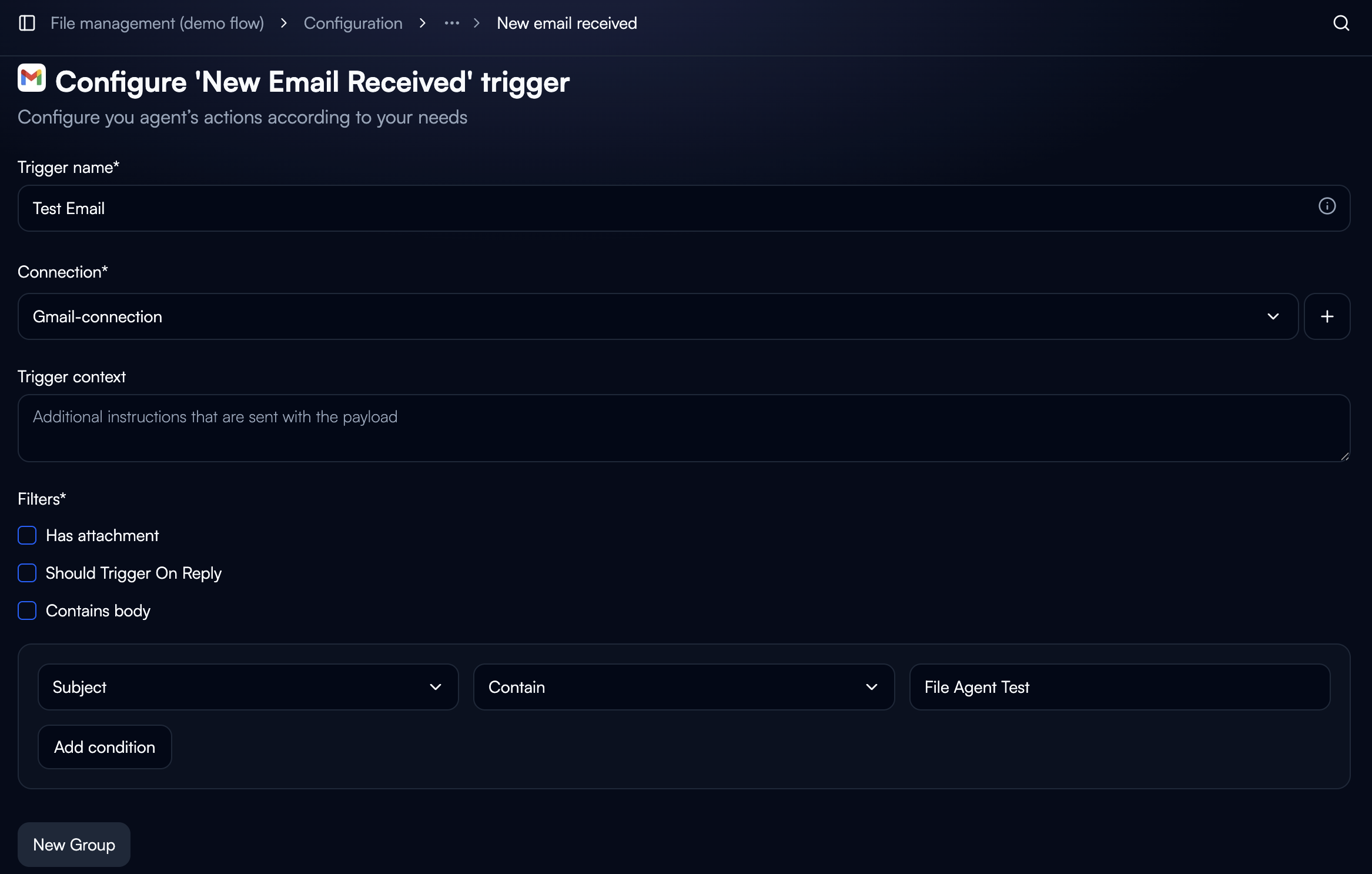
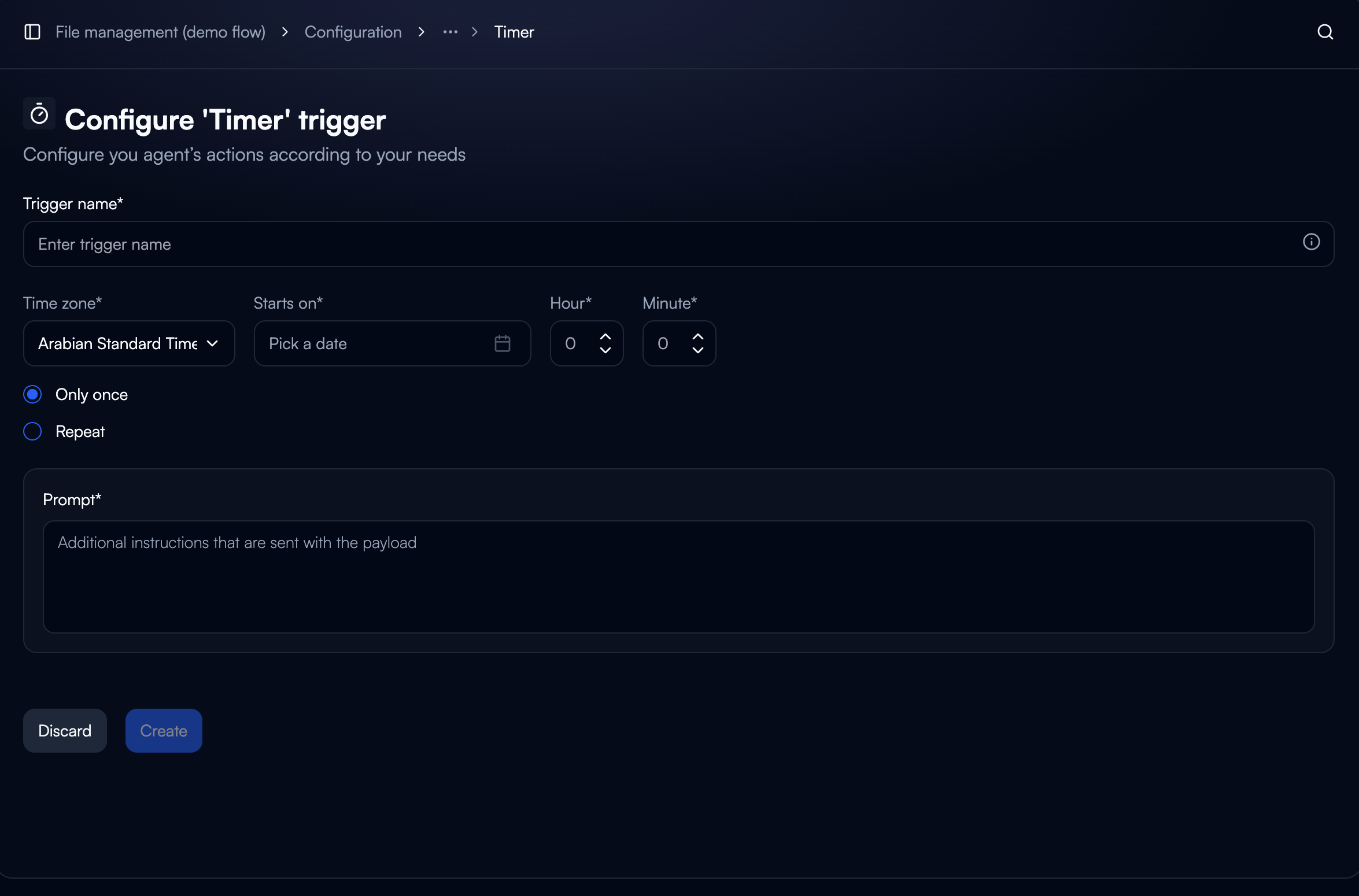
Trigger Types
Integration-Based
React to events in connected services (Gmail, Slack, GitHub, Drive)
Schedule-Based
Execute on time intervals using cron schedules or fixed intervals
HTTP-Based (Webhooks)
Receive HTTP POST requests from external systems via unique URL
Manual
User-initiated execution for on-demand processing and testing
Integration-Based Triggers
Event-driven triggers respond to actions in connected services, enabling real-time automation.Email Triggers (Gmail, Outlook)
Email Triggers (Gmail, Outlook)
New Email ReceivedUse Cases:
- Email triage and classification
- Data extraction from messages
- Auto-categorization and routing
- Automated responses
- Subject, body, sender, attachments
- Timestamp, thread context
- Labels and metadata
- Connect Gmail or Outlook integration
- Define folder/label filters (optional)
- Set input schema for email data
File System Triggers (Google Drive, Dropbox, SharePoint)
File System Triggers (Google Drive, Dropbox, SharePoint)
Communication Triggers (Slack, Microsoft Teams)
Communication Triggers (Slack, Microsoft Teams)
New Message ReceivedUse Cases:
- Action item extraction
- Automated responses
- Conversation monitoring
- Workflow initiation from chat
- Message content, channel
- Sender, timestamp
- Thread context
- Connect Slack or Teams
- Specify channels to monitor
- Set message filters (keywords, mentions)
Development Triggers (GitHub, GitLab)
Development Triggers (GitHub, GitLab)
New Pull Request, Issue, or CommitUse Cases:
- Code review automation
- CI/CD integration
- Automated testing
- Deployment workflows
- PR/Issue details
- Files changed, author
- Branch, description
- Connect GitHub or GitLab
- Specify repositories
- Define event filters
Schedule-Based Triggers
Execute agents on defined time intervals for recurring automation. Timer Trigger Run agents automatically based on time schedules: Schedule Types:- Interval-Based: Every X minutes/hours/days
- Cron-Based: Specific times with cron syntax
- Business Hours: Monday-Friday during work hours
- Daily reports generated at 9 AM
- Database synchronization every 6 hours
- Weekly maintenance tasks
- System monitoring checks every 15 minutes
- Timestamp of scheduled execution
- Schedule metadata (frequency, next run time)
- Optional: Date range or execution count
HTTP-Based Triggers (Webhooks)
Receive HTTP requests from external systems to trigger agent execution programmatically. Webhook Configuration Beam provides a unique webhook URL endpoint for each agent. External systems send HTTP POST requests to this URL. Webhook URL Format:- Method: POST (required)
- Content-Type: application/json
- Body: JSON payload matching defined input schema
- Headers: Optional authentication
API Key Authentication
API Key Authentication
Setup:
- Enable API key authentication in trigger settings
- Generate API key (shown only once - store securely)
- External system includes key in Authorization header
Signature Validation
Signature Validation
How It Works:
- External system signs request with shared secret
- Includes HMAC signature in request header
- Beam validates signature before executing agent
Webhook Payload Structure
Input Data Access
The HTTP request body becomes thetask_query variable available to all workflow nodes.
Example Request:
task_query.customer_emailtask_query.invoice_numbertask_query.amounttask_query.attachments
Core Payload Structure
Beam processes JSON payloads and dynamically interprets keys and values. Basic Payload:Structured Data
Beam supports nested objects and arrays for complex data:File Attachments
Files must be Base64-encoded and included underencodedContextFiles:
Data Format Best Practices
Timestamps: ISO 8601 formatYYYY-MM-DDTHH:mm:ssZ
Currency: { "amount": 1000, "currency": "USD" }
Boolean values: true or false
Unique Identifiers: String format "clientId": "123456"
Missing/Null Values: Omit field or set to null
Manual Triggers
User-initiated execution for on-demand processing and testing. When to Use:- Ad-hoc processing tasks
- Testing workflow changes
- Debug mode execution
- User-requested operations
- Form-based input (define fields in trigger config)
- File upload for document processing
- Re-run previous task with same inputs
- Custom JSON input for testing
Configuration Best Practices
Input Schema Design
Be Specific with Types
Be Specific with Types
Define exact field types and validation rules.Good:Bad:
Document Every Field
Document Every Field
Add descriptions for all input fields.Example:
Use Nested Objects
Use Nested Objects
Organize related fields into objects.Example:
Provide Default Values
Provide Default Values
Set defaults for optional fields.Example:
Testing Triggers
Before Production:- Test Mode: Verify trigger data structure with test inputs
- Validate Schema: Ensure incoming data matches defined schema
- Error Scenarios: Test with malformed data
- Authentication: Verify security measures work correctly
- Create test events in connected services
- Verify agent receives correct data
- Check timestamp and metadata accuracy
- Use Postman or cURL to send test requests
- Verify authentication requirements
- Test various payload structures
- Confirm error responses for invalid requests
Multiple Triggers
Multiple Triggers
Add multiple triggers to the same agent for different entry points.Example: Customer Support Agent
- Trigger 1: Email - Customer emails support inbox
- Trigger 2: Webhook - Integration with ticketing system
- Trigger 3: Manual - Ad-hoc inquiry handling
Security Checklist
Security Checklist
Webhook Security:
- Enable API key authentication for production
- Use signature validation for sensitive operations
- Whitelist IP addresses if source is known
- Monitor webhook execution logs
- Rotate API keys quarterly
- Validate all input data before processing
- Grant minimum required permissions
- Use service accounts instead of personal accounts
- Review and revoke unused connections
- Monitor integration access logs
Example Use Cases
Customer Support Automation
Customer Support Automation
Trigger: New Email Received (Gmail)Input Schema:Workflow:
- Classify inquiry type
- Extract key information
- Check knowledge base
- Route to team or auto-respond
- Create support ticket
Code Review Automation
Code Review Automation
Trigger: New Pull Request (GitHub)Input Schema:Workflow:
- Analyze changed files
- Run automated tests
- Check security vulnerabilities
- Validate coding standards
- Post review comments
Daily Report Generation
Daily Report Generation
Trigger: Timer (Daily at 9 AM)Input Schema:Workflow:
- Fetch metrics from database
- Calculate KPIs and trends
- Generate visualizations
- Format report as PDF
- Send via email
Invoice Processing via Webhook
Invoice Processing via Webhook
Trigger: Webhook (External ERP System)Input Schema:Workflow:
- Download invoice PDF
- Extract and validate line items
- Cross-reference with purchase orders
- Check for duplicates
- Route to approver
- Update accounting system
Next Steps
Task Executions
Monitor triggered agent executions and track performance
Automation Modes
Configure human-in-the-loop workflows
Creating Agents
Build agents that use triggers
Variables & State
Understand trigger data flow