

Integration connectors link your workflows to 1500+ external services and platforms using pre-configured tools. Use multiple connections, manage authentication, and build robust integrations.Documentation Index
Fetch the complete documentation index at: https://docs.beam.ai/llms.txt
Use this file to discover all available pages before exploring further.
Understanding Integration Connectors
Integration connectors are pre-built tools that connect to external platforms like Gmail, Salesforce, Airtable, Slack, and others. Each connector provides specific actions (send email, create record, fetch data) that you use within workflow nodes. Key Concepts:- Connector: The integration type (e.g., Gmail, Salesforce)
- Connection: Authenticated credentials to access the service
- Action: Specific operation the connector performs (e.g., “Send Email”, “Create Record”)
- Multi-Connection: Multiple sets of credentials for the same connector
Multi-Connection Support
Use multiple connections to the same service for different accounts, environments, or clients within a single workflow.Why Use Multiple Connections
Multiple Accounts
Different email addresses, CRM orgs, or database instances
Environment Separation
Staging vs production systems with isolated data
Team Segregation
Department-specific accounts (Sales vs Support)
Multi-Tenant
Client-specific connections in shared workflows
Configuring Multiple Connections
Add Connection
Navigate to Integrations and select your connector:
- Click “Add Connection” or “Connect Account”
- Authenticate with the service (OAuth, API key, or custom)
- Give the connection a descriptive name (e.g., “Gmail-Support-EU”)
- Save the connection for reuse across workflows
Select Connection in Workflow
When using the integration in a workflow node: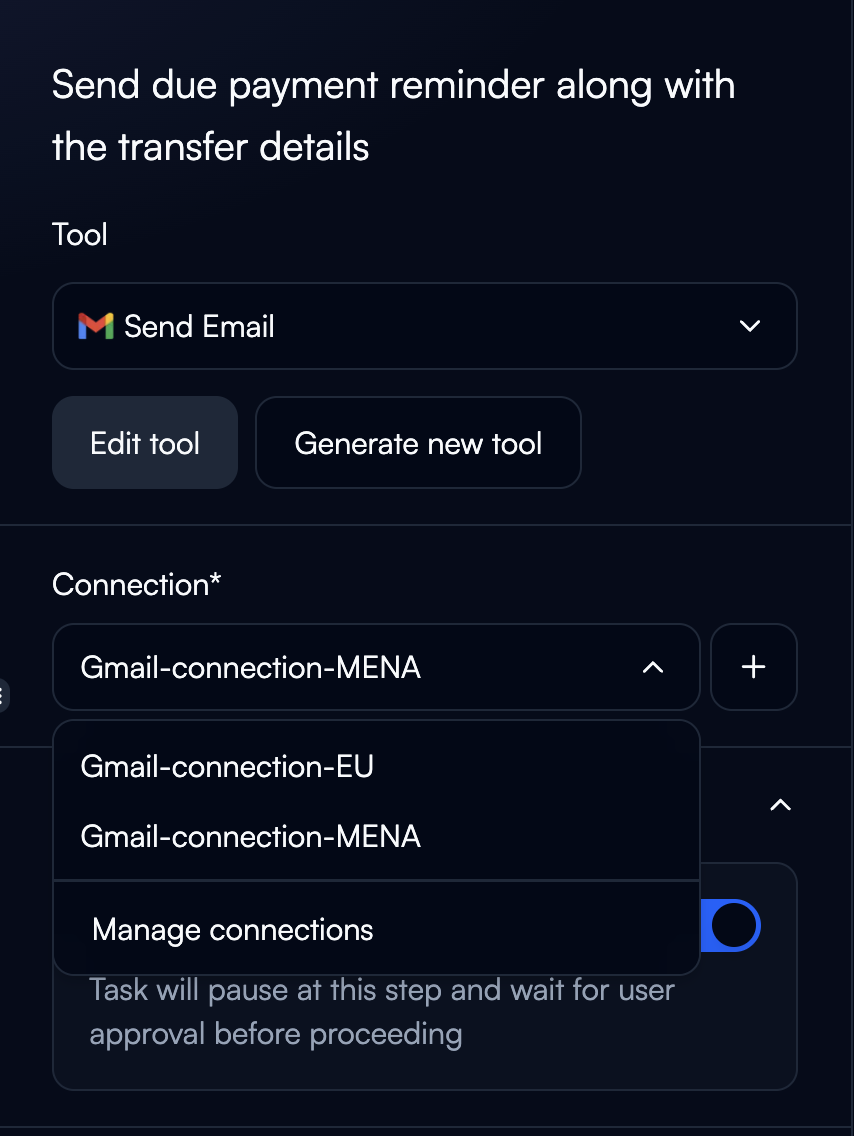
- Choose which connection to use from the dropdown
- Different nodes can use different connections
- Switch connections without reconfiguring the tool
- Connection selection happens at the node level
Multi-Connection Patterns
Multiple Email Accounts:Authentication Methods
Integration connectors support various authentication patterns:OAuth 2.0
How it Works:- User authorizes access via OAuth flow
- Token automatically refreshed when expired
- Secure, user-specific access
- Gmail, Google Drive, Google Sheets
- Salesforce, HubSpot
- Microsoft services (Outlook, Teams, SharePoint)
- Slack, Notion
- Click “Connect” in integration settings
- Redirect to service authorization page
- Grant requested permissions
- Token stored securely and auto-refreshed
API Key
How it Works:- Static key provided by the service
- Configured once in connection settings
- Suitable for server-to-server communication
- Airtable, SendGrid, Stripe
- OpenAI, Anthropic
- Many REST APIs
- Generate API key in service dashboard
- Add connection in Beam
- Paste API key into connection settings
- Test and save
Bearer Token
How it Works:- Token-based authentication
- Manually refreshed when needed
- Flexible for various auth schemes
- Custom APIs with token auth
- Temporary access tokens
- Service-specific authentication
Custom Authentication
How it Works:- Build custom auth flows for proprietary systems
- Define headers, params, and auth logic
- Maximum flexibility
- Internal systems with unique auth
- Specialized platforms
- Legacy systems
Integration-Specific Patterns
Dependent Parameters
Some integrations have parameters that depend on previous selections. Example: Airtable- Select Base → Loads available Tables
- Select Table → Loads available Fields
- Select Fields → Configures record structure
- Parameters populate dynamically based on connection
- Changing upstream parameters resets dependent ones
- Test with actual data to verify parameter flow
Linked Records (Airtable, Notion)
Handle relational data across connected records. Airtable Linked Records: Linked record fields must be arrays of record IDs:Batch Operations
Some integrations support batch operations for efficiency. When to Use Batch:- Creating multiple records at once
- Updating many items simultaneously
- Reducing API call count
- Improving workflow performance
- Input: Array of records
- Output: Array of created record IDs
- Limit: Check service batch size limits (typically 10-100 records)
Best Practices
Connection Naming: Use clear, descriptive names:- ✅
Gmail-CustomerSupport-EMEA - ✅
Salesforce-Production-ClientA - ✅
Airtable-Staging-Marketing - ❌
Connection 1 - ❌
My Gmail
- Regular audits: Remove unused connections quarterly
- Credential rotation: Update credentials per security policy
- Access control: Limit who can add/manage connections
- Documentation: Document which connection is used where
- Test connections: Verify before deploying to production
- Fallback logic: Branch to alternative paths if integration fails
- Retry mechanisms: Handle transient failures gracefully
- Monitoring: Track integration success rates
- Understand limits: Know API rate limits for each service
- Batch operations: Group requests when possible
- Throttling: Add delays between calls if needed
- Monitoring: Track API usage to avoid hitting limits
- Never expose credentials in logs or error messages
- Rotate API keys regularly
- Use OAuth for user-specific access when available
- Separate credentials for dev/staging/prod environments
Troubleshooting
Connection Authentication Failed
Connection Authentication Failed
Issue: Cannot authenticate or connection shows as expiredSolutions:
- Verify credentials are current and valid
- Check if OAuth token expired and re-authenticate
- Confirm API key has necessary permissions
- Test connection in integration settings
- Review service status for outages
Rate Limit Exceeded
Rate Limit Exceeded
Issue: Integration returns rate limit errorSolutions:
- Reduce request frequency in workflow
- Implement exponential backoff for retries
- Use batch operations where possible
- Add delays between API calls
- Upgrade service plan if needed
Integration Returns Unexpected Data
Integration Returns Unexpected Data
Issue: Data format or values don’t match expectationsSolutions:
- Verify API version compatibility
- Check field mappings and data types
- Review integration documentation for changes
- Test with sample data in isolation
- Check for service API updates
Dependent Parameters Not Loading
Dependent Parameters Not Loading
Issue: Dropdown parameters don’t populateSolutions:
- Confirm connection is active and authenticated
- Verify parent parameter is set correctly
- Check network connectivity
- Review integration logs for errors
- Re-authenticate if using OAuth
Airtable Linked Records Failing
Airtable Linked Records Failing
Issue: Cannot create or update linked record fieldsSolutions:
- Ensure record IDs are in array format:
["recXXX"] - Verify record exists in target table
- Check field is configured as linked record type
- Confirm API permissions allow linking
- Test with valid record ID first
Next Steps
Selecting Tools
Learn about tool types and selection
Variables & State
Configure data flow and variable mapping
Custom Integrations
Build custom API connections
Structured Outputs
Design output schemas for integrations