

Understanding Variable Fill Methods
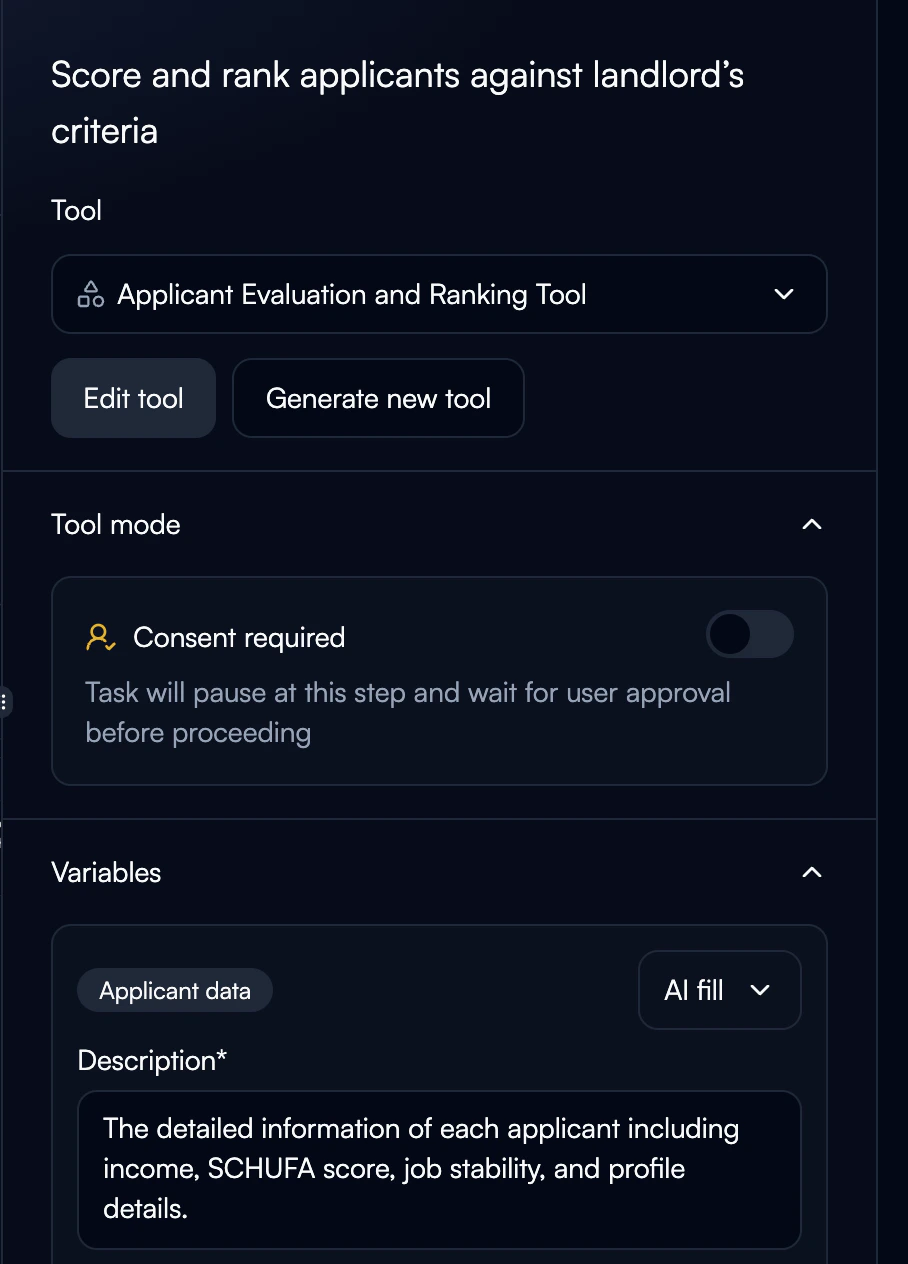
Variable fill methods define how data populates into tool parameters at runtime. Choosing the correct fill method ensures smooth data flow and accurate results.Linked
Connect outputs from previous nodes to current tool inputs
AI Fill
Agent automatically extracts values from context and conversation
Static
Fixed values that remain constant across all executions
User Fill
Values provided by users at runtime or via API
From Memory
Retrieve values from agent’s long-term memory and past interactions
Fill Methods
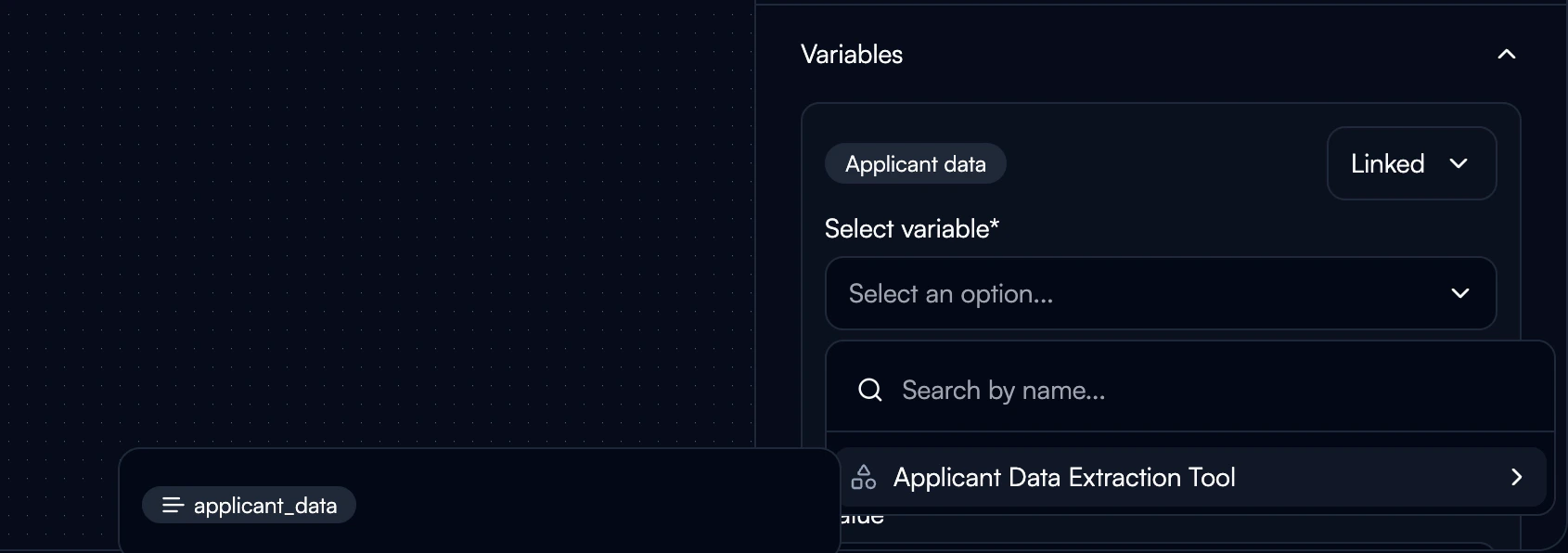
Linked
Connect outputs from previous nodes to inputs of current nodes. This is the primary method for chaining workflow steps together. How It Works:- Previous node executes and generates output variables
- Current node references those outputs by name
- Values automatically flow when current node executes
- No manual mapping required after initial setup
- Passing data between sequential workflow steps
- Using results from one tool as inputs to another
- Building multi-step processing pipelines
- Maintaining data continuity across nodes
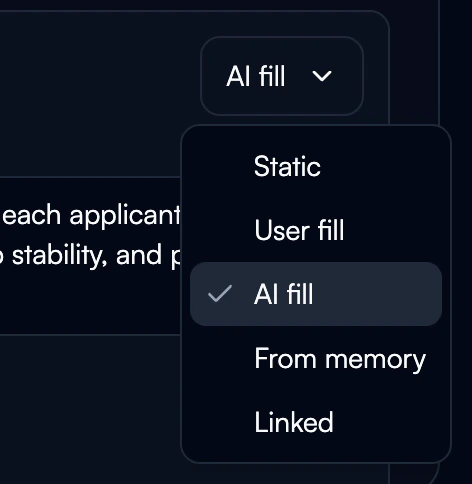
- Link outputs don’t have to be to the next node. Encourage matching keys within steps for accurate mapping
- Use descriptive variable names to track data provenance
- Verify data types match between output and input
- Check linked parameters appear in node execution logs
AI Fill
AI automatically extracts or infers values from available context (conversation history, documents, memory). How It Works:- Agent analyzes all available context
- AI extracts relevant information based on parameter description
- Value populates automatically without explicit mapping
- Falls back to null if data not found
- Extracting information from unstructured text
- Inferring values from conversation context
- Processing document content
- Classifying or categorizing based on context
- Write clear parameter descriptions to guide AI extraction
- Enable memory lookup for richer context
- Provide examples in description for complex extractions
- Test with diverse inputs to verify accuracy
Static
Fixed values that never change during workflow execution. Set once during configuration and remain constant. How It Works:- Define value during tool configuration
- Value remains identical across all executions
- No runtime computation or lookup required
- Fastest fill method (no processing overhead)
- API endpoints and URLs
- Configuration parameters
- Default values and fallbacks
- Business rules and thresholds
- System identifiers
| Parameter | Static Value | Purpose |
|---|---|---|
| api_endpoint | ”https://api.company.com/v2” | API base URL |
| default_priority | ”medium” | Fallback priority level |
| company_name | ”Acme Corporation” | Standard company identifier |
| max_retries | 3 | Error handling threshold |
| email_footer | ”© 2025 Company” | Standard email signature |
- Use for values that truly never change
- Document why value is static (avoid future confusion)
- Review static values periodically for relevance
- Consider User Fill if value may need runtime override
User Fill
Values provided explicitly when workflow executes through the user interface. How It Works:- Workflow pauses at node requiring user fill
- User provides value via interface
- Validation rules check input (if configured)
- Execution continues with provided value
- Form submissions and user inputs
- Runtime configuration during workflow execution
- Dynamic values that vary by execution
- Human intervention points in workflows
- Mark critical parameters as required
- Add validation rules to prevent errors
- Provide clear descriptions for UI display
- Set sensible default values when appropriate
From Memory
Retrieve values from agent’s memory system, including past interactions, learned preferences, and stored context. How It Works:- Agent searches memory for relevant information
- Retrieves data based on parameter description and memory keys
- Uses semantic search to find best match
- Returns most recent or relevant value found
- Accessing conversation history
- Retrieving user preferences
- Loading previous interaction data
- Building on past context
- Enable memory lookup in agent settings
- Use specific memory keys for faster retrieval
- Set appropriate context windows
- Combine with AI Fill for intelligent defaults
Choosing the Right Fill Method
Decision Framework:| Tool Type | Typical Fill Methods |
|---|---|
| First node in flow | User Fill, Static, From Memory |
| Middle processing nodes | Linked, AI Fill |
| Integration nodes | Linked, Static |
| Final output nodes | Linked, AI Fill |
Variable Data Types
All fill methods support multiple data types: Primitive Types:- String: Text values
- Number: Integers and decimals
- Boolean: true/false values
- Date: Timestamps and dates
- Object: Nested key-value structures
- Array: Lists of values
- JSON: Structured data objects
Validation and Error Handling
Ensure data quality with validation rules: Validation Types: Format Validation:- Email addresses:
user@domain.com - Phone numbers:
+1-XXX-XXX-XXXX - URLs:
https://example.com - Custom regex patterns
- Minimum/maximum values
- String length limits
- Array size constraints
- Date ranges
- Required: Workflow fails if missing
- Optional: Continues with null/default
Linked Records (Integration-Specific)
When working with database integrations (Airtable, databases), linked record fields require specific formatting. Airtable Linked Records: Linked record fields must be arrays of record IDs, even for single links:Troubleshooting
AI Fill not populating variable
AI Fill not populating variable
Common Causes:
- Insufficient context available
- Parameter description too vague
- Memory lookup not enabled
- Required data not in conversation
- Enhance parameter description with examples
- Enable memory lookup in agent settings
- Verify context contains required information
- Use User Fill as fallback for critical data
Linked variable showing undefined
Linked variable showing undefined
Common Causes:
- Source node hasn’t executed yet
- Output variable name mismatch
- Source node execution failed
- Data type incompatibility
- Verify source node executed successfully
- Check exact output variable name
- Review node execution logs
- Confirm data types match between nodes
User Fill validation failing
User Fill validation failing
Common Causes:
- Input doesn’t match validation rules
- Data type mismatch
- Required field not provided
- Custom regex pattern too strict
- Review validation rules and test cases
- Provide clear error messages
- Add examples to parameter description
- Adjust validation patterns if needed
From Memory returns empty
From Memory returns empty
Common Causes:
- Memory lookup not enabled
- No relevant data in memory
- Memory key doesn’t exist
- Context window too narrow
- Enable memory lookup in agent configuration
- Expand context window size
- Use specific memory keys
- Combine with AI Fill as fallback
Airtable linked records failing
Airtable linked records failing
Common Causes:
- Record ID not in array format
- Invalid record ID format
- Record doesn’t exist
- Permission issues
- Ensure IDs are in array:
["recXXX"] - Verify record exists in Airtable
- Check field is configured as linked record type
- Confirm API permissions allow linking
Best Practices
Fill Method Selection:- Default to Linked for chaining nodes
- Use AI Fill for unstructured data extraction
- Reserve Static for truly constant values
- Enable User Fill only when runtime input needed
- Leverage From Memory for personalization
- Use descriptive, consistent names
- Follow naming conventions (snake_case recommended)
- Include data type hints in complex objects
- Avoid abbreviations unless standard
- Minimize AI Fill usage (slower than other methods)
- Use Static where possible (fastest)
- Cache From Memory results
- Batch User Fill prompts together
- Set required fields appropriately
- Provide meaningful validation messages
- Add fallback values where sensible
- Test with edge cases and missing data
Next Steps
Selecting Tools
Choose and configure tools that use variable fill
Creating Flows
Design workflows that leverage variable fill methods
Integrations
Configure integration-specific variable patterns and connectors
Custom Integrations
Build custom API connections for advanced integration patterns