

Integration connectors enable your agents to interact with external platforms like Salesforce, Gmail, Airtable, and Slack. Configure parameters using variable fill methods to pass data between your agent and these services. Learn how to add integrations to your workflows in Selecting Tools.Documentation Index
Fetch the complete documentation index at: https://docs.beam.ai/llms.txt
Use this file to discover all available pages before exploring further.
Configuring Parameters
Each integration action expects specific input parameters. Every integration provides parameter description guidelines that explain the required format.
Understanding Parameter Descriptions
Integration tools display parameter requirements with format guidelines directly in the configuration UI. Parameter Information:- Name: Field identifier (e.g.,
site_name,search,folder_path) - Description: Format requirements and examples provided by the integration
- Required/Optional: Whether the parameter must be provided
- Fill Method: How the value will be populated

Fill Method Selection
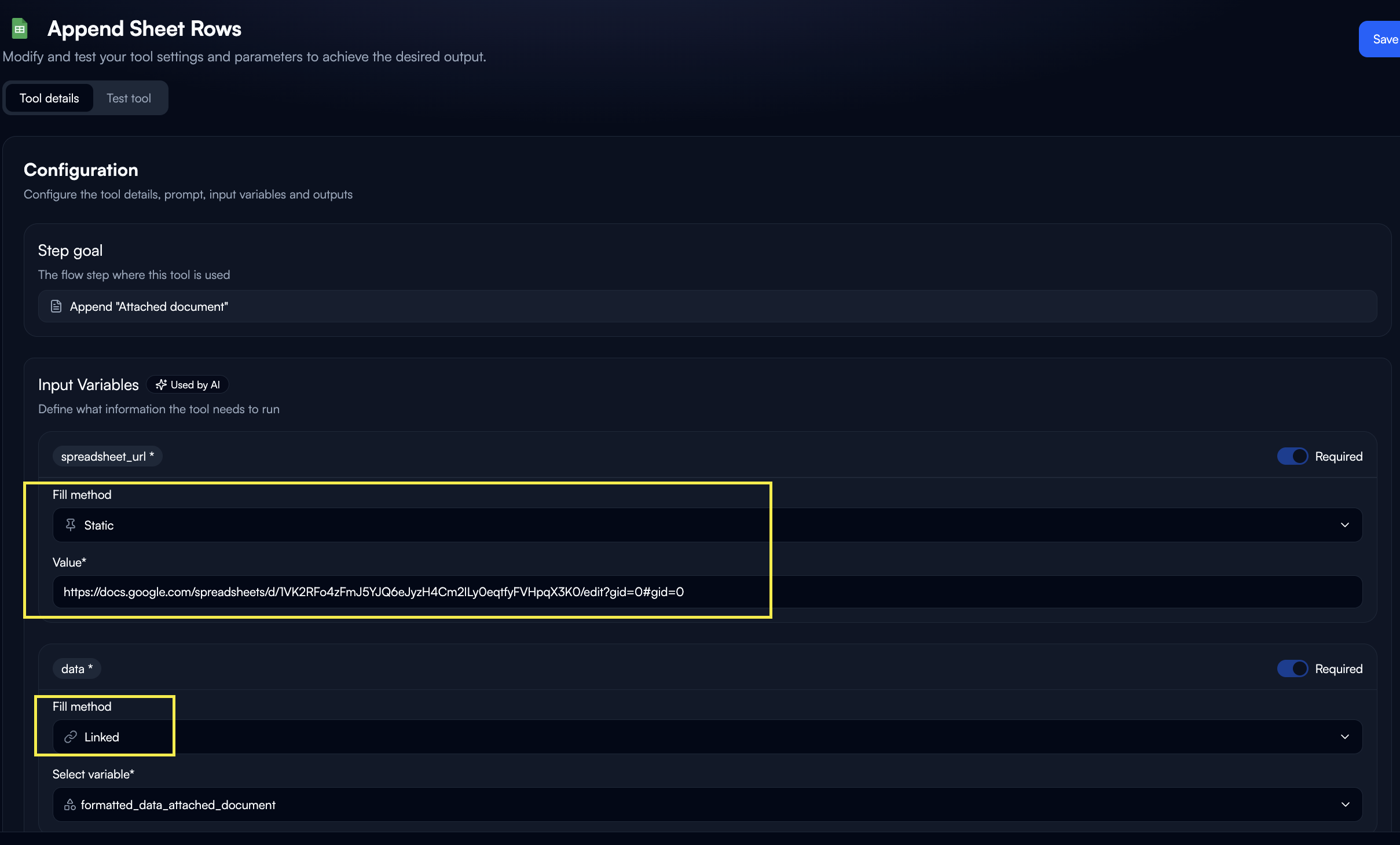
Choose the fill method based on your data source: Linked Variables - Pass data from previous nodes:AI Fill Configuration
When using AI Fill, the parameter description provided by the integration guides the AI on how to format the output. Example: Google Sheets Append Row The integration provides this description for thedata parameter:
fields parameter:
search_query parameter:
Writing Effective AI Fill Descriptions
Follow Integration Guidelines
Follow Integration Guidelines
Start with the integration’s format requirement, then add your extraction logic.Poor:Good:
Reference Examples
Reference Examples
Use the exact examples provided by the integration.Poor:Good:
Specify Field Names
Specify Field Names
Use exact API field names as shown in the integration description.Poor:Good:
Handle Edge Cases
Handle Edge Cases
Add fallback behavior when data might be missing.Poor:Good:
Linked Variables from Structured Outputs
Use Linked when previous nodes output clean, structured data that matches the integration’s format. Example Workflow:Integration-Specific Format Patterns
Different integrations require specific data structures. Always check the parameter description. Arrays for List Operations:Integration Catalog
Beam provides 1500+ pre-built integrations organized by category.CRM
Salesforce, HubSpot, Pipedrive, Zoho, Copper
Communication
Slack, Teams, Zoom, Discord, LinkedIn
Productivity
Google Workspace, Microsoft 365, Notion, Calendly
Gmail, Outlook, SendGrid, Mailchimp
Documents
Google Sheets, Airtable, Excel, Smartsheet
Storage
Google Drive, Dropbox, Box, OneDrive, SharePoint
Marketing
Mailchimp, ActiveCampaign, Klaviyo
Operations
Freshdesk, Zendesk, Jira, Asana
Commerce
Shopify, WooCommerce, Stripe, PayPal
Analytics
Google Analytics, Mixpanel, Segment
Developer
GitHub, GitLab, Bitbucket, Linear
AI & ML
OpenAI, Anthropic, Hugging Face
Featured Integrations
Salesforce
CRM platform for accounts, contacts, leads, and opportunities. Automate record creation, updates, and searches.
Gmail
Email automation for sending, searching, drafting, and managing messages with Google Workspace integration.
Google Sheets
Spreadsheet operations for appending rows, updating cells, reading data, and managing worksheets.
Slack
Team messaging for notifications, channel creation, file uploads, and thread posting.
Airtable
Database management for creating records, updating fields, querying data, and linking records.
HubSpot
Marketing and sales automation for contacts, deals, companies, and tickets.
Notion
Workspace management for creating pages, updating databases, and organizing content.
Stripe
Payment processing for charges, subscriptions, customers, and refunds.
Zendesk
Customer support for ticket management, user updates, and issue tracking.
Shopify
E-commerce operations for products, orders, customers, and inventory.
Troubleshooting
Parameter Format Error
Parameter Format Error
Issue: Integration rejects parameter formatSolutions:
- Check integration’s parameter description for exact format
- Follow the examples provided by the integration
- Verify data types match (string vs number vs boolean)
- Ensure arrays use correct structure (
["item"]vs"item") - Review integration documentation for field naming
AI Fill Produces Wrong Format
AI Fill Produces Wrong Format
Issue: AI generates data in incorrect structureSolutions:
- Reference the integration’s format example in your description
- Be explicit: “Follow this exact format” with specific example
- Specify data types as shown in integration guidelines
- Add validation: “Must match example format exactly”
- Consider using Linked from structured output instead
Connection Authentication Failed
Connection Authentication Failed
Issue: Cannot authenticate or connection expiredSolutions:
- Verify credentials are current and valid
- Re-authenticate OAuth connections
- Confirm API key has required permissions
- Check OAuth scopes match integration requirements
Field Names Not Recognized
Field Names Not Recognized
Issue: Integration doesn’t recognize field namesSolutions:
- Use exact API field names from integration description
- Check case sensitivity (e.g.,
FirstNamenotfirstname) - Verify field exists in integration’s schema
- Review integration documentation for field mapping
Next Steps
Selecting Tools
Learn how to add integrations to workflows
Variables & State
Understand variable fill methods in detail
Structured Outputs
Design outputs for clean integration inputs
Custom Integrations
Build custom API connections